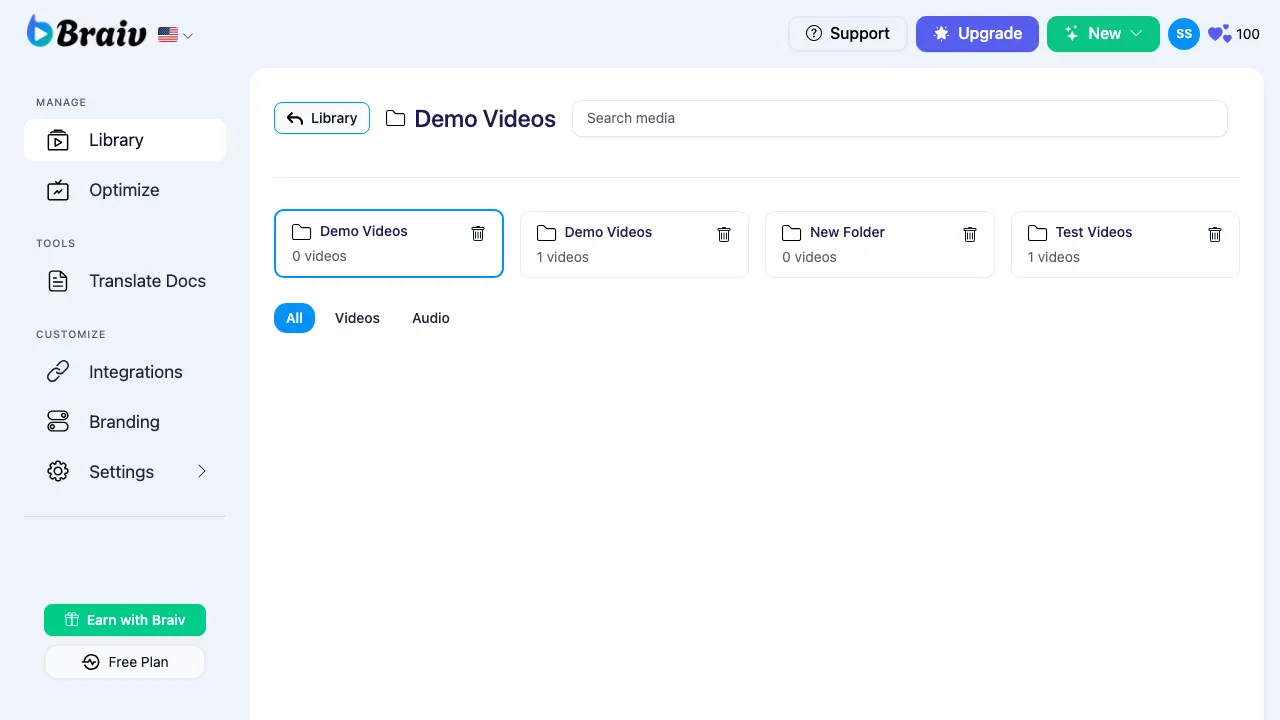
¿Cómo Organizar Tus Videos con Carpetas?
Mantener tu espacio de trabajo organizado es fácil con el sistema de Carpetas de Braiv. Ya sea que estés gestionando videos por cliente, por idioma o por fase de proyecto, puedes crear carpetas rápidamente y mover tus videos entre ellas.
Aquí está el proceso exacto paso a paso para crear una nueva carpeta y mover un video a ella.
Paso 1: Crear una Nueva Carpeta
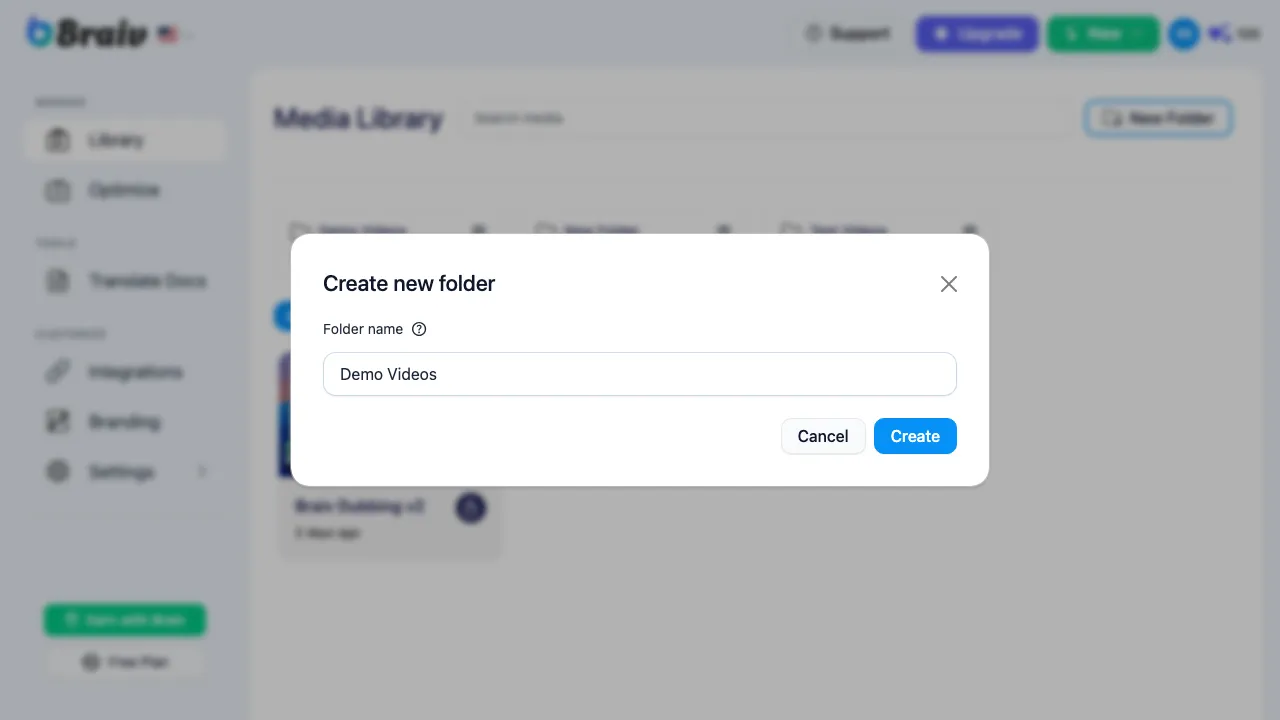
Sección titulada «Paso 1: Crear una Nueva Carpeta»- Desde tu Dashboard principal de Braiv, localiza y haz clic en el botón Nueva Carpeta en la parte superior derecha.
- Aparecerá una ventana modal. Escribe el nombre deseado para tu carpeta (por ejemplo, “Videos de Demostración”).
- Haz clic en el botón Crear.
Paso 2: Localizar el Video a Mover
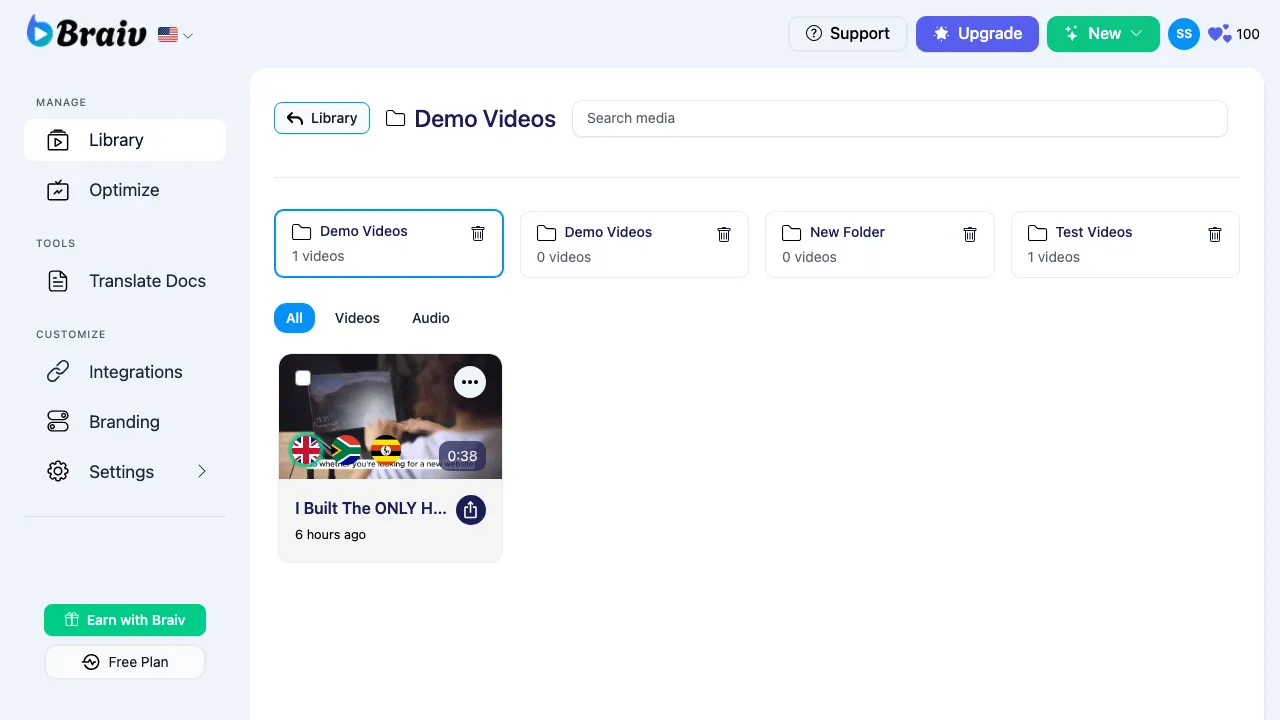
Sección titulada «Paso 2: Localizar el Video a Mover»Navega hasta el video que quieres mover. Este podría estar en tu biblioteca principal o actualmente dentro de otra carpeta (como “Videos de Prueba”).
Paso 3: Abrir el Menú de Opciones del Video
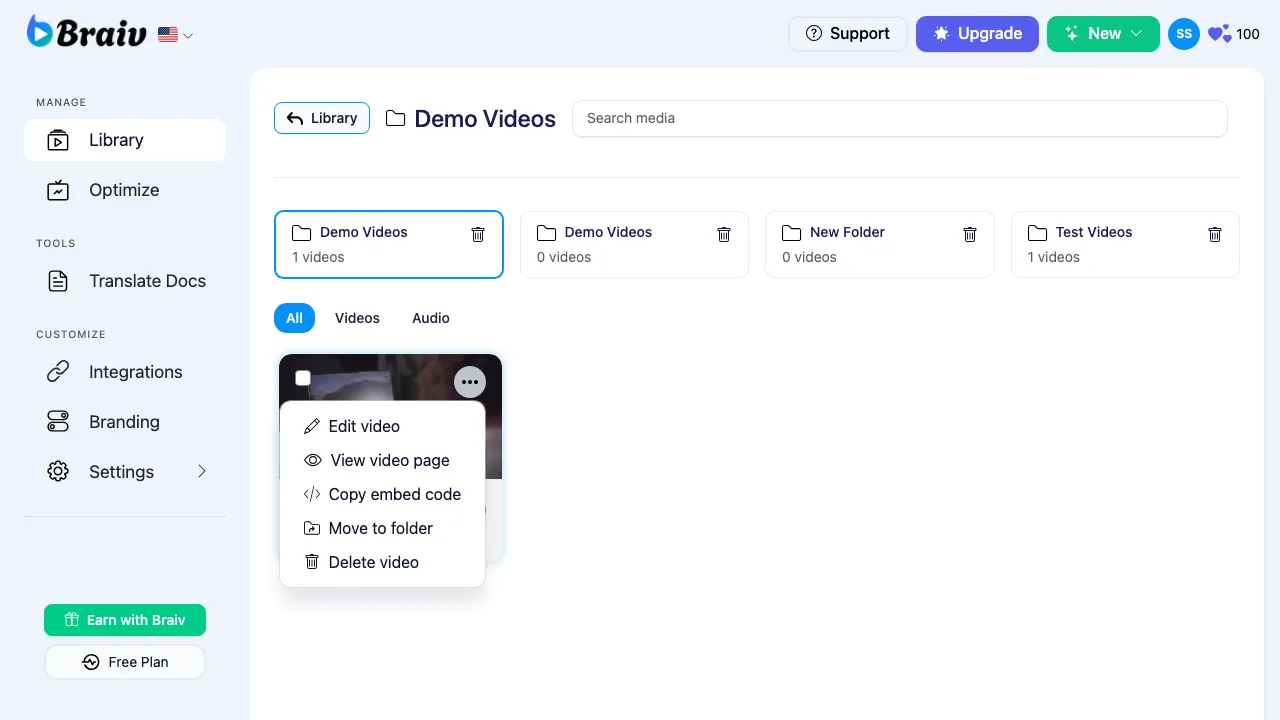
Sección titulada «Paso 3: Abrir el Menú de Opciones del Video»Pasa el ratón sobre la tarjeta del video. En la esquina superior derecha de la miniatura del video, haz clic en el icono del menú de tres puntos suspensivos para abrir el menú desplegable de opciones.
Paso 4: Seleccionar “Mover a carpeta”
Sección titulada «Paso 4: Seleccionar “Mover a carpeta”»Desde el menú desplegable, selecciona la opción Mover a carpeta.
Paso 5: Elegir la Carpeta de Destino
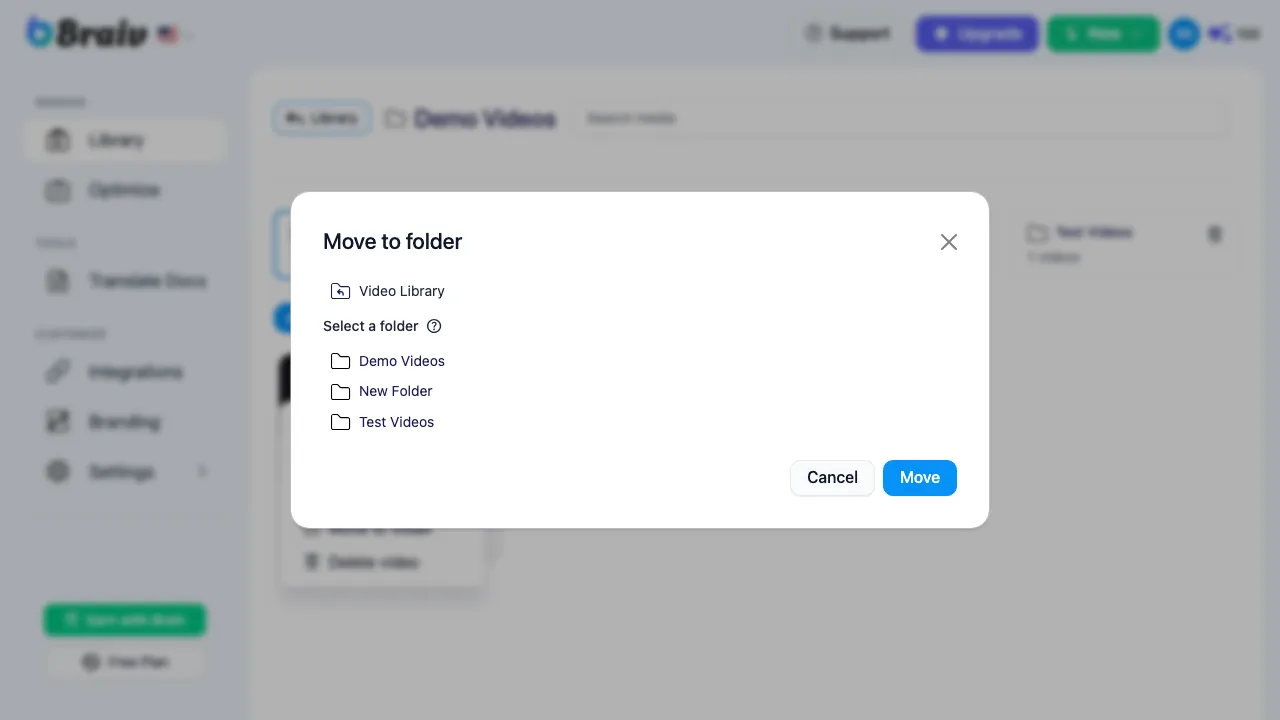
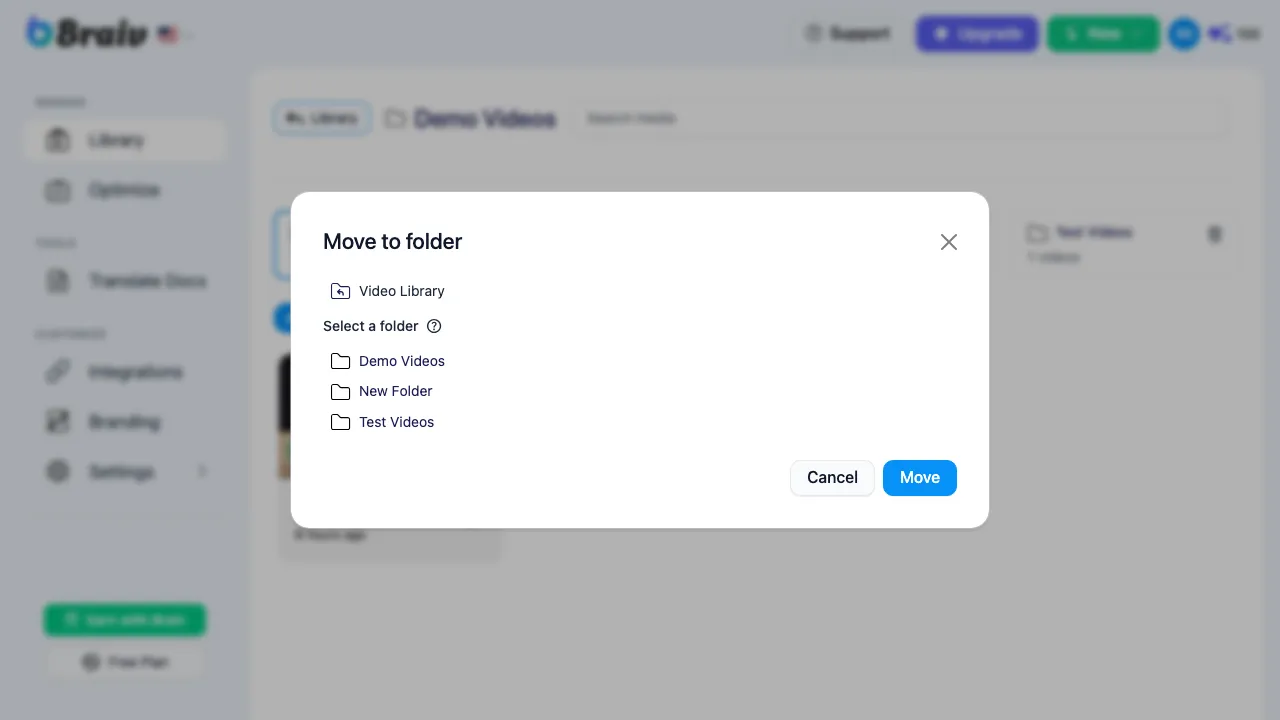
Sección titulada «Paso 5: Elegir la Carpeta de Destino»- Aparecerá una nueva ventana modal “Mover a carpeta” en la pantalla.
- Desplázate por la lista y selecciona la carpeta de destino que acabas de crear (por ejemplo, “Videos de Demostración”).
- Haz clic en el botón azul de confirmación Mover.
Paso 6: Verificar el Movimiento
Sección titulada «Paso 6: Verificar el Movimiento»Vuelve a tu Dashboard principal y haz clic en la carpeta recién creada. ¡Ahora deberías ver tu video movido exitosamente a su nueva ubicación!