
Generar AI Shorts
En este tutorial, recorreremos el proceso paso a paso para usar Braiv y generar videos de formato corto y altamente atractivos a partir de tu contenido de formato largo.
Paso 1: Crear un nuevo proyecto de AI Shorts
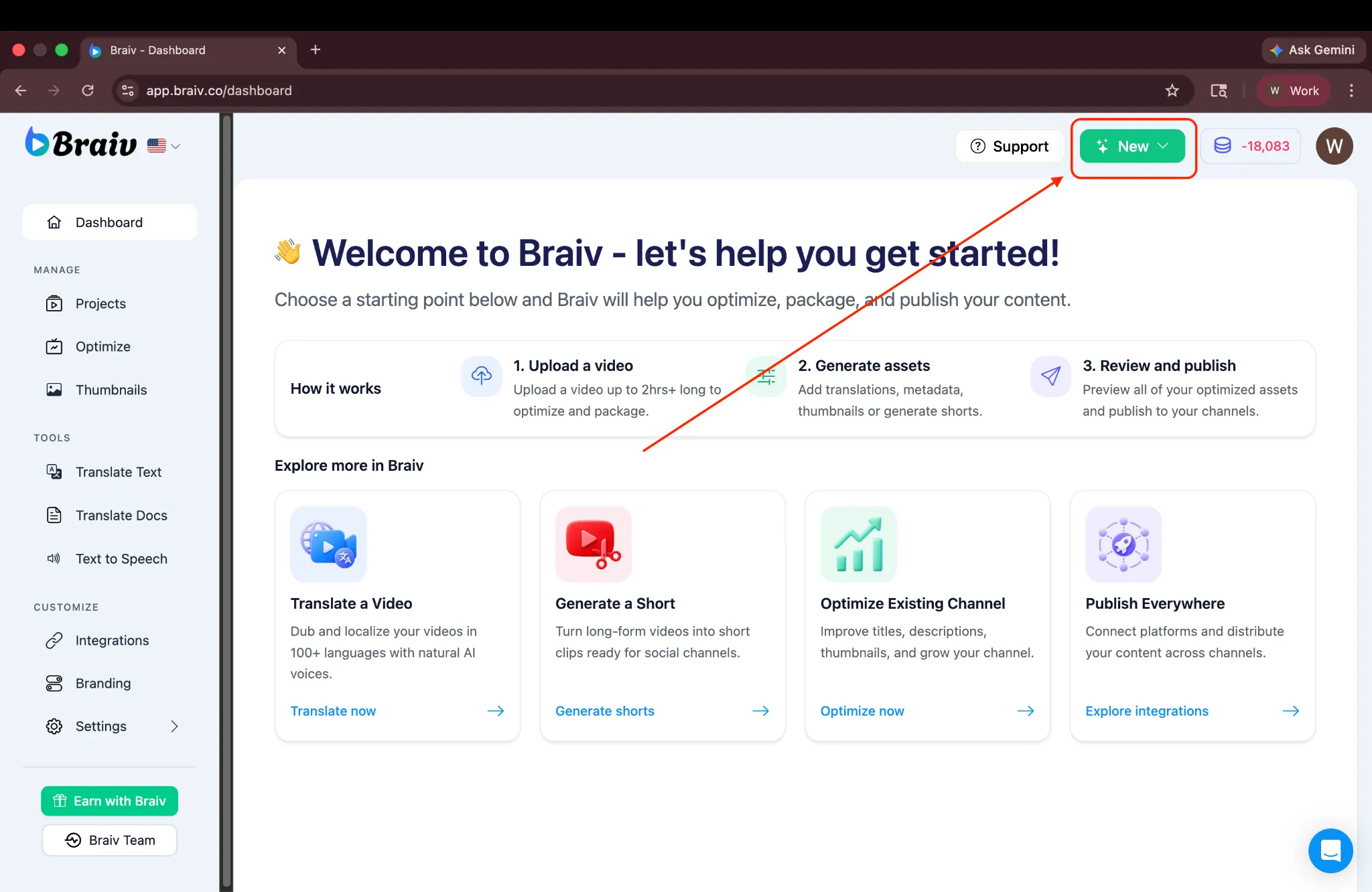
Sección titulada «Paso 1: Crear un nuevo proyecto de AI Shorts»Primero, sube el video que quieres usar para generar Shorts. En la esquina superior derecha de tu panel de Braiv, haz clic en Nuevo para comenzar.
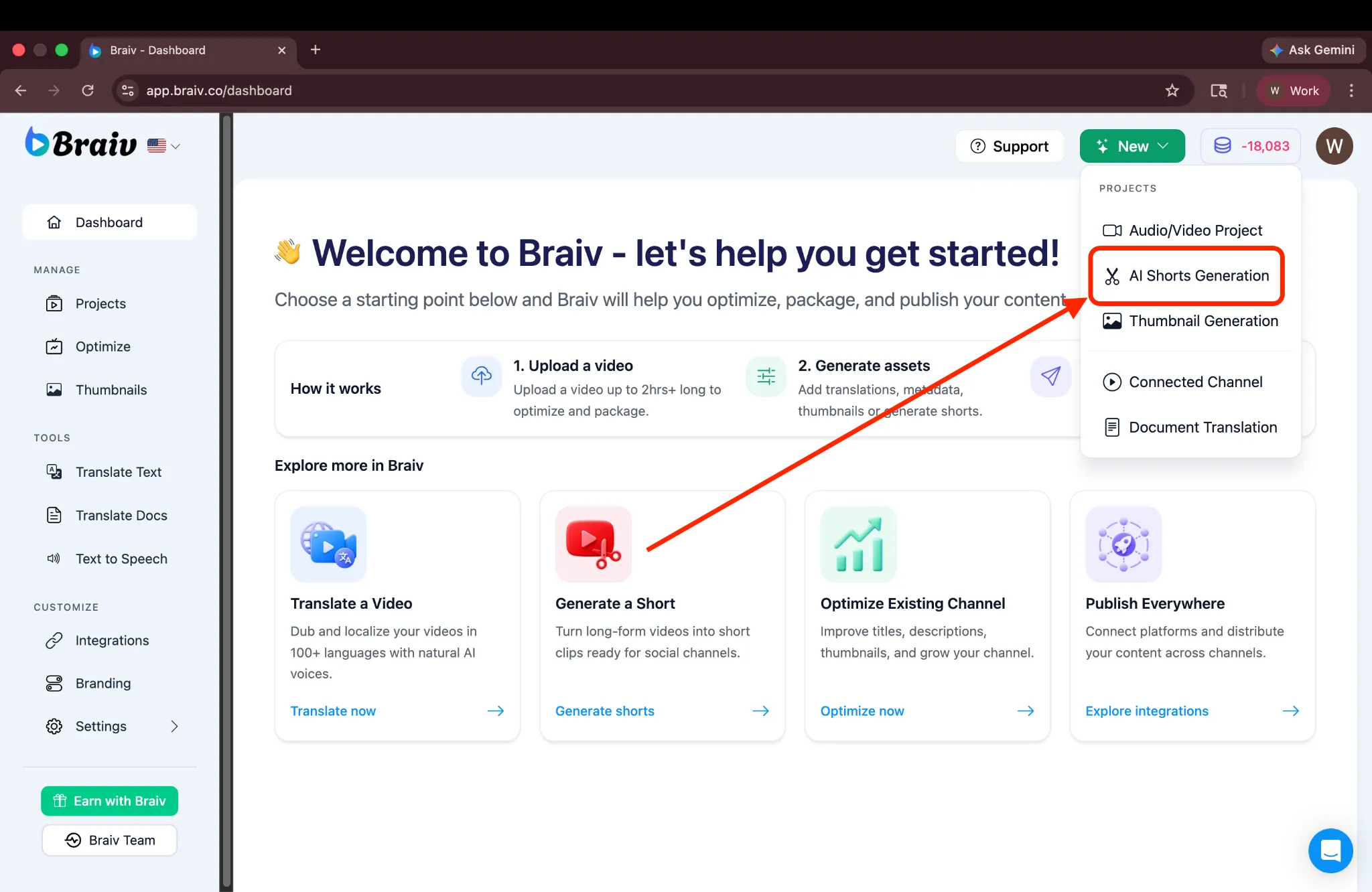
Del menú desplegable, selecciona Generación de AI Shorts.
Paso 2: Importar tu video
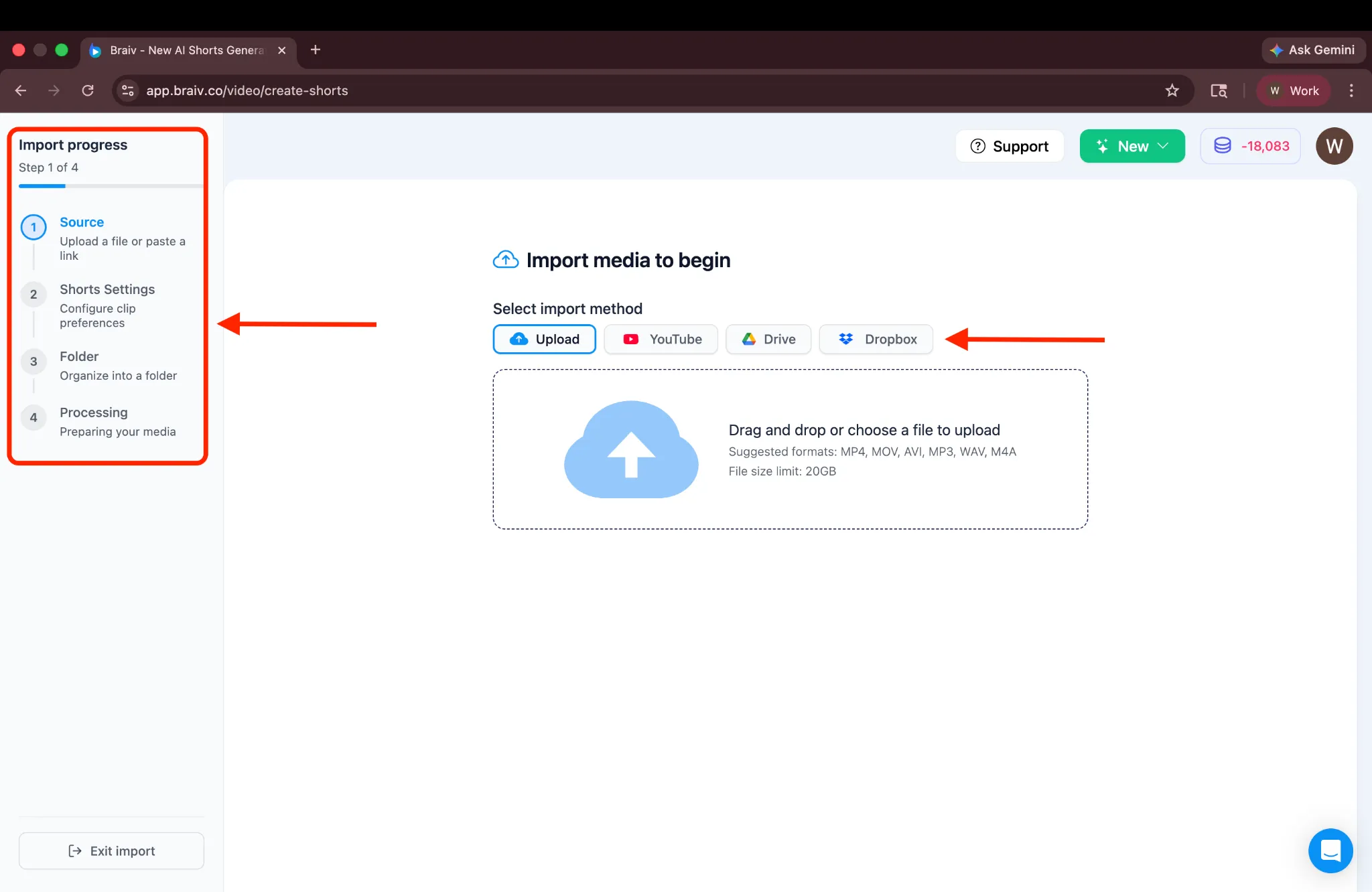
Sección titulada «Paso 2: Importar tu video»Luego serás dirigido a la pantalla de Importación, donde se muestra una guía de progreso a la izquierda. Puedes elegir entre cuatro opciones diferentes para importar tu video.
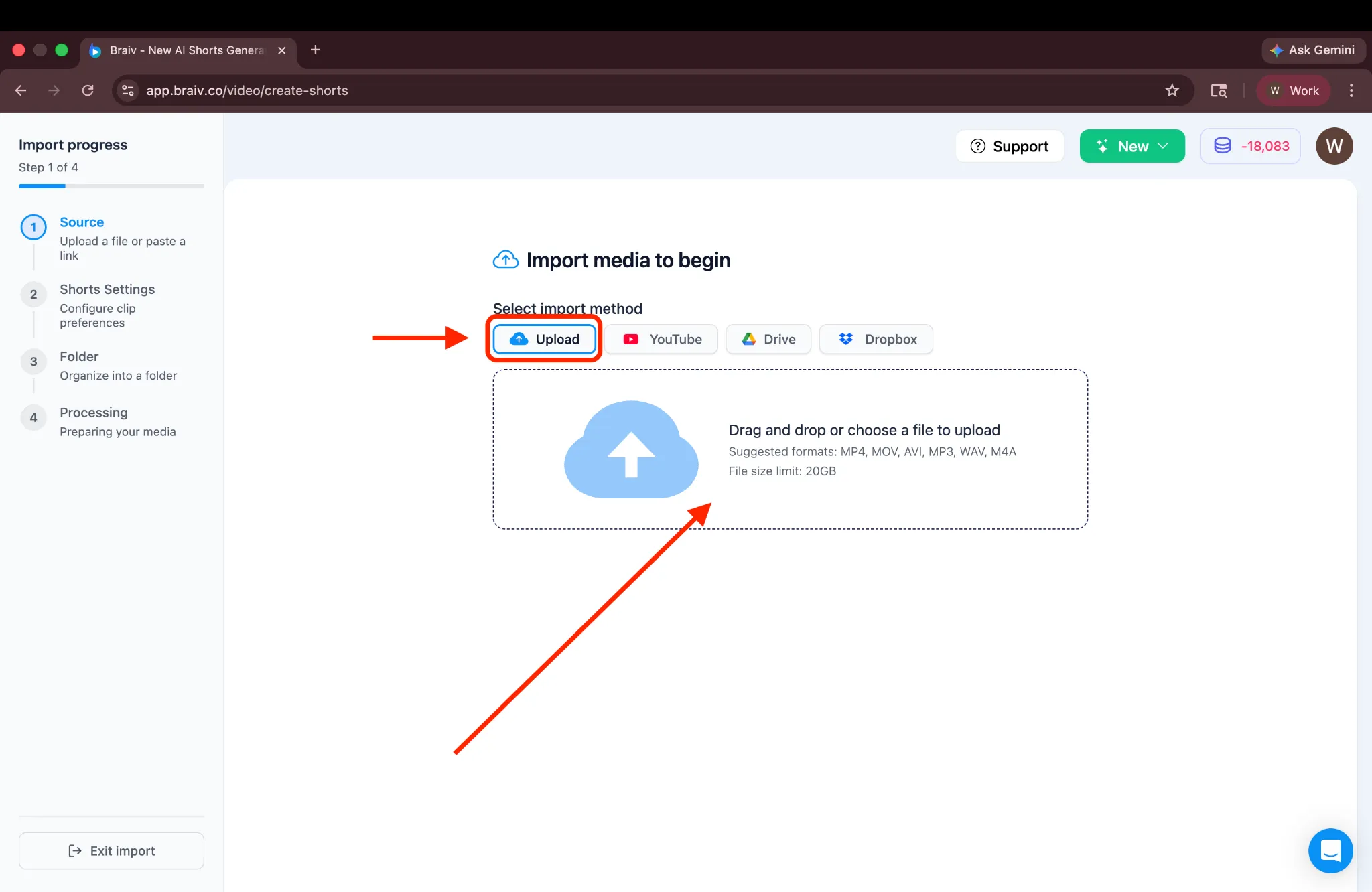
Para este tutorial, usaremos el método de Subir. Haz clic en el cuadro de Subir para continuar.
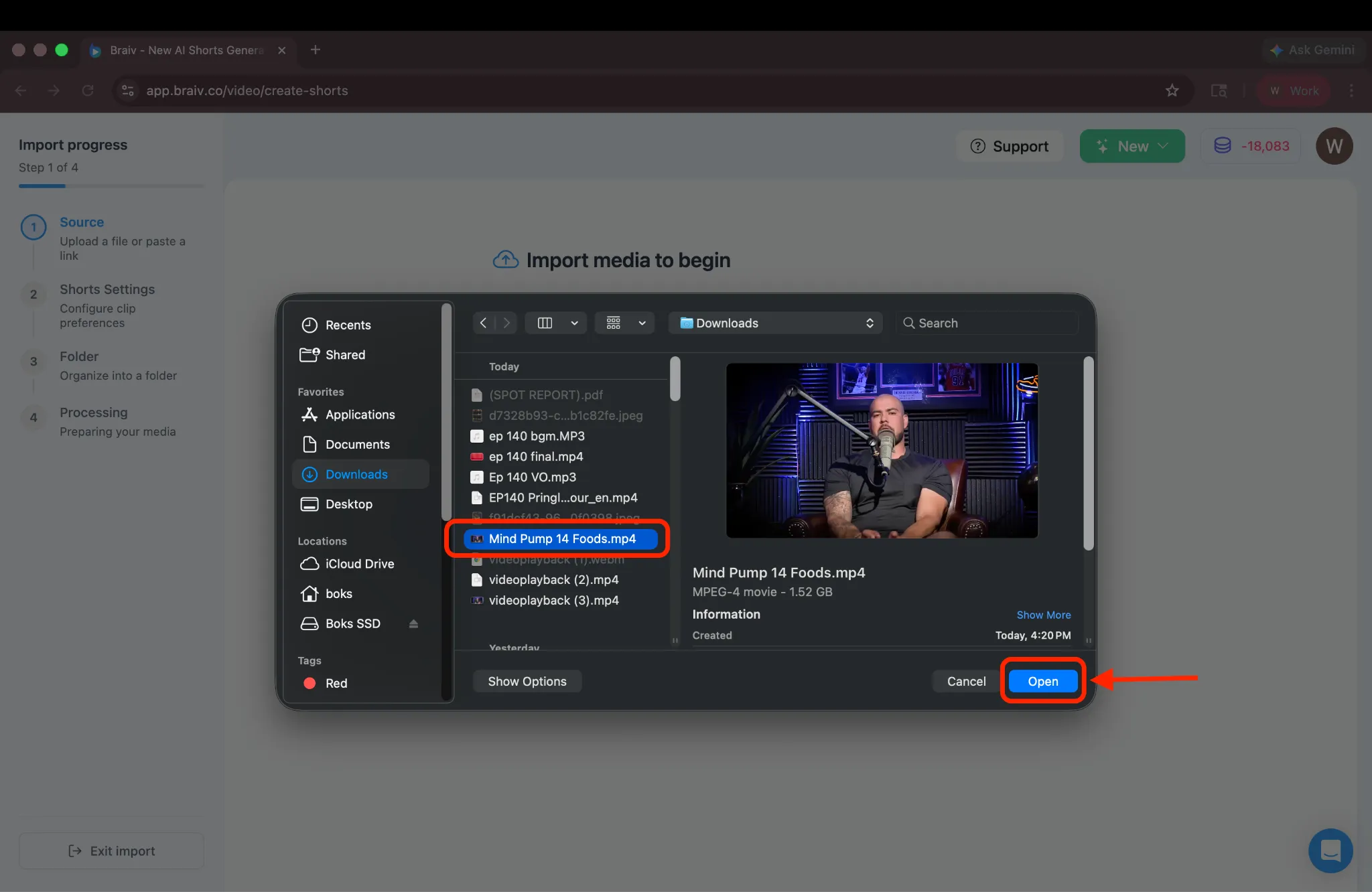
Esto abrirá tu gestor de archivos. Selecciona el video de formato largo que deseas subir.
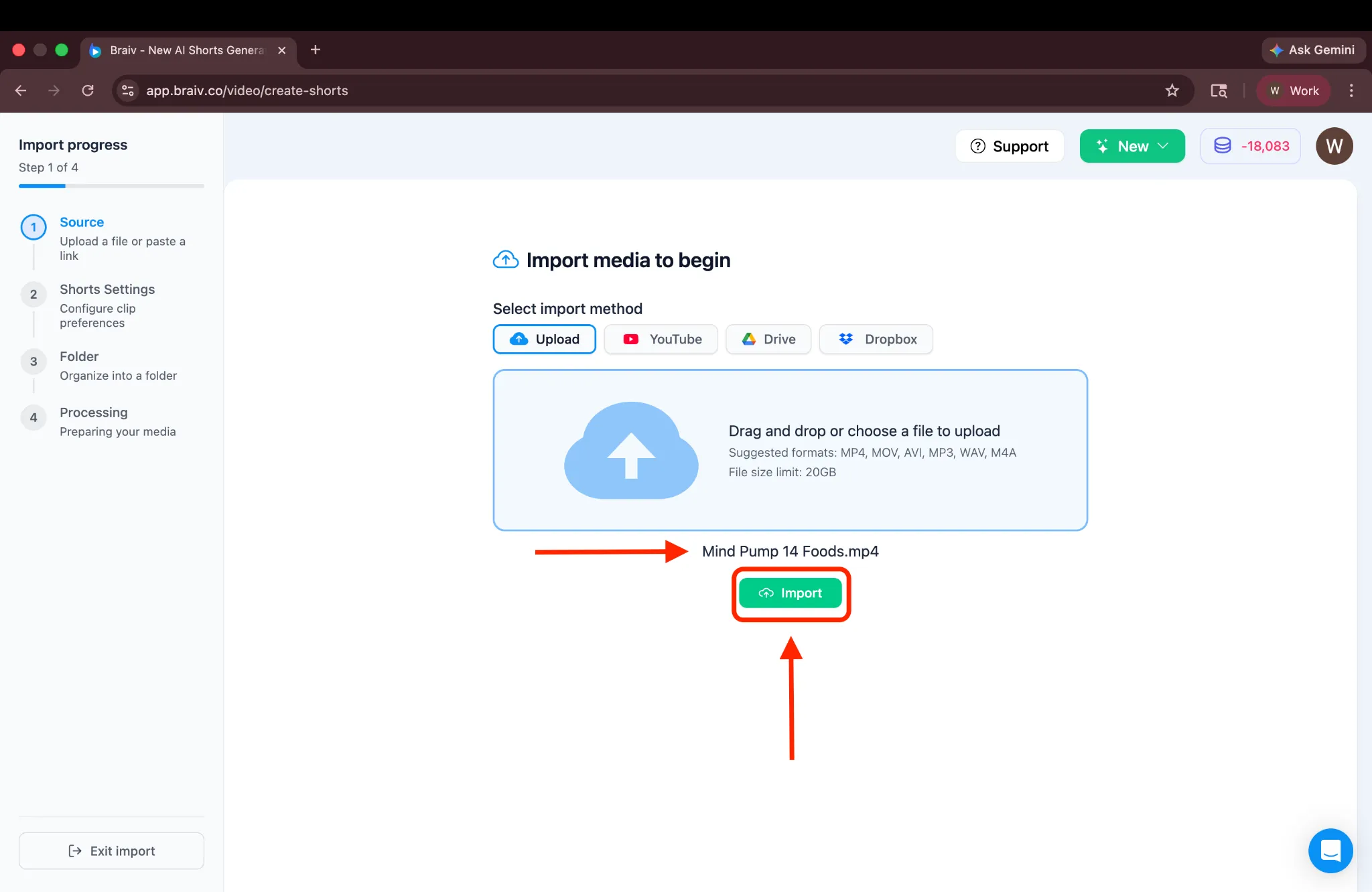
Luego verás el nombre del archivo seleccionado. Haz clic en Importar para continuar.
Paso 3: Configurar los ajustes de tus Shorts
Sección titulada «Paso 3: Configurar los ajustes de tus Shorts»Serás dirigido a la página de Ajustes de Shorts, donde todas las opciones de configuración están disponibles.
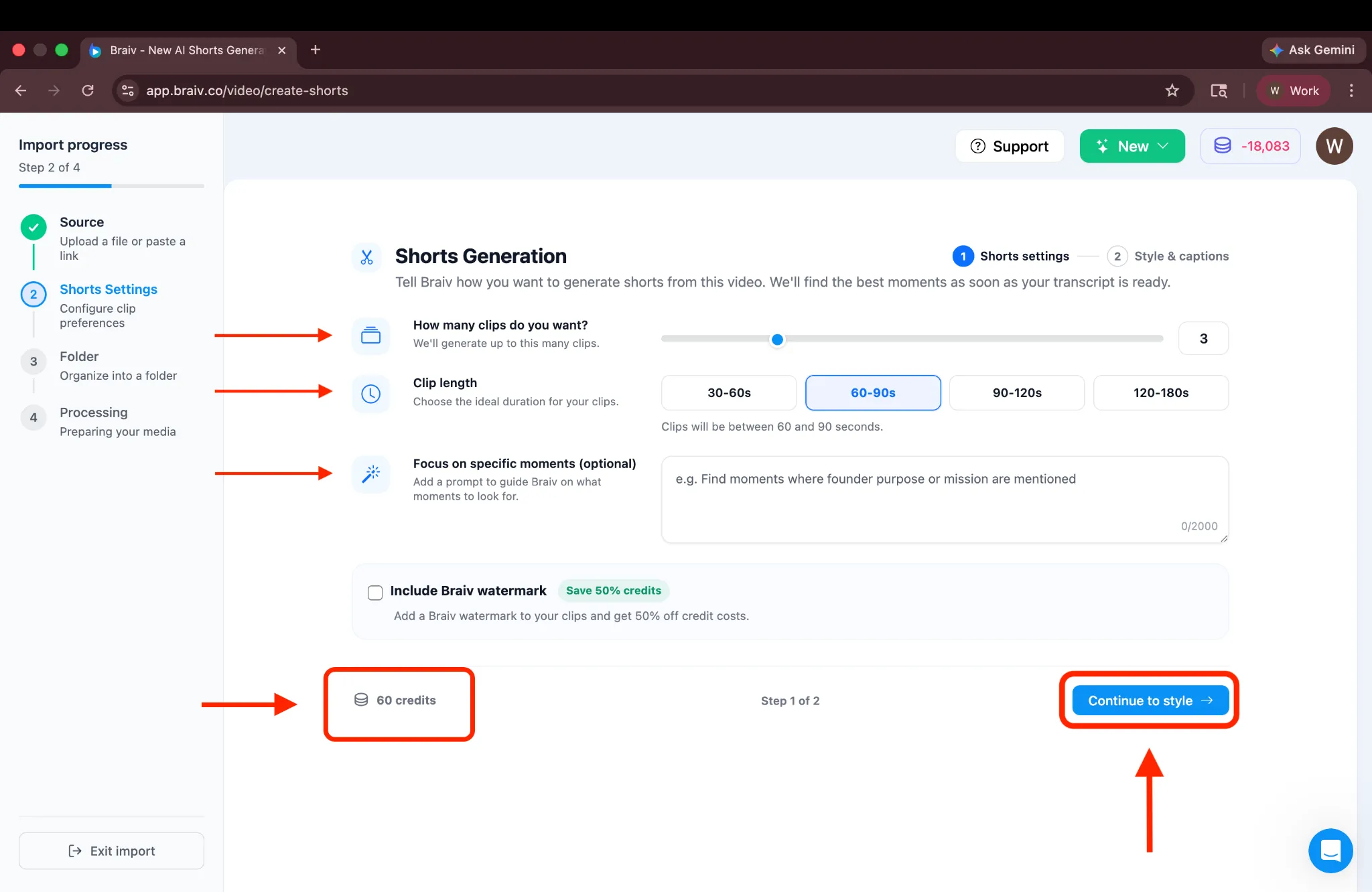
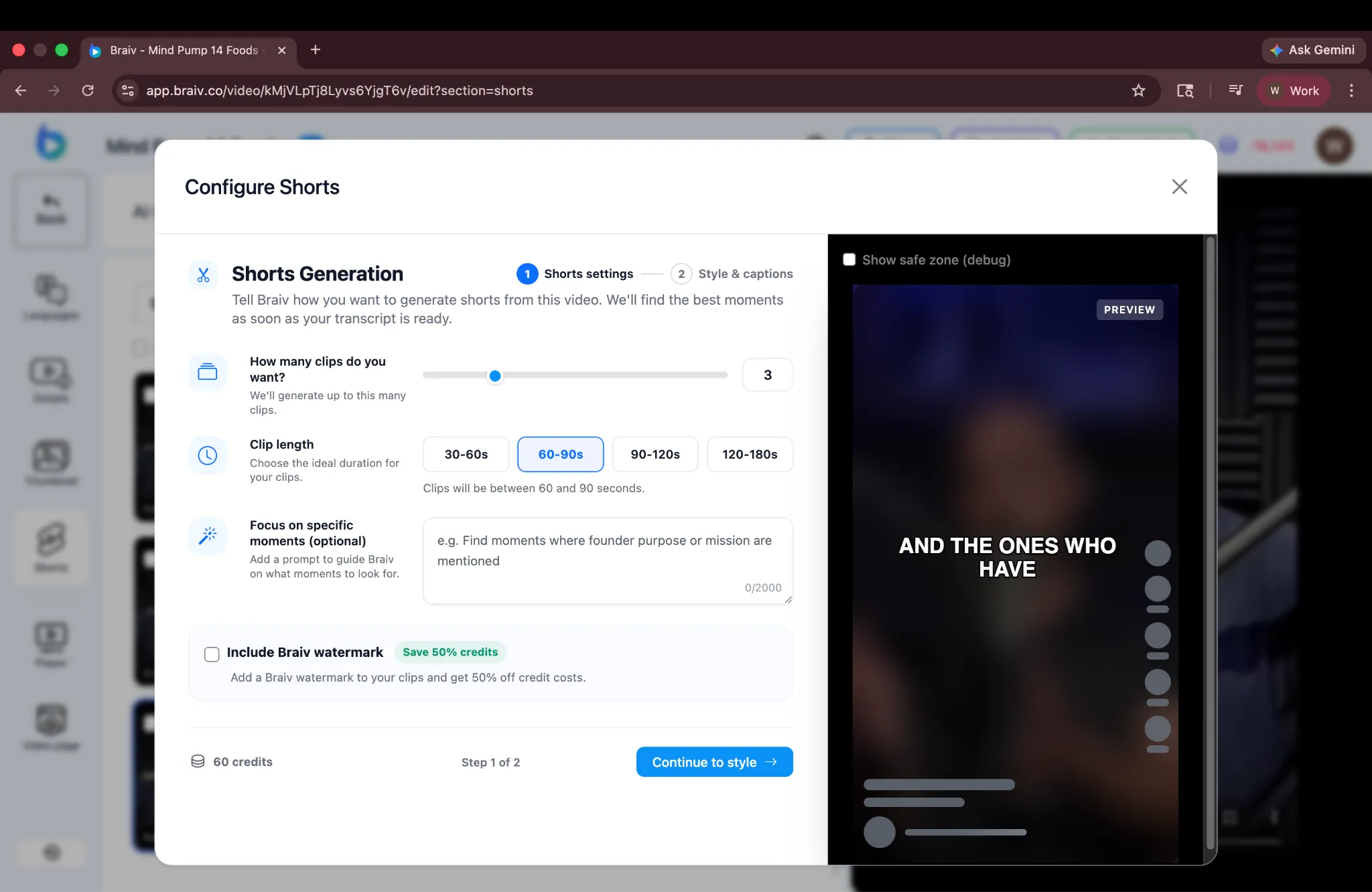
Aquí, puedes elegir:
- Número de Shorts: Elige cuántos shorts generar (hasta un máximo de 10).
- Duración: Establece la duración deseada para cada short.
- Prompt (Opcional): Si tienes momentos específicos en mente, puedes añadir un prompt para guiar a Braiv sobre en qué enfocarse al generar Shorts. Para este tutorial, dejaremos el prompt en blanco, permitiendo que Braiv detecte automáticamente los mejores momentos destacados.
- Marca de agua: Incluye una marca de agua para ayudar a gestionar los créditos, o desactívala.
Debajo de esta sección, verás los créditos de IA estimados requeridos para la configuración seleccionada. (Nota: Los créditos que se muestran en la esquina inferior izquierda no se deducen cuando haces clic en “Continuar”; solo se muestran como referencia para que puedas entender el costo potencial antes de generar.)
Una vez que estés satisfecho con la configuración, haz clic en Continuar para pasar al siguiente paso.
Paso 4: Personalizar los estilos de los subtítulos
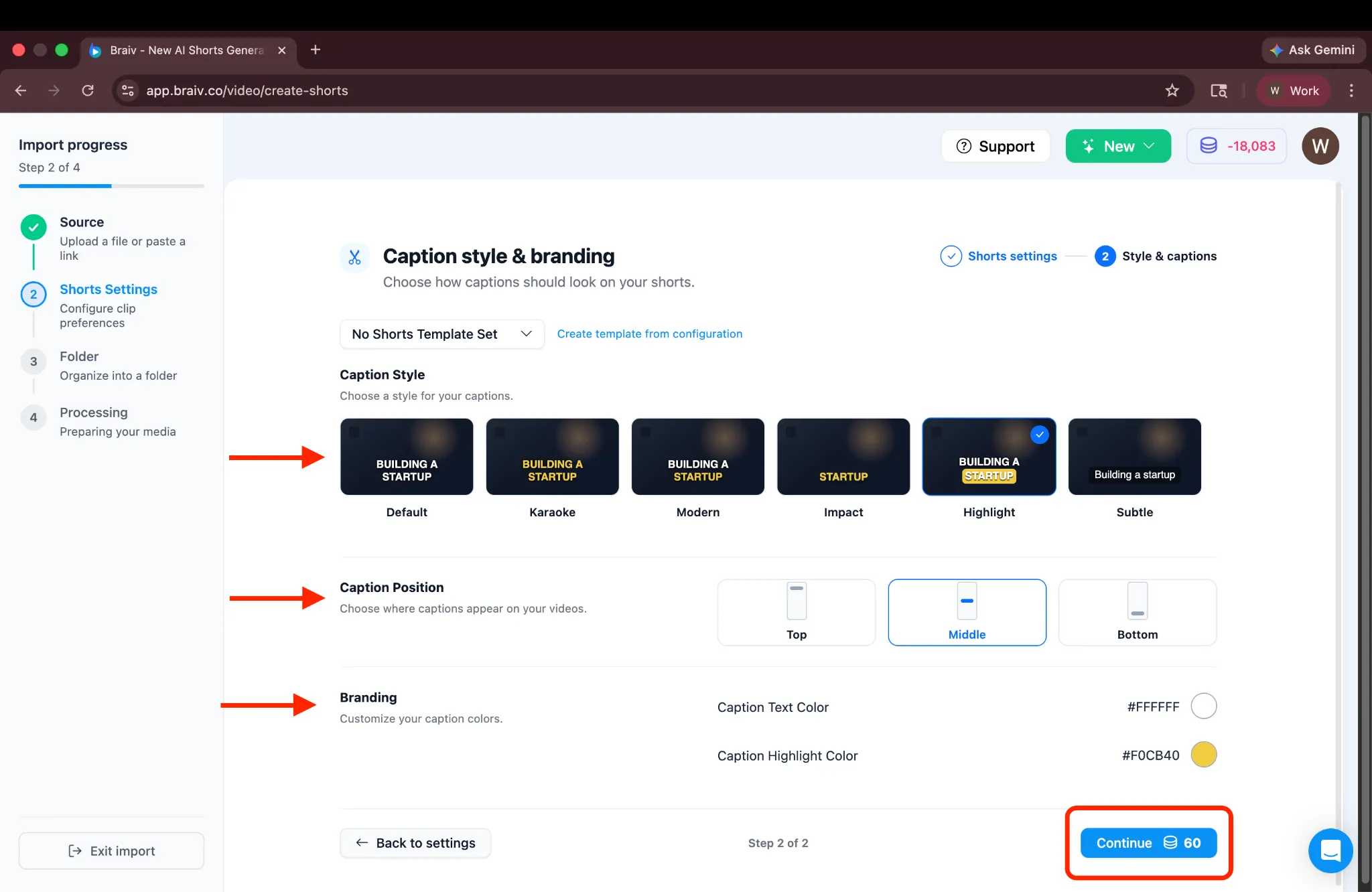
Sección titulada «Paso 4: Personalizar los estilos de los subtítulos»Llegarás a la pantalla de estilo, donde puedes:
- Seleccionar un estilo de subtítulo.
- Ajustar la posición del subtítulo.
- Personalizar los colores del texto y del resaltado para que coincidan con tu marca.
(También hay una opción para “Crear plantilla a partir de la configuración”, que te permite guardar estos ajustes para uso futuro. Por ahora, nos quedaremos con la configuración predeterminada de la plataforma.)
Una vez que estés satisfecho con el estilo, verás un botón de Continuar en la parte inferior con los créditos requeridos mostrados junto a él. Para continuar, haz clic en Continuar.
Paso 5: Organizar en carpetas
Sección titulada «Paso 5: Organizar en carpetas»La siguiente es la pantalla de Carpetas, donde puedes elegir crear una nueva carpeta para ayudarte a organizar tus videos. Si lo prefieres, puedes saltar este paso y continuar sin crear una.
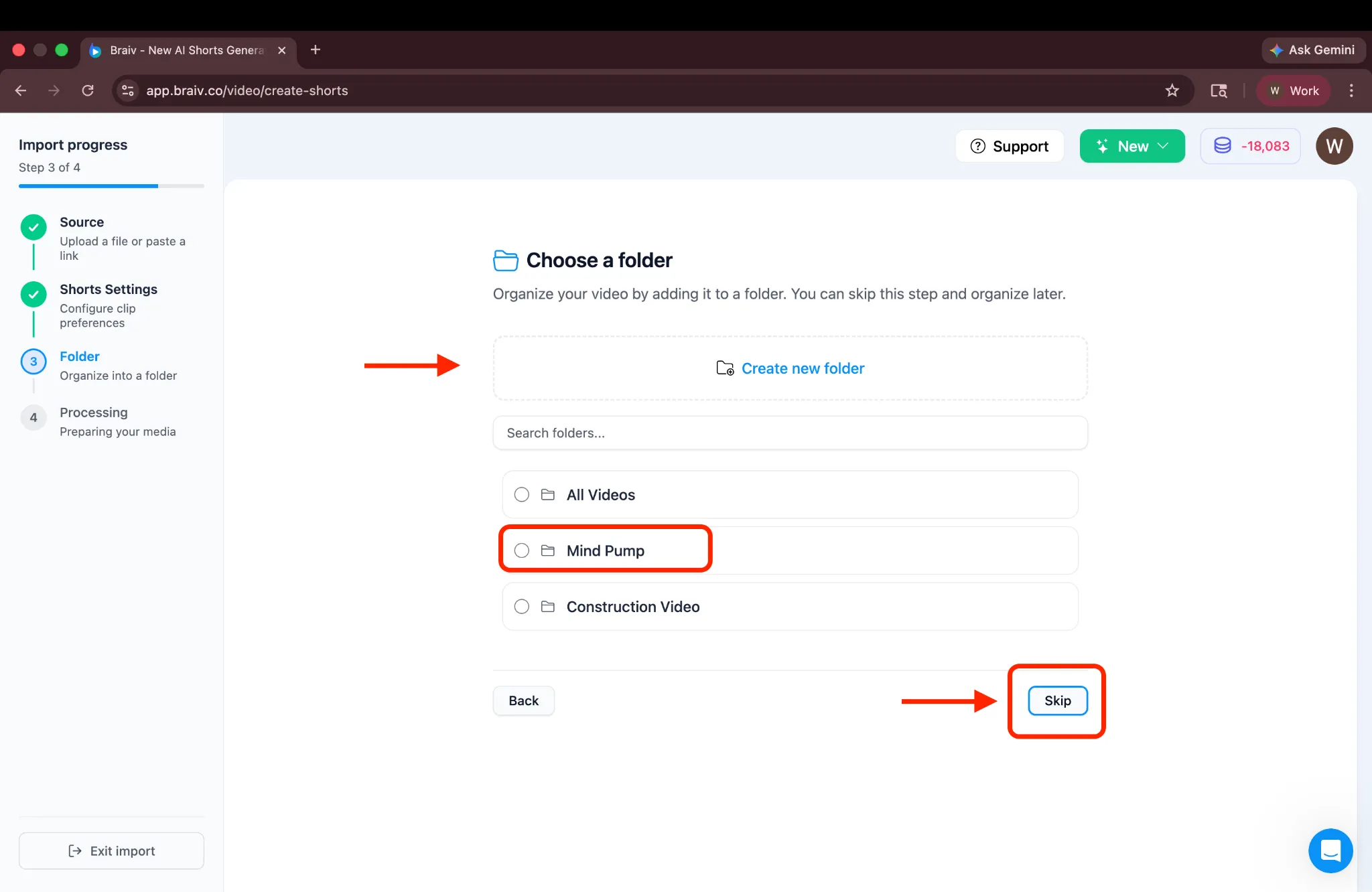
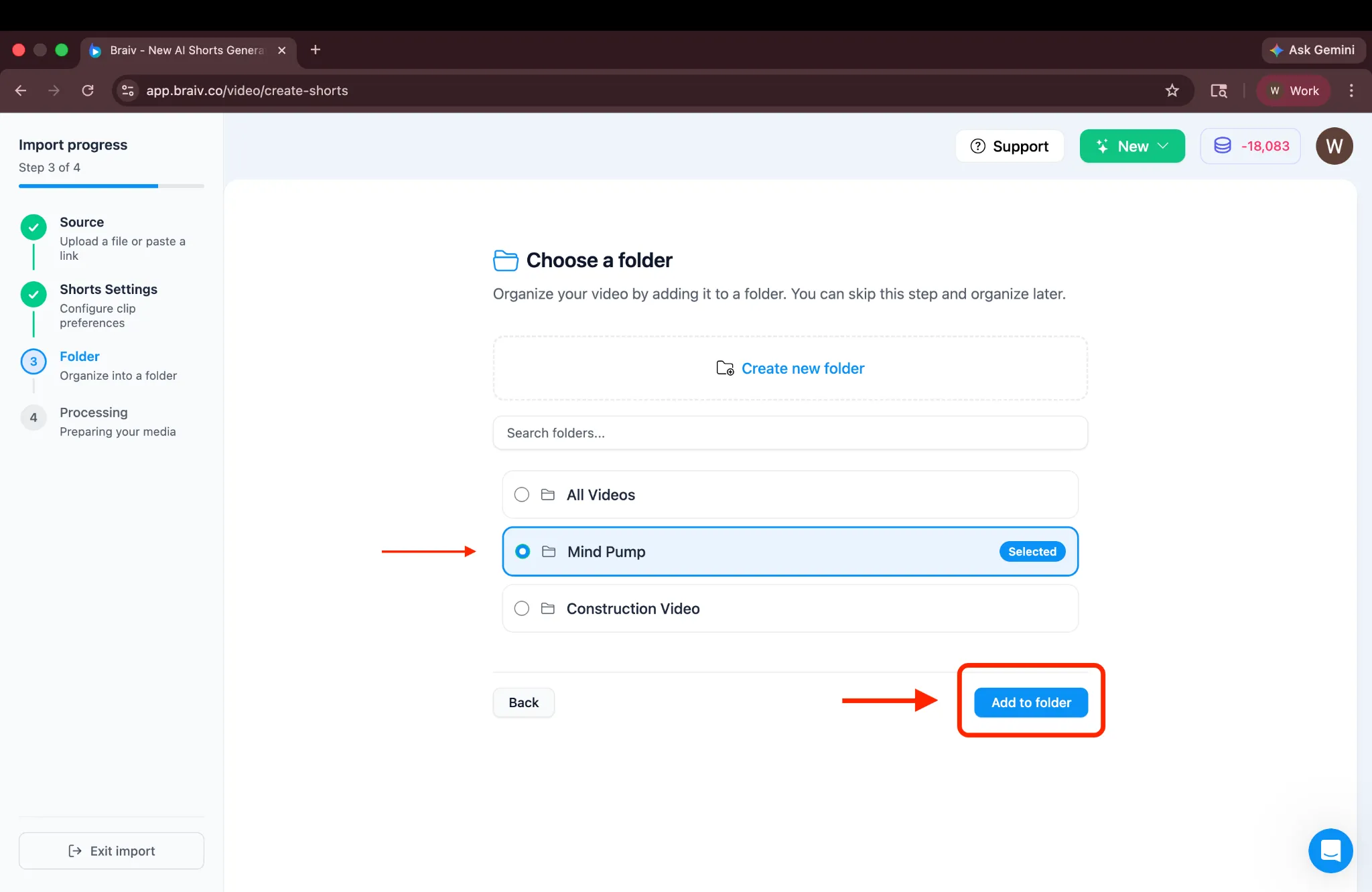
Si ya tienes una carpeta (o creaste una nueva), simplemente selecciónala y haz clic en Añadir a la carpeta.
Paso 6: Procesamiento y revisión
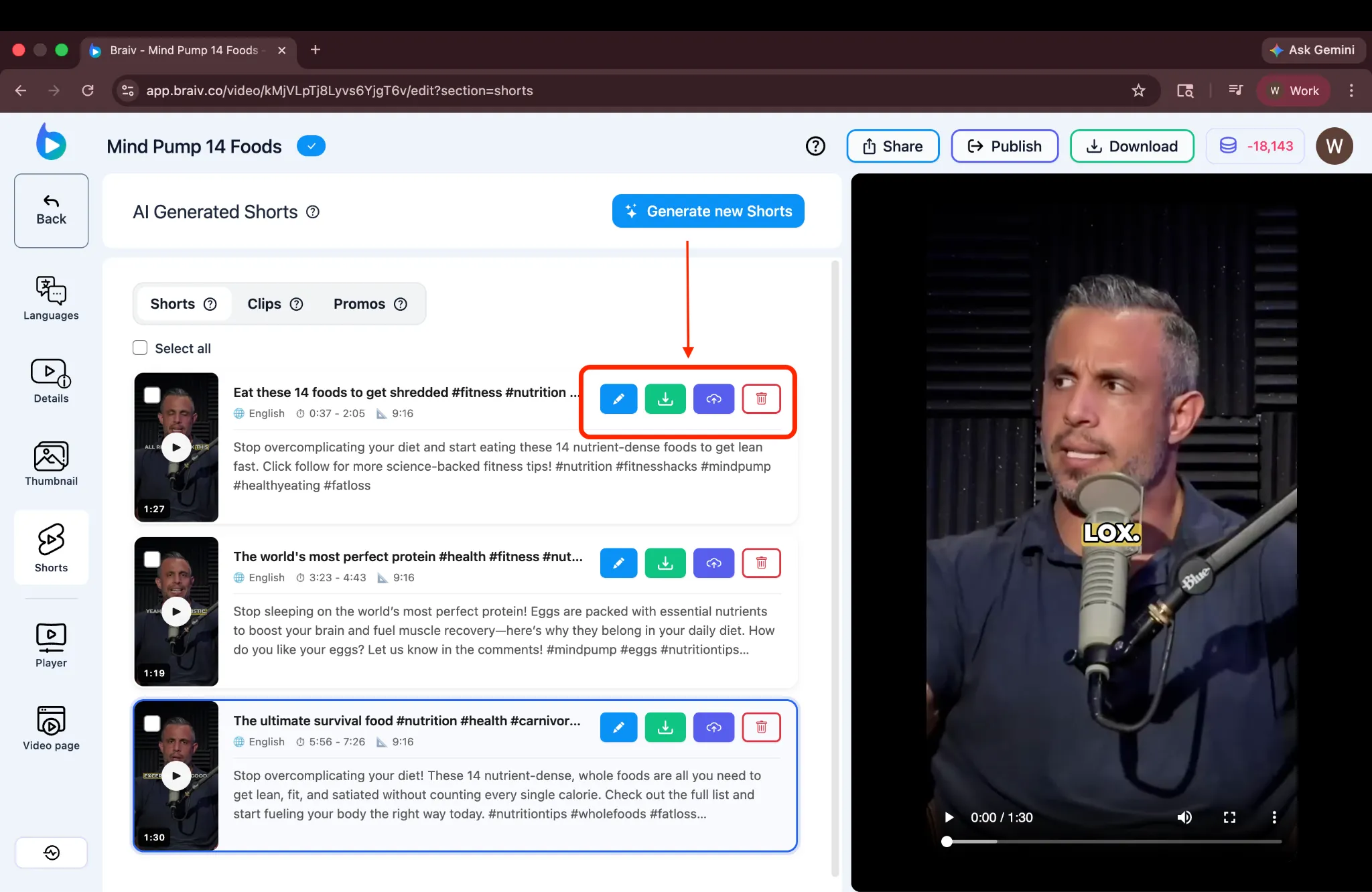
Sección titulada «Paso 6: Procesamiento y revisión»¡Braiv comenzará a procesar tus Shorts inmediatamente! Mientras esperas, puedes navegar a otras pestañas del proyecto usando la barra lateral izquierda.
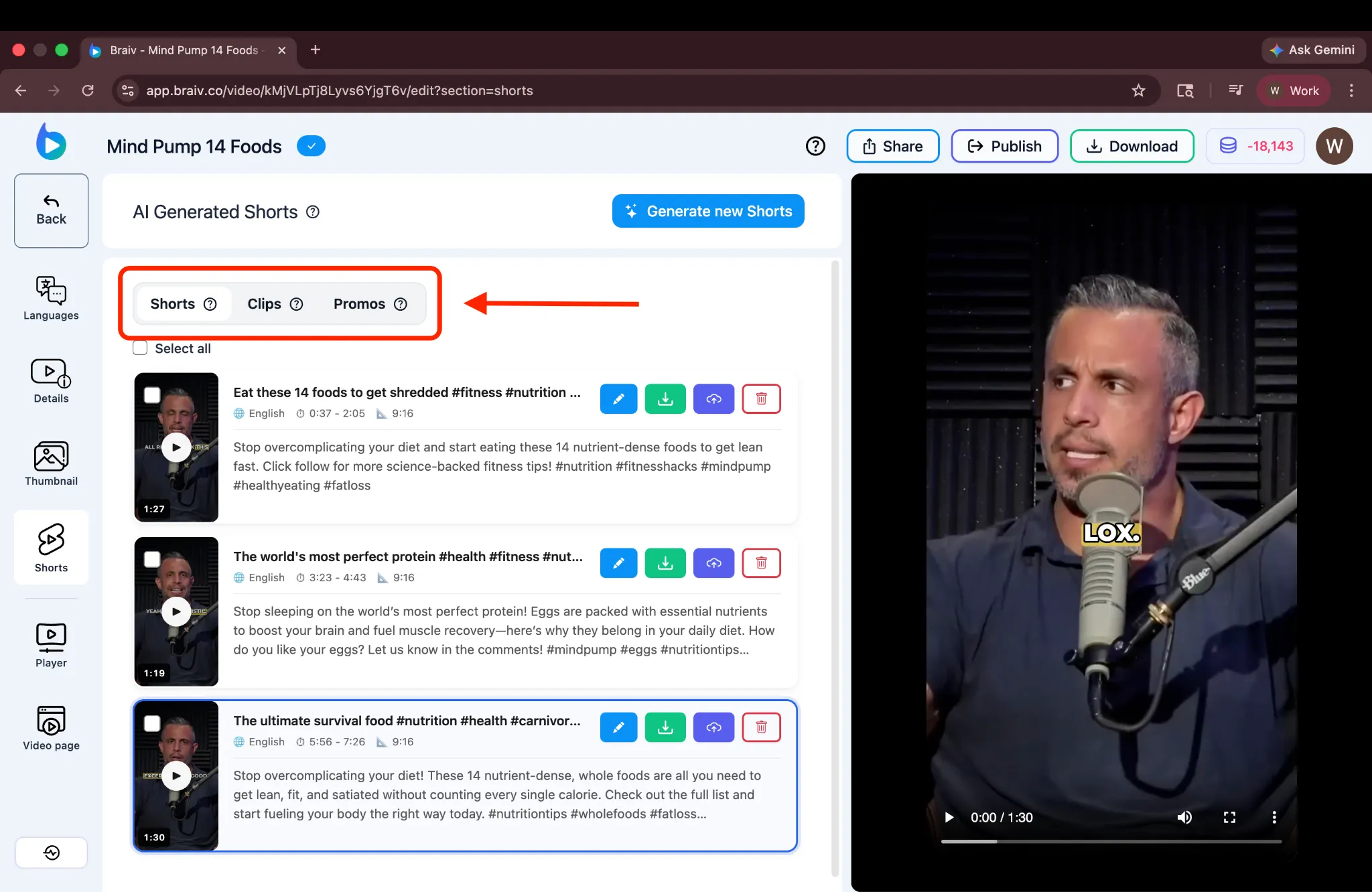
Después de unos minutos, tus Shorts estarán listos. Puedes reproducir cada uno para revisarlo y usar las opciones junto a cada video para editar, descargar, publicar o eliminar un Short.
Generar nuevos Shorts
Sección titulada «Generar nuevos Shorts»Si no estás satisfecho con los Shorts generados, puedes hacer clic en el botón Generar nuevos Shorts en la parte superior para volver directamente a la pantalla de configuración y crear un nuevo conjunto.
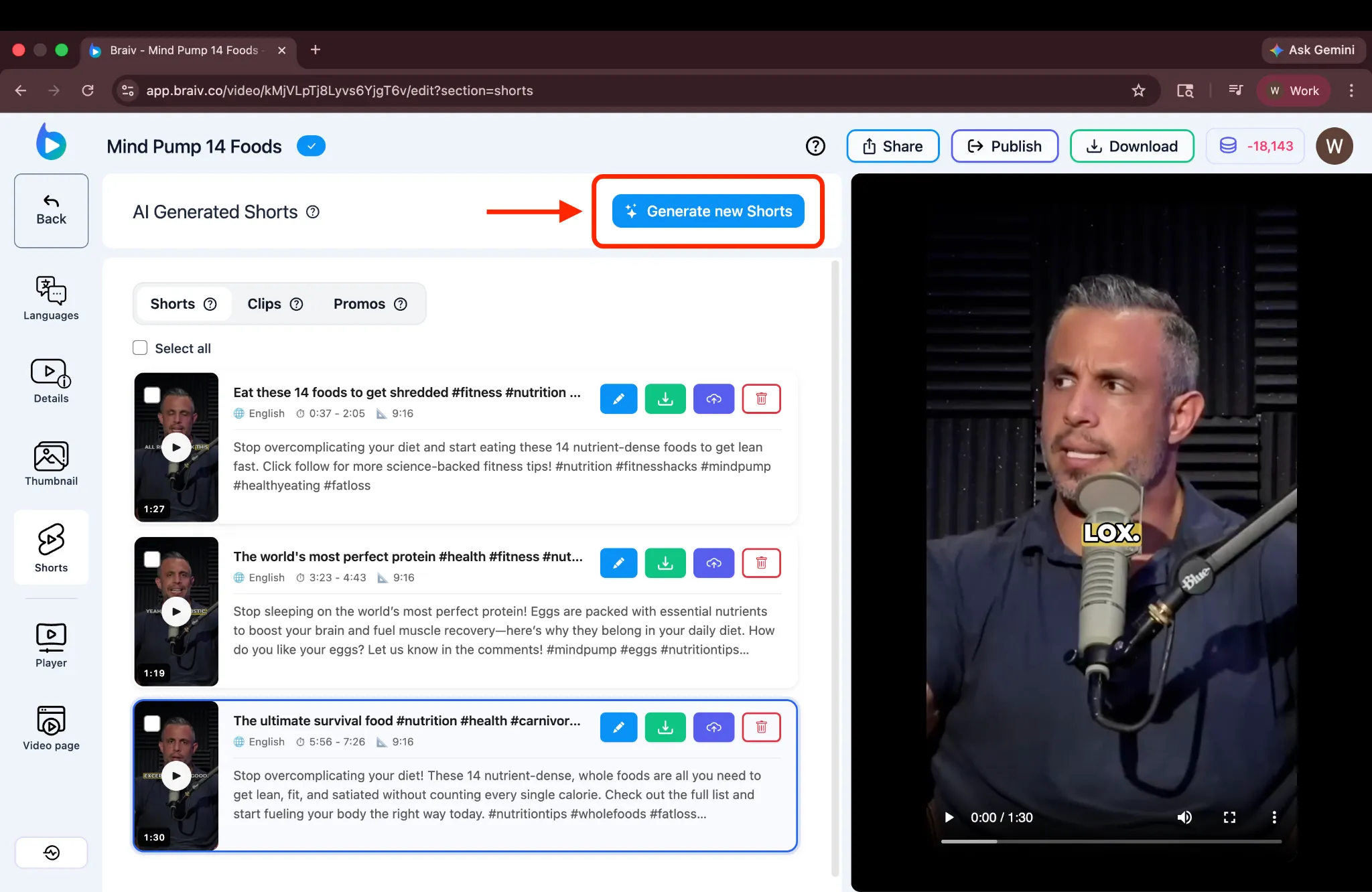
(Nota: Generar nuevos Shorts requerirá créditos adicionales. Sin embargo, en la mayoría de los casos, la IA de Braiv es capaz de identificar momentos relevantes de manera efectiva en el primer intento, por lo que la regeneración podría no ser necesaria.)
Generar Clips y Promos
Sección titulada «Generar Clips y Promos»También notarás pestañas para Clips y Promos. Braiv también admite la generación de estos tipos específicos de contenido de formato corto, lo cual se cubrirá en un tutorial aparte.
¡Y eso es todo! Has generado exitosamente AI Shorts usando Braiv. Este proceso hace que sea increíblemente fácil capturar momentos clave de tus videos de formato largo y convertirlos en clips virales y compartibles para tus canales de redes sociales.