
Navegando por Braiv Studio (El Centro de Mando)
¡Bienvenido a Braiv Studio!
Braiv Studio es tu centro de mando central para gestionar los metadatos, traducciones y ajustes de publicación de un vídeo específico. Una vez que importas un vídeo, aquí es donde configuras exactamente cómo se ve, suena y lee en todo el mundo.
Este artículo proporciona un mapa de alto nivel de la interfaz de Braiv Studio para ayudarte a orientarte.
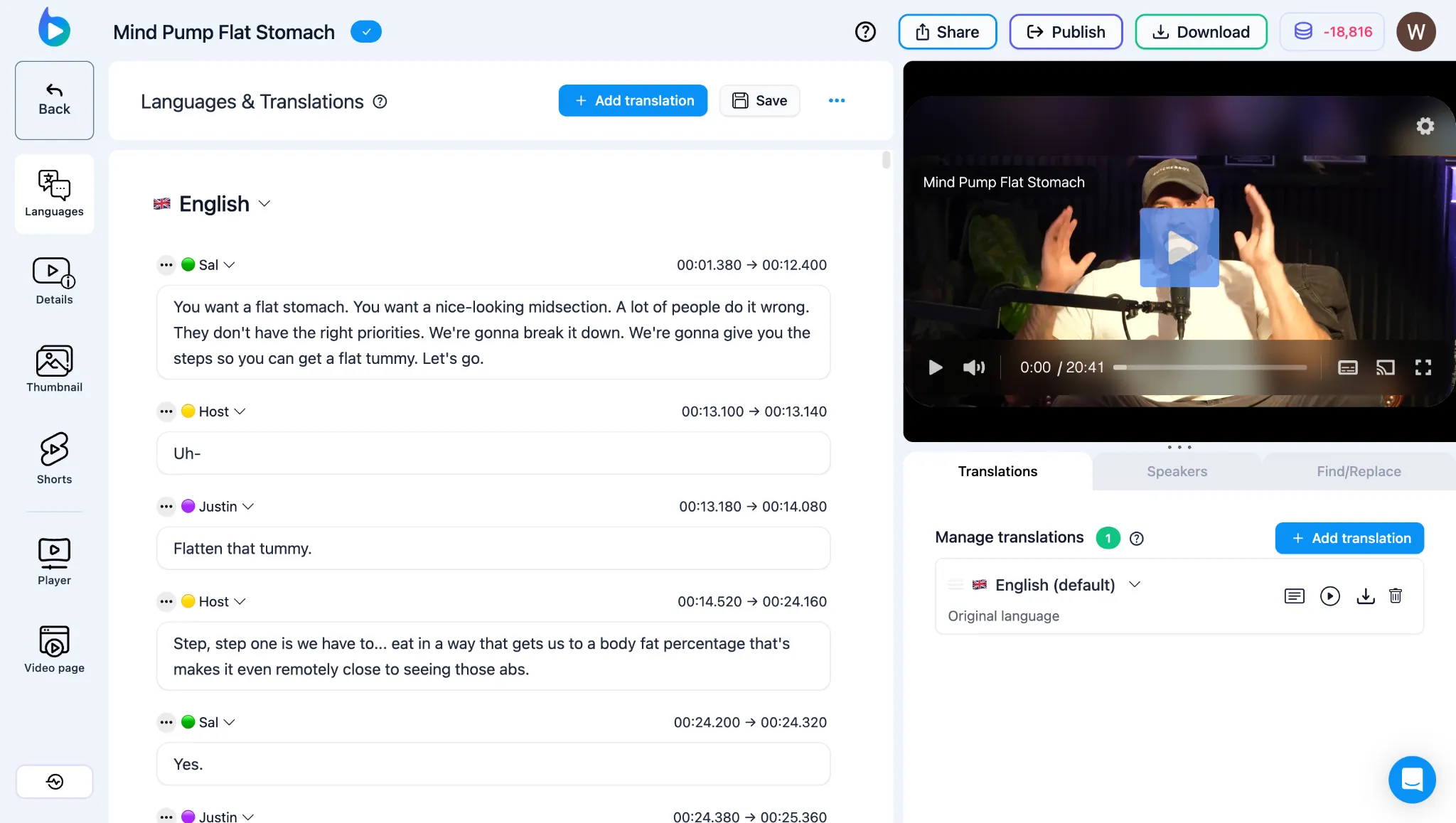
El Mapa de la Interfaz
Sección titulada «El Mapa de la Interfaz»Braiv Studio está organizado en pestañas especializadas que te guían a través del proceso de empaquetado y localización:
- Languages & Dubbing: Visualiza todos los idiomas disponibles, asigna oradores, configura la clonación de voz, añade la sincronización labial con IA y gestiona tus pistas de audio traducidas en la suite Braiv Dubbing.
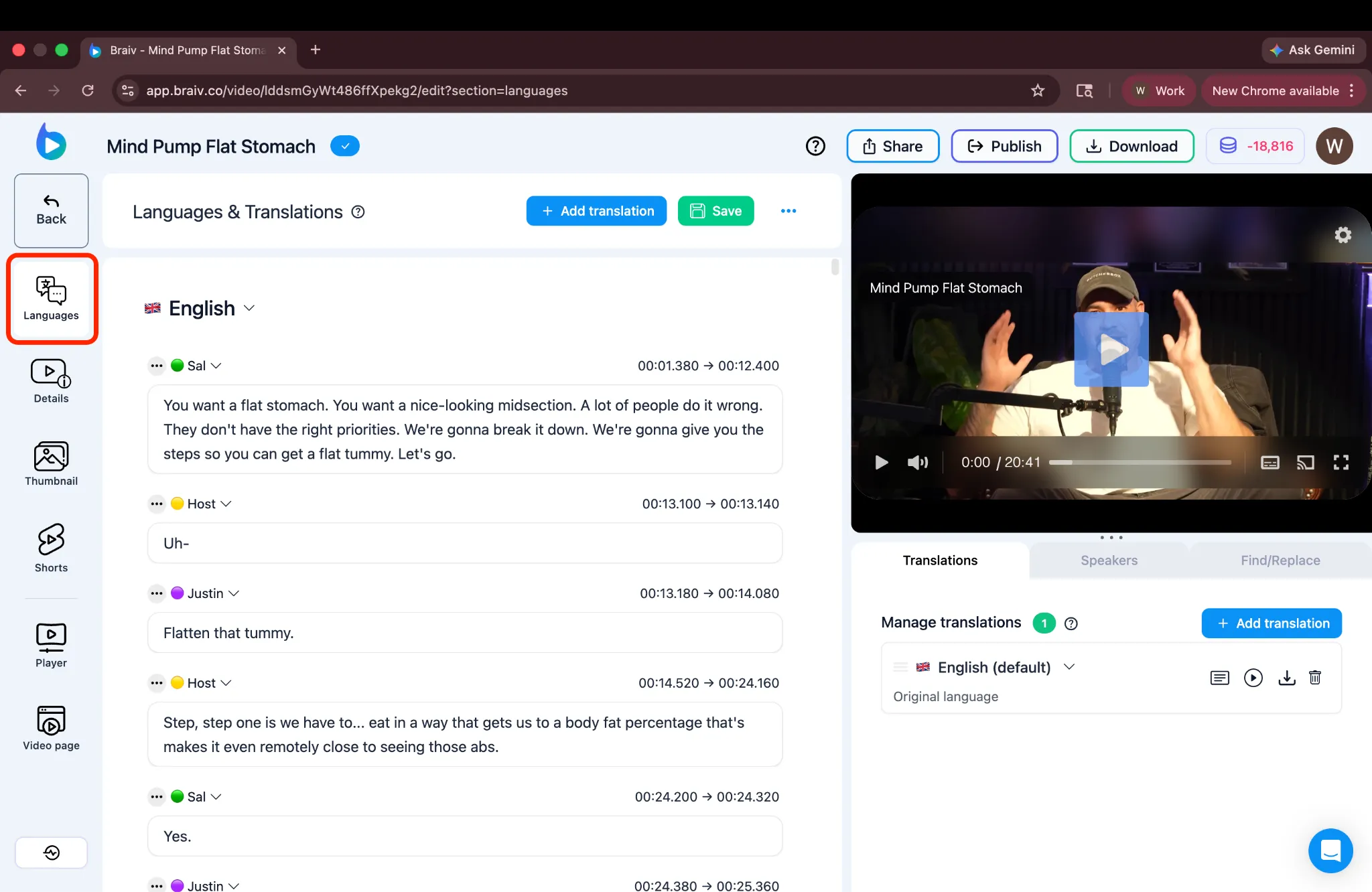
- Video Details: Gestiona tus metadatos principales, incluyendo tu título y descripción generados automáticamente y etiquetas, optimizados para SEO global en la suite Publishing & YouTube.
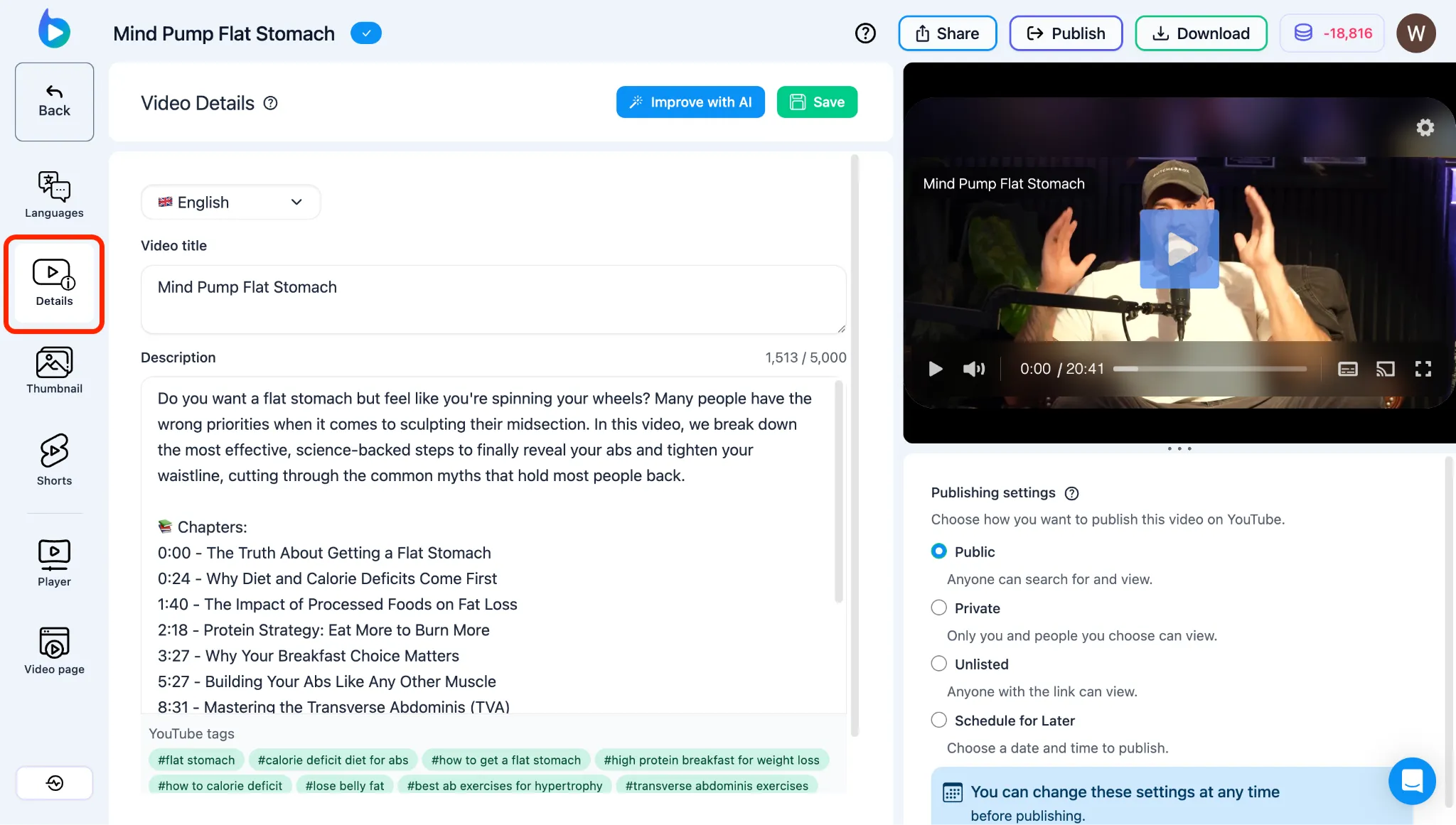
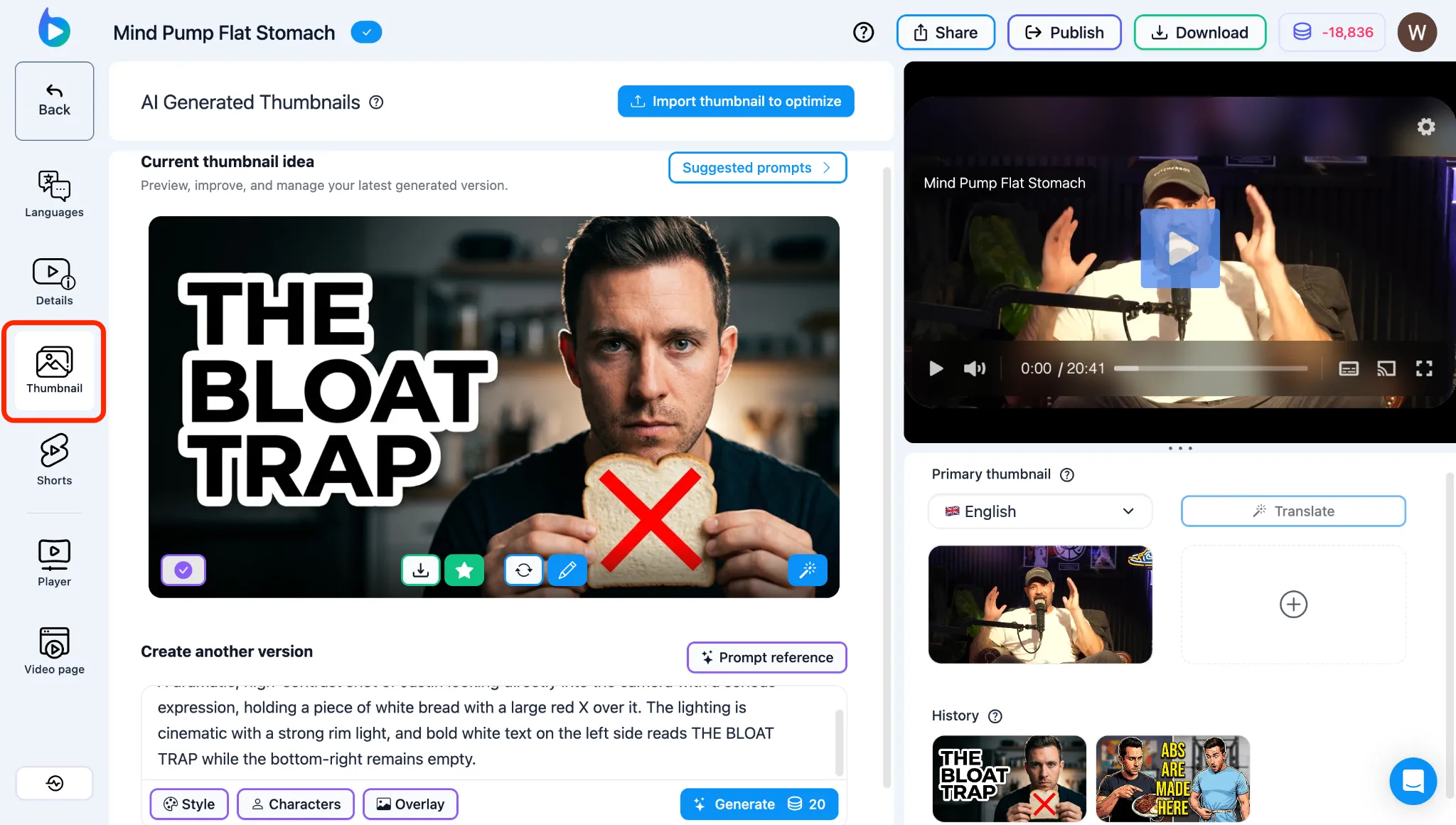
- Thumbnails: Genera, puntúa y personaliza imágenes de portada de alta conversión directamente desde la transcripción de tu vídeo usando Braiv Thumbnails.
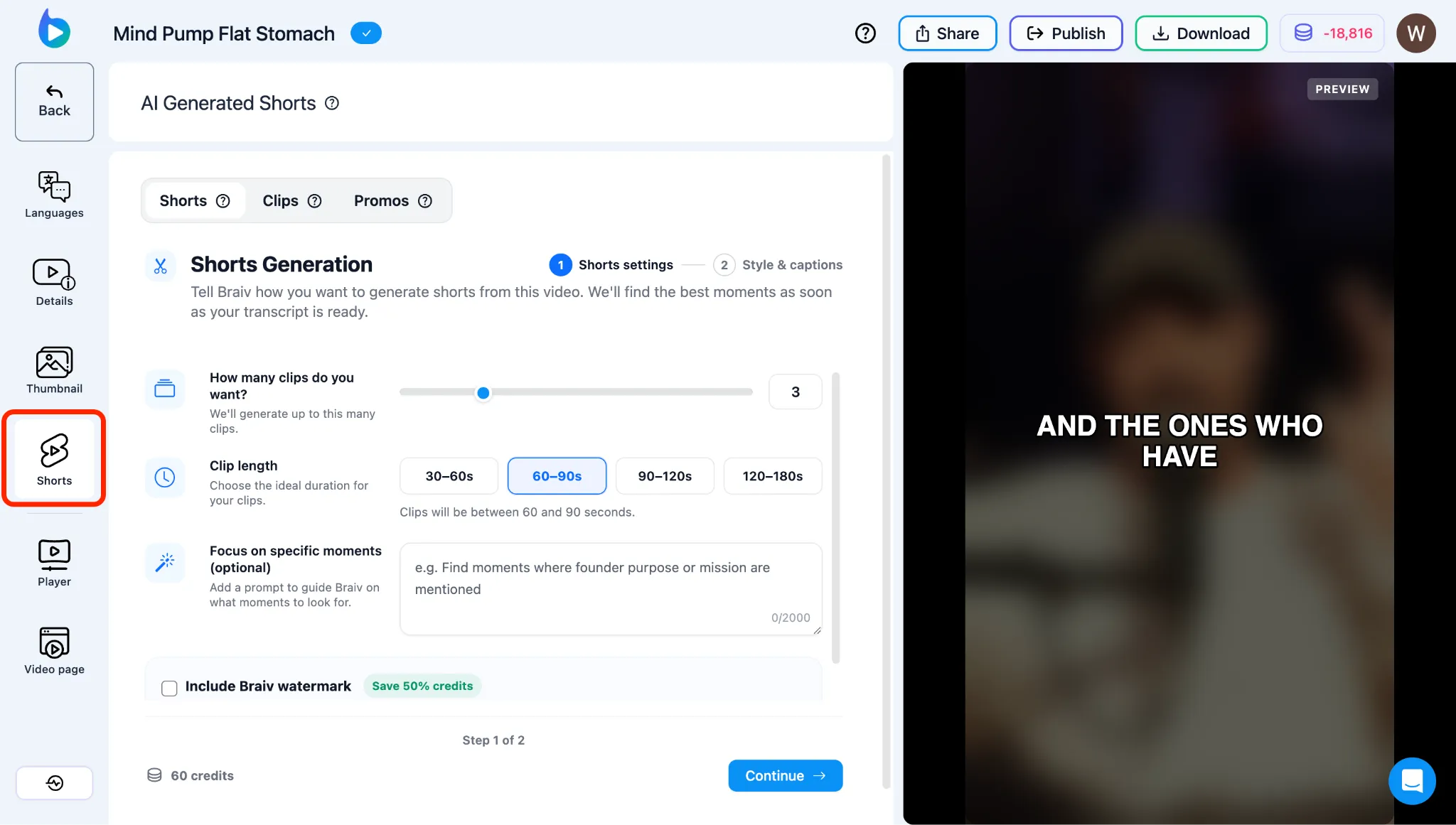
- Shorts & Promos: Visualiza, gestiona, edita y descarga tus clips verticales y promociones generados automáticamente con Braiv Shorts.
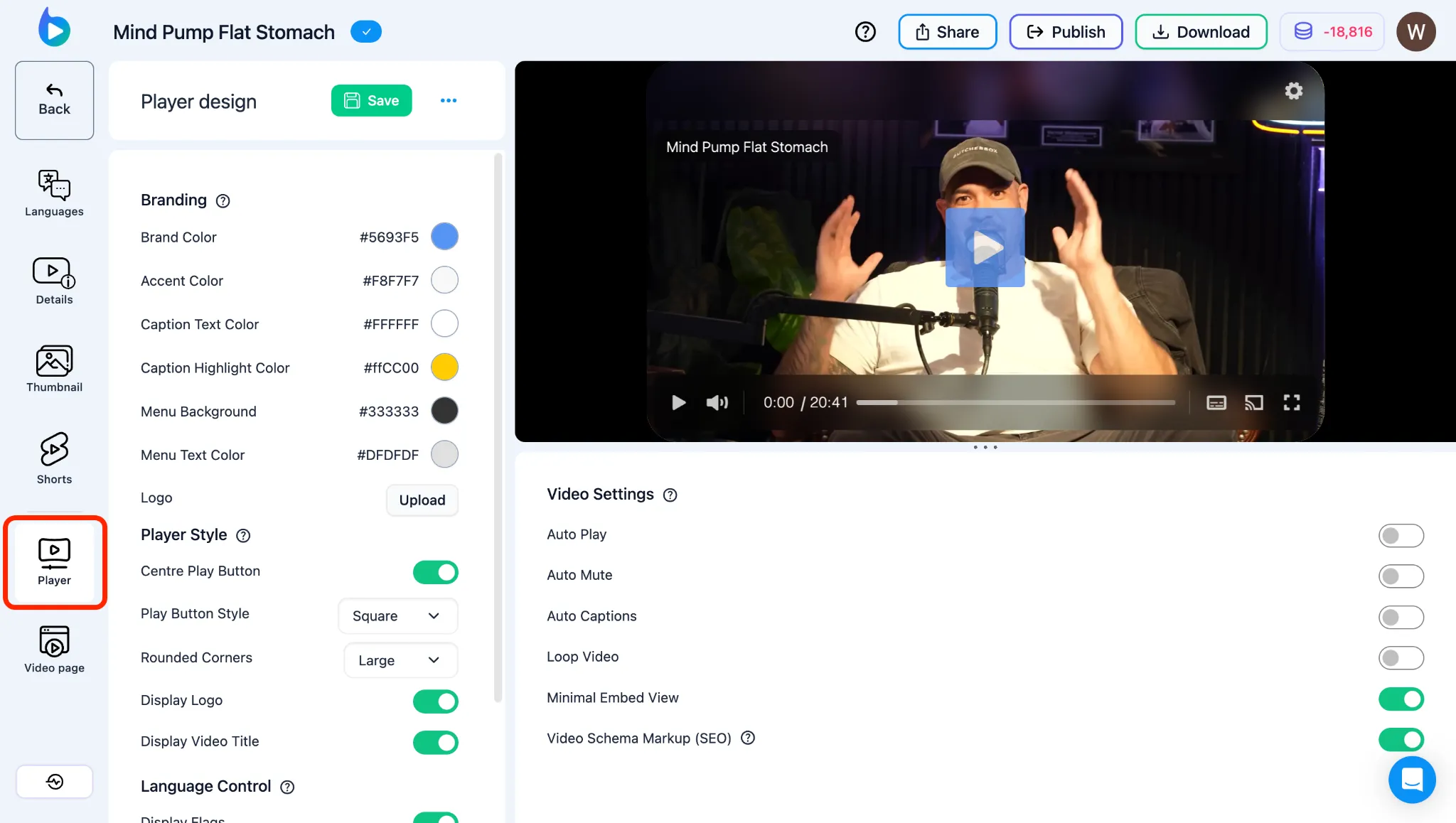
- Player Design: Personaliza la apariencia, sensación y comportamiento de tu reproductor de vídeo cuando se incrusta o comparte, modificando el diseño del Braiv Player y la configuración de reproducción.
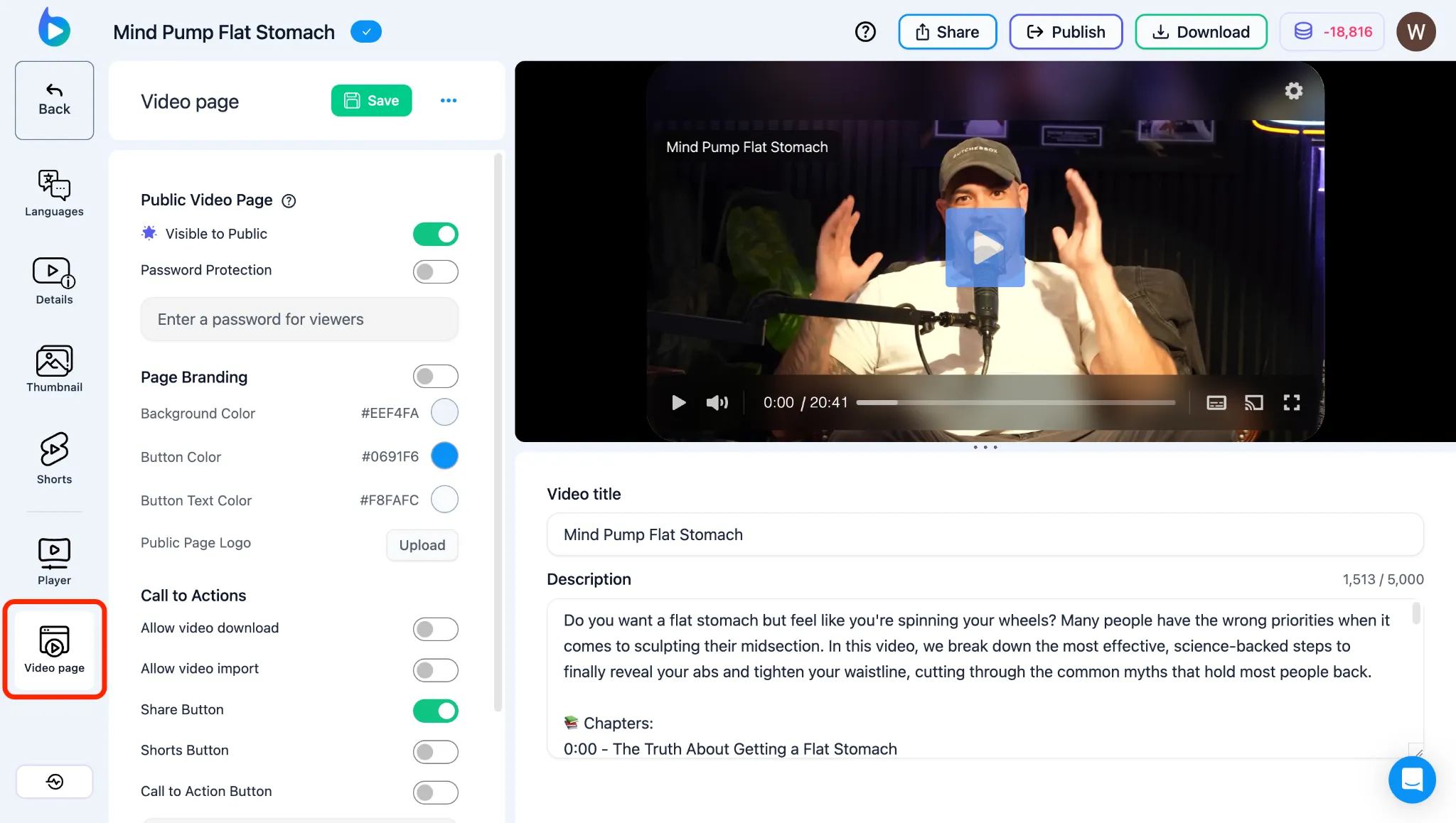
- Video Page: Gestiona la página de destino pública y el diseño de tu vídeo. Aprende a personalizar la página de vídeo pública.
¿A dónde ir a continuación?
Sección titulada «¿A dónde ir a continuación?»Braiv Studio te da acceso a toda la suite de productos Braiv. Dependiendo de tu objetivo, ve directamente a una de nuestras guías de flujo de trabajo dedicadas:
- ¿Listo para traducir metadatos y doblar tu audio? Ve a Braiv Dubbing.
- ¿Quieres extraer clips virales de tu vídeo? Ve a Braiv Shorts.
- ¿Necesitas ajustar cómo se ve el reproductor para tu audiencia? Ve a Braiv Player.
- ¿Listo para generar una imagen de portada clicable? Ve a Braiv Thumbnails.