
Visualización de traducciones en Braiv Player
Braiv Player te permite escuchar el audio del video traducido. Es tan fácil como seleccionarlo. Aquí tienes los pasos sencillos para ver y escuchar las traducciones:
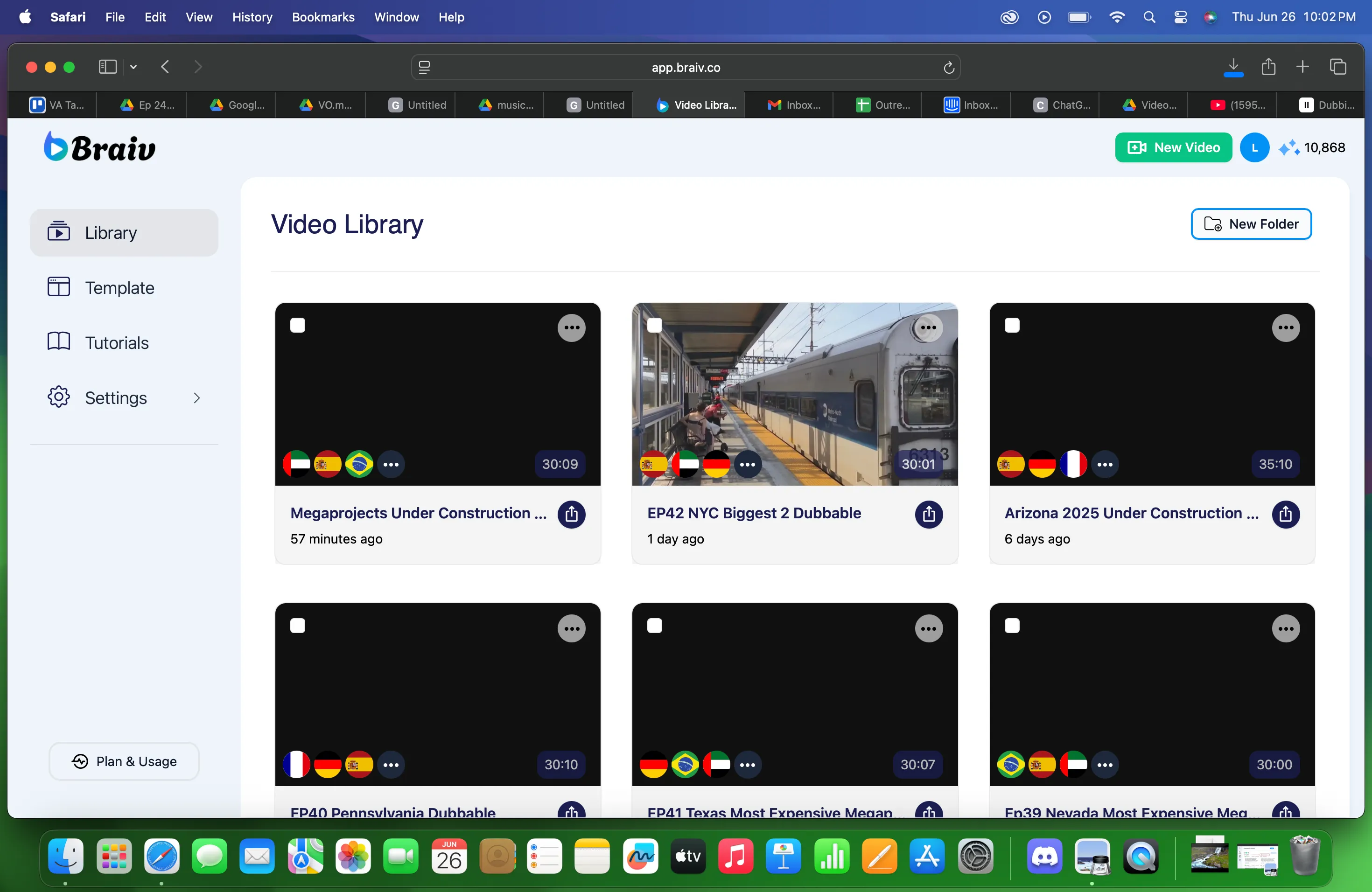
- Elige el video que deseas ver de la Biblioteca de videos.
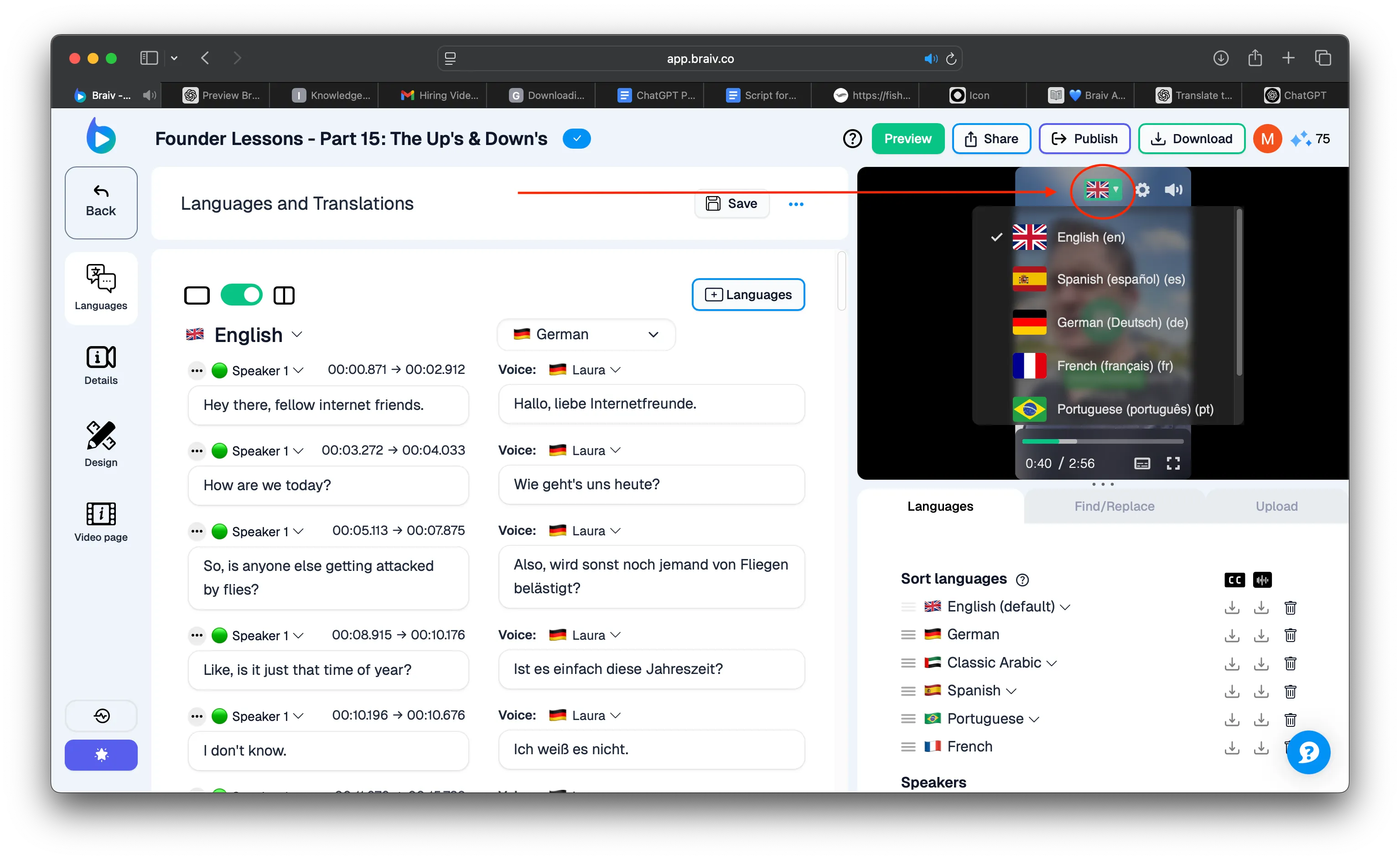
- Braiv Player se encuentra en el lado derecho de la pantalla. Para escuchar una traducción específica, simplemente pasa el mouse sobre el reproductor y automáticamente se mostrarán las banderas disponibles. Las banderas representan los idiomas a los que has traducido tu video. Simplemente haz clic en la bandera disponible en la pantalla como se muestra a continuación.
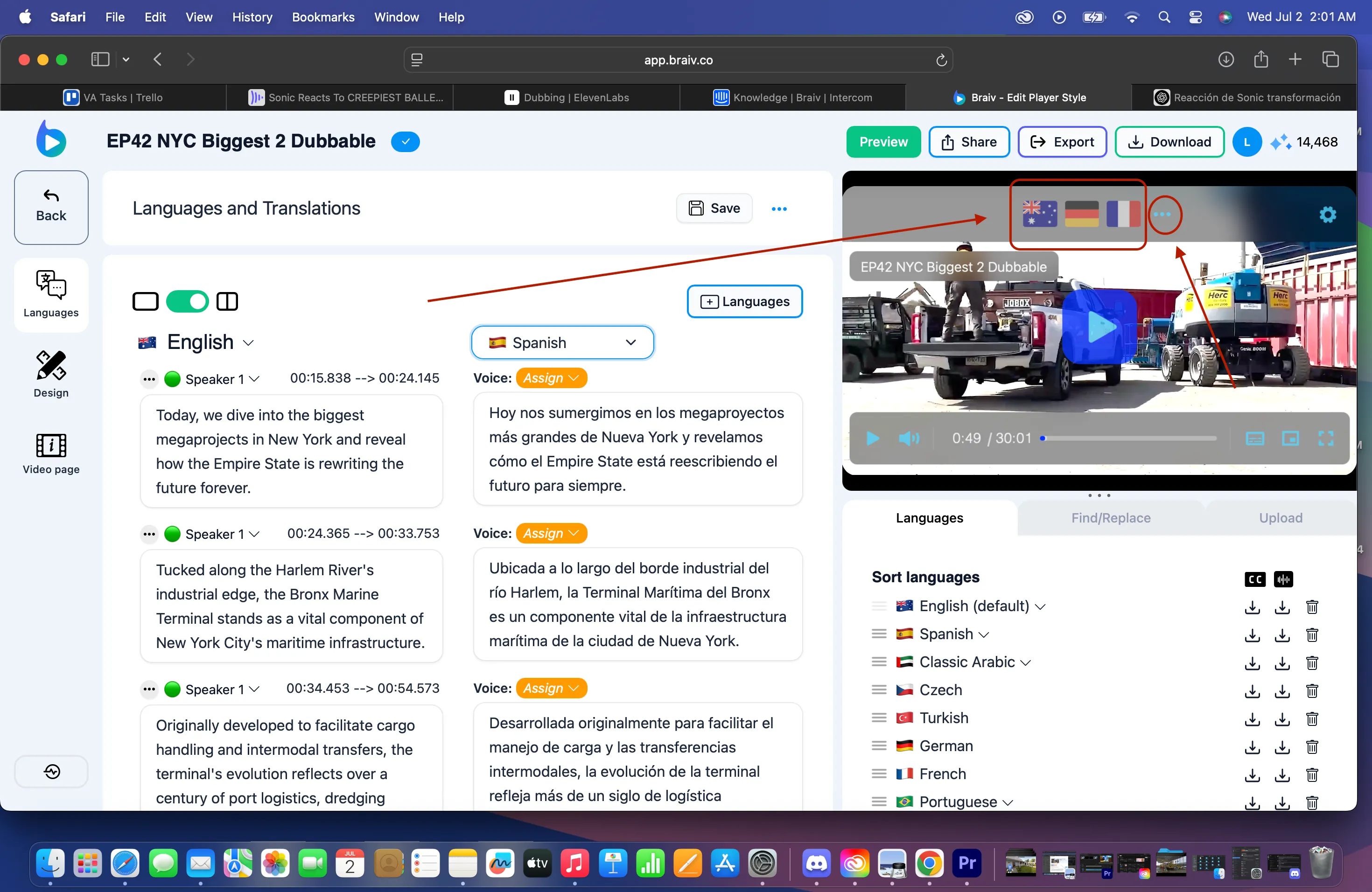
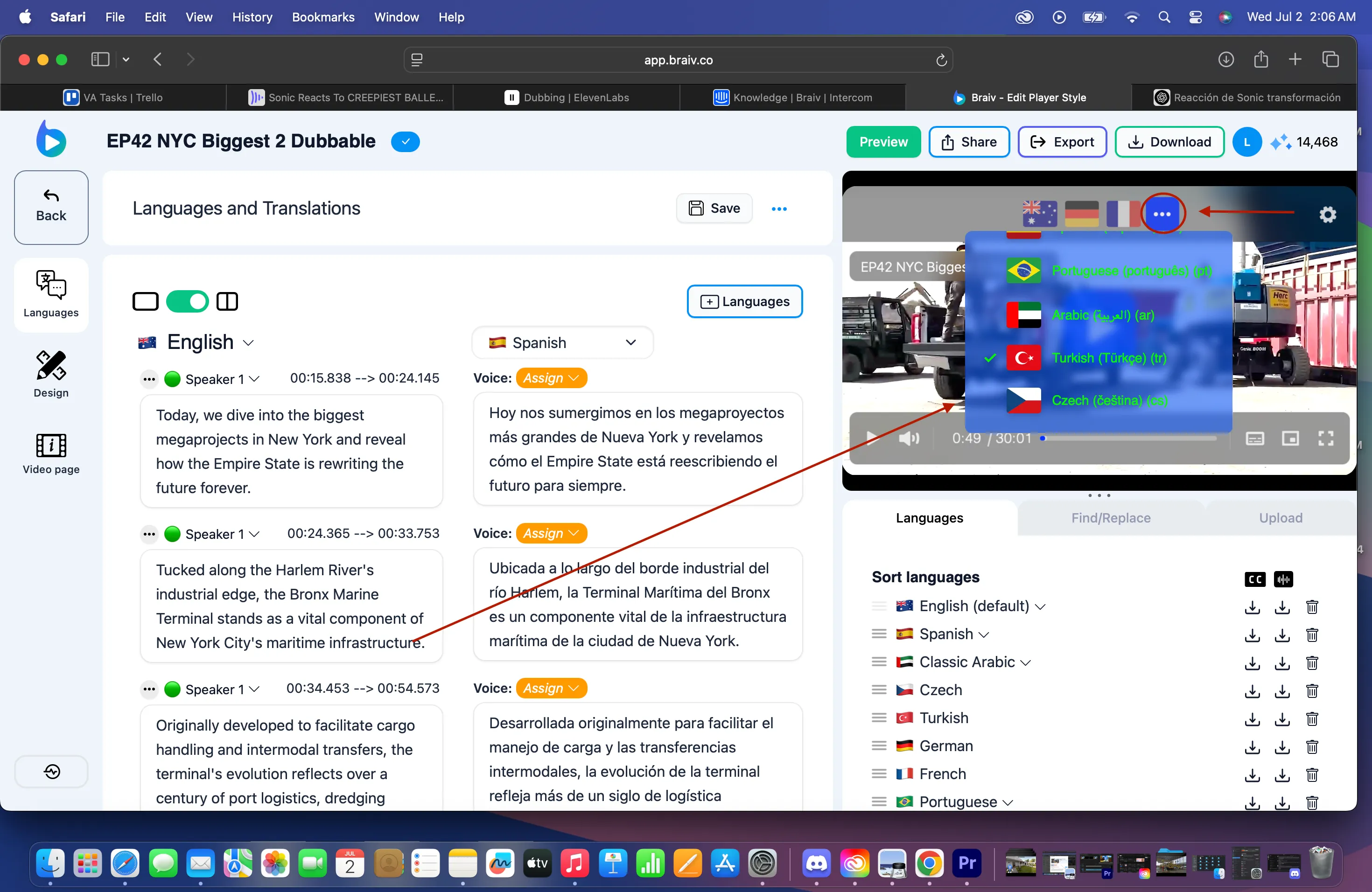
O si la bandera que buscas no está visible a primera vista, tienes que hacer clic en los tres (3) puntos que hay al lado para ver todas las banderas disponibles. Desde allí puedes elegir el idioma y luego hacer clic en el botón de Reproducir (Play Button) para empezar a reproducir el audio. A continuación se muestra el ejemplo.
Es IMPORTANTE recordar que el número de banderas que se muestran se basa en la cantidad de idiomas a los que se ha traducido el video. Si no ves ninguna bandera/idioma que estés buscando, primero deberás realizar la traducción para que esté disponible en la selección.
Si tienes videos destinados a TikToks o YouTube Shorts, se mostrarán en modo móvil o vertical en Braiv Player, como se ve en la imagen a continuación.
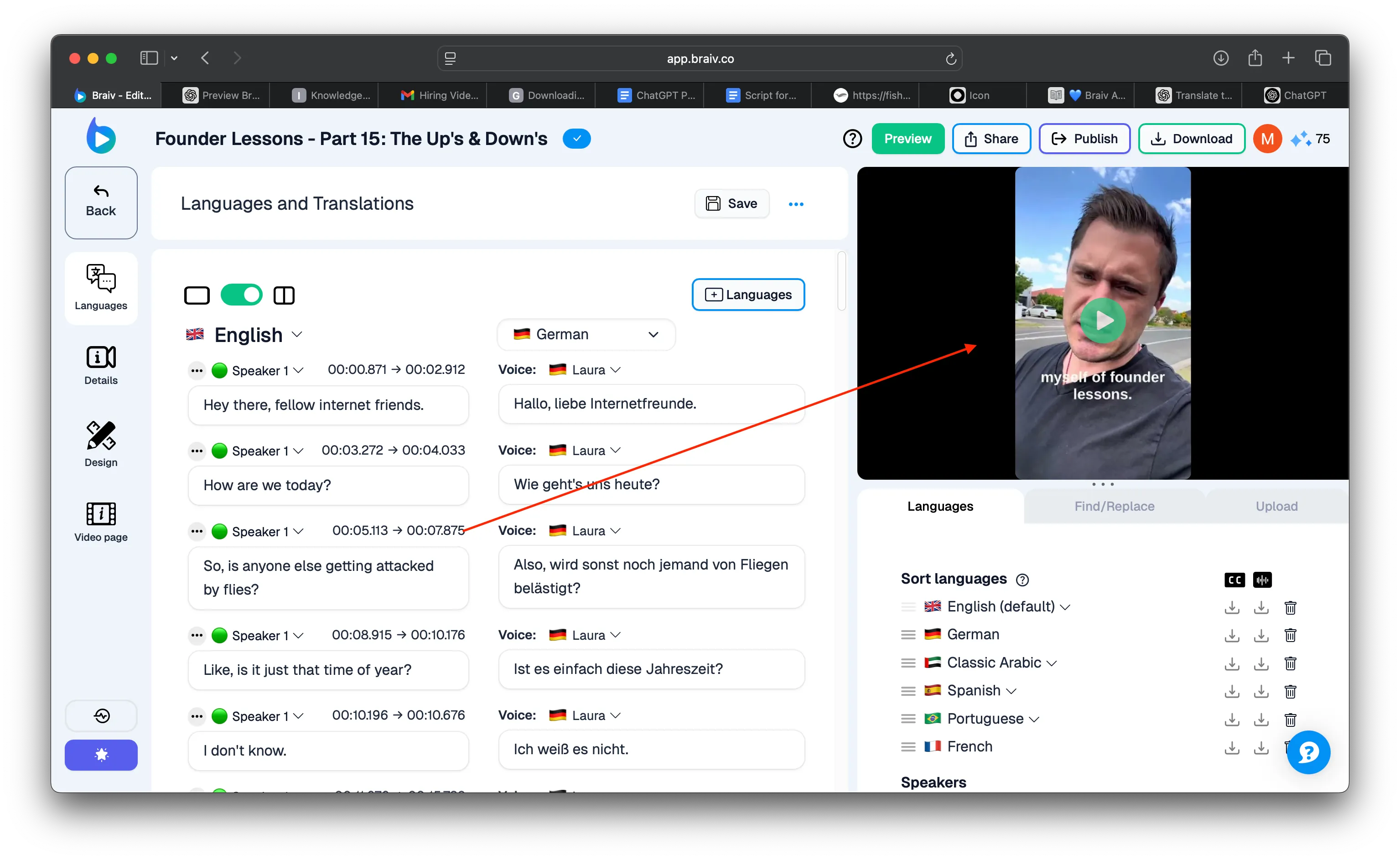
Pasa el mouse sobre Braiv Player, haz clic en la bandera para ver todos los idiomas disponibles. Selecciona la bandera, haz clic en reproducir para escucharla.
Una cosa más, es importante saber que, dado que Braiv utiliza Voice Cloning, la voz clonada para otros idiomas coincidirá automáticamente con las características vocales únicas, el tono y el género del orador original de tu video.