
Gerando AI Shorts
Neste tutorial, vamos detalhar o processo passo a passo de como usar a Braiv para gerar vídeos curtos e altamente envolventes a partir do seu conteúdo de formato longo.
Etapa 1: Crie um Novo Projeto de AI Shorts
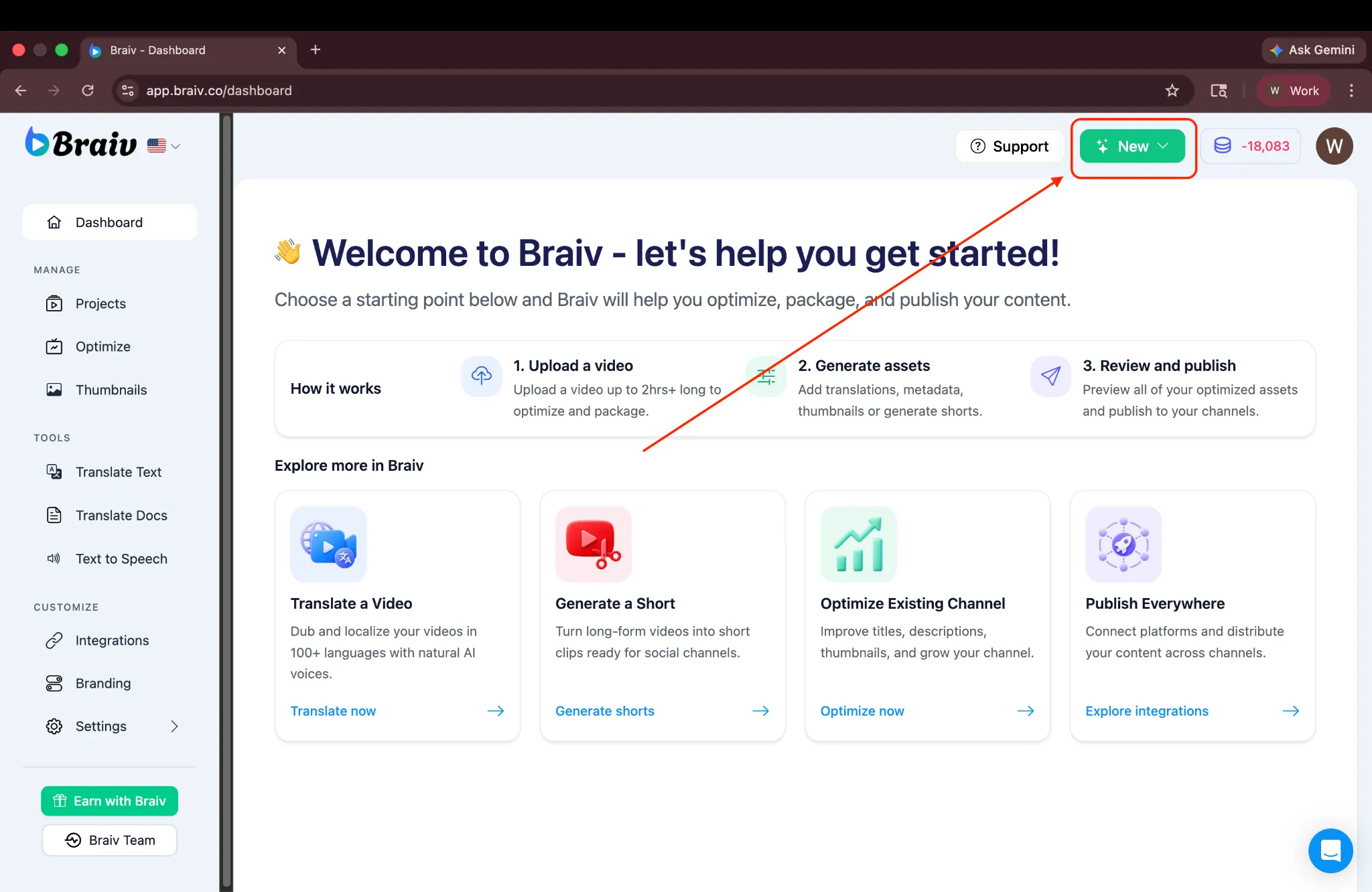
Seção intitulada “Etapa 1: Crie um Novo Projeto de AI Shorts”Primeiro, faça o upload do vídeo que você deseja usar para gerar Shorts. No canto superior direito do seu painel da Braiv, clique em Novo para começar.
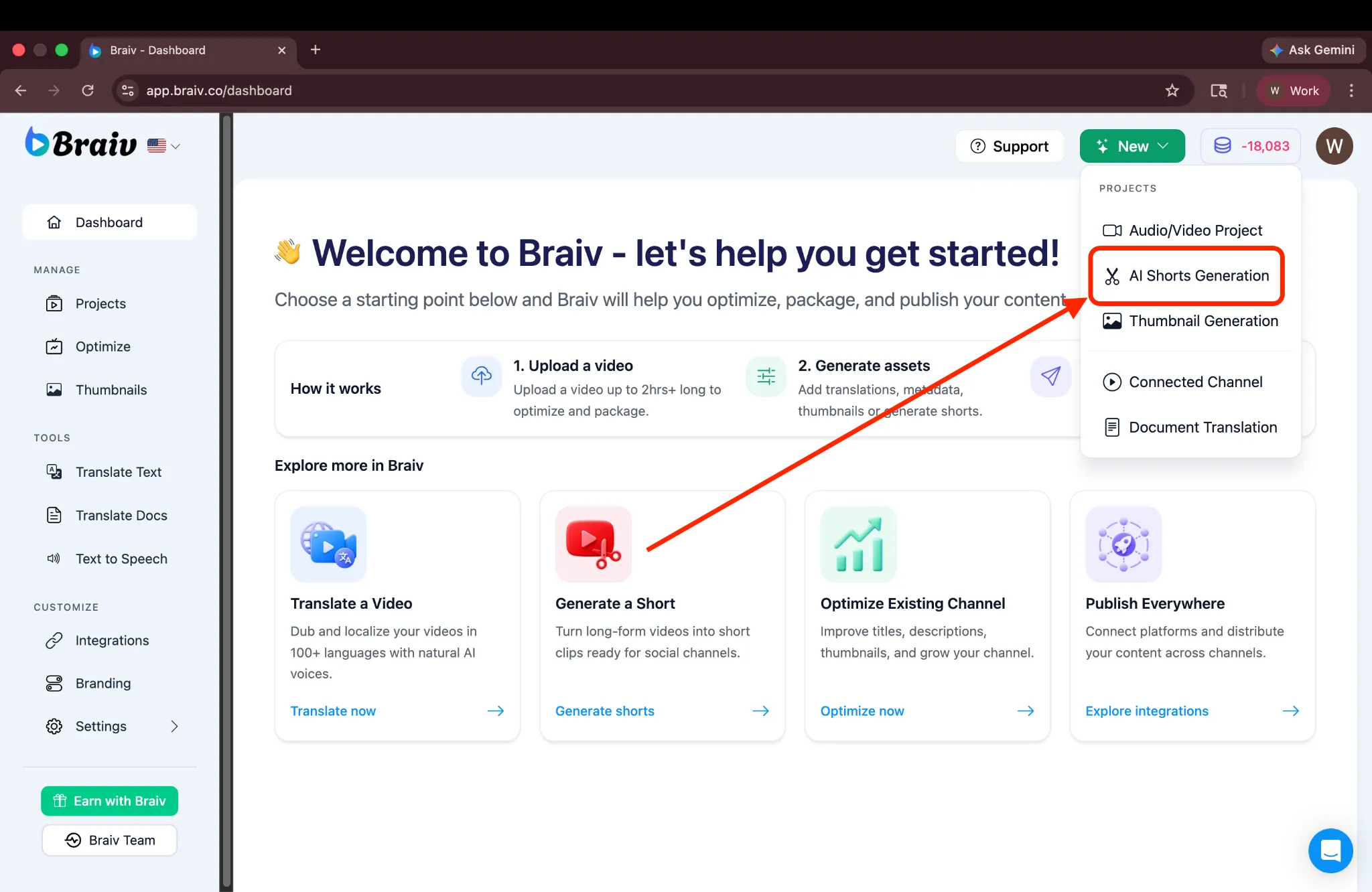
No menu suspenso, selecione Geração de AI Shorts.
Etapa 2: Importe Seu Vídeo
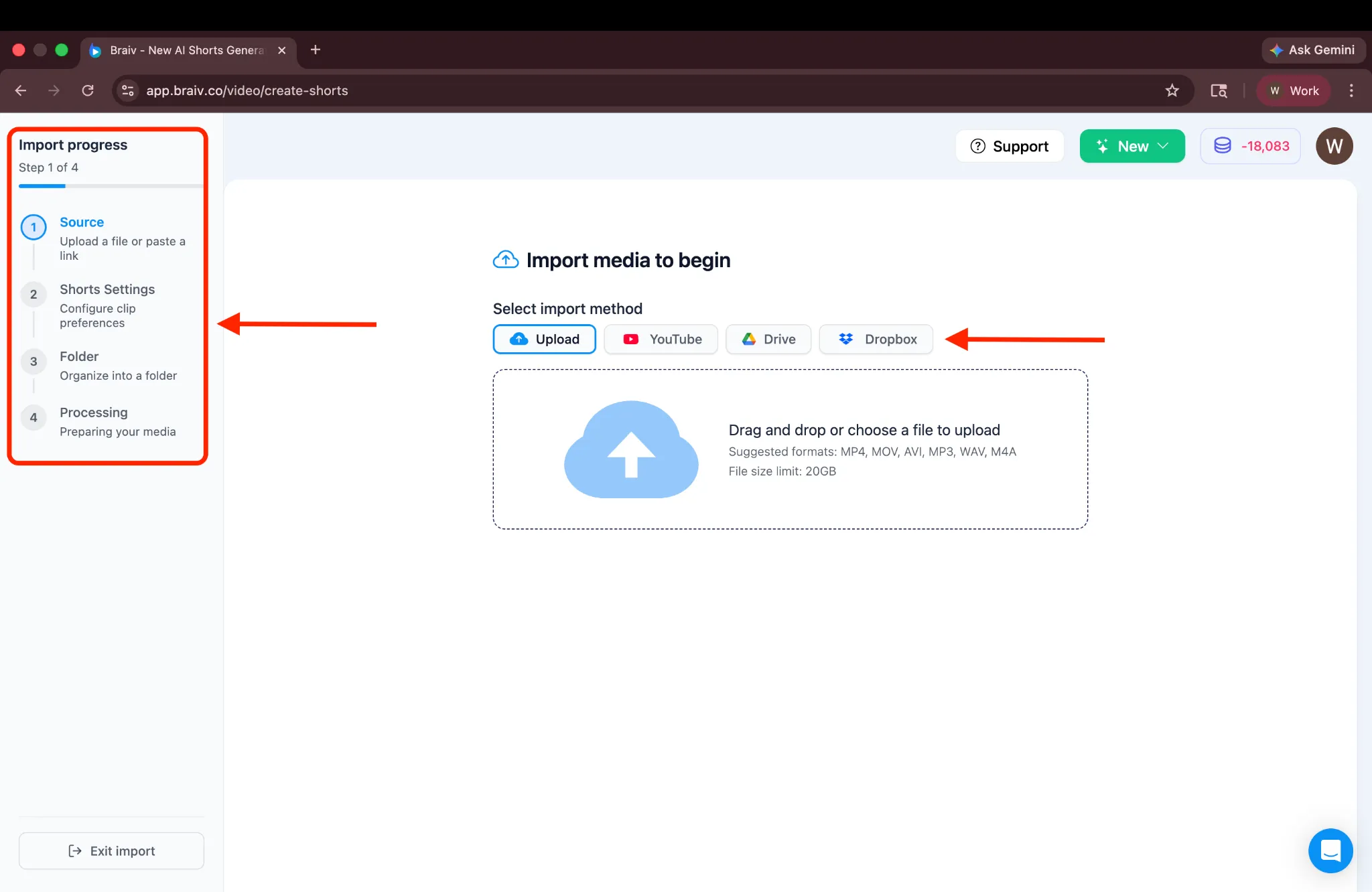
Seção intitulada “Etapa 2: Importe Seu Vídeo”Você será então levado para a tela de Importação, onde um guia de progresso é mostrado à esquerda. Você pode escolher entre quatro opções diferentes para importar seu vídeo.
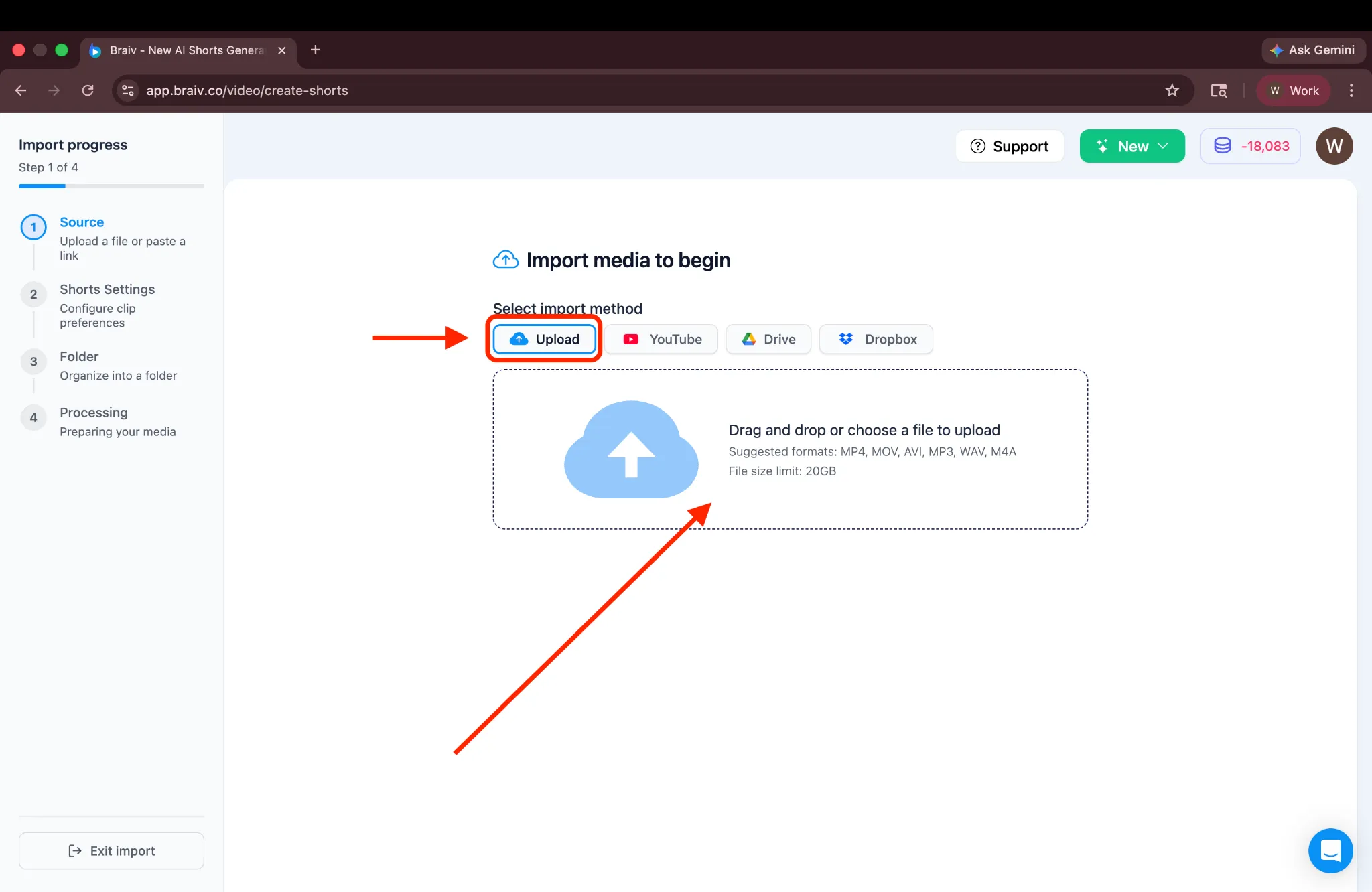
Para este tutorial, usaremos o método de Upload. Clique na caixa Upload para continuar.
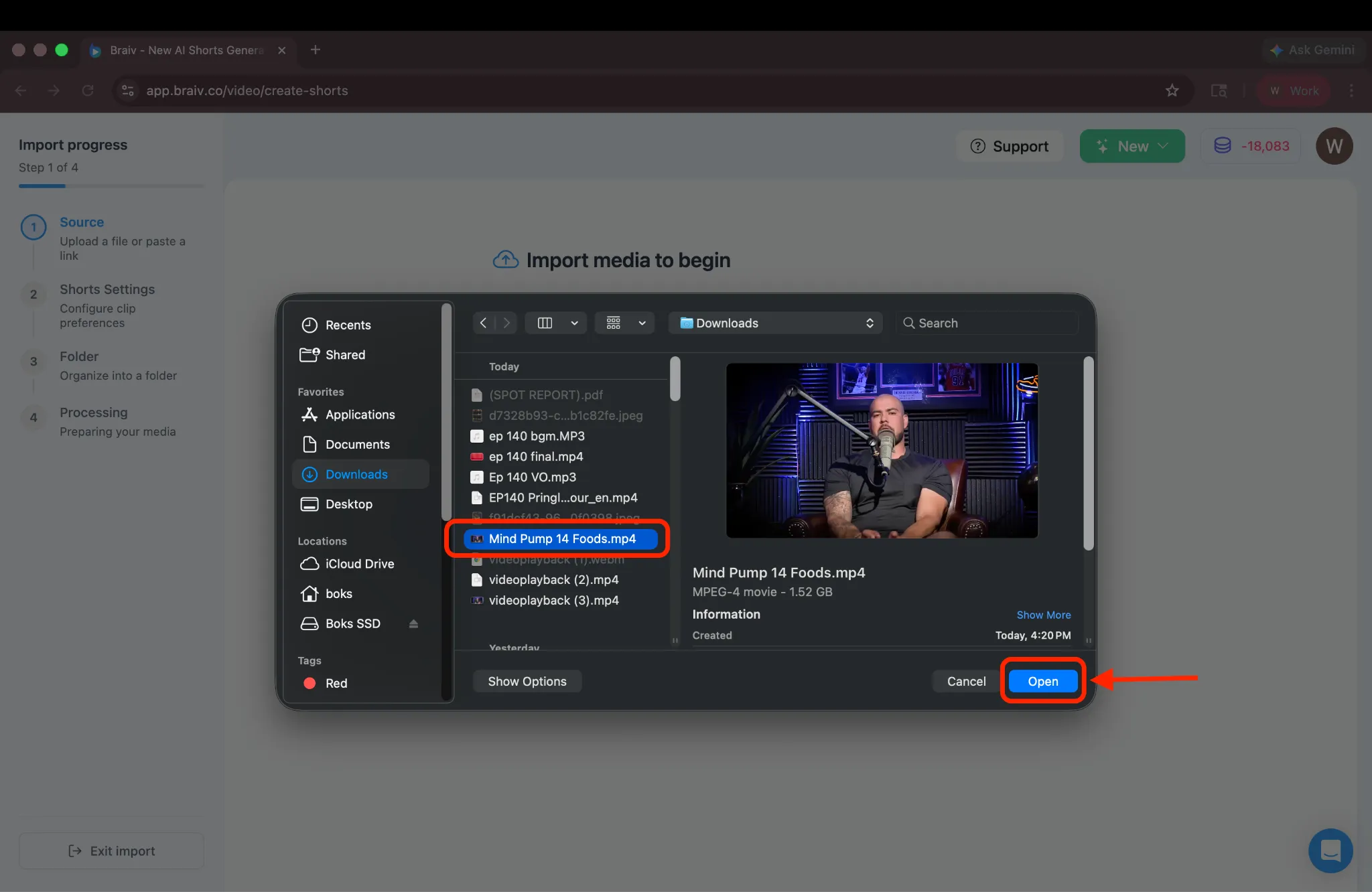
Isso abrirá seu gerenciador de arquivos. Selecione o vídeo de formato longo que você deseja enviar.
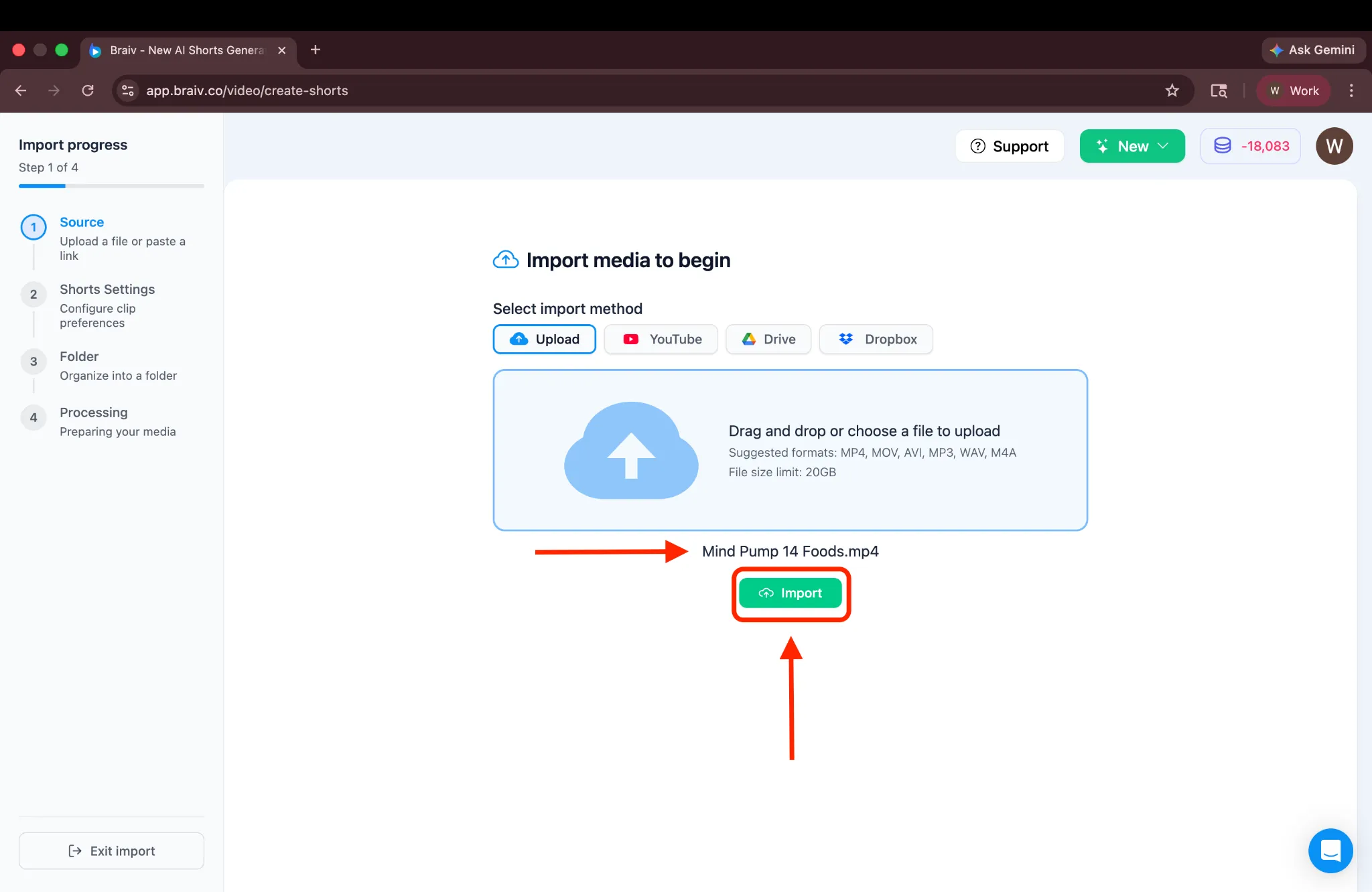
Você verá então o nome do arquivo selecionado exibido. Clique em Importar para continuar.
Etapa 3: Configure as Definições dos Seus Shorts
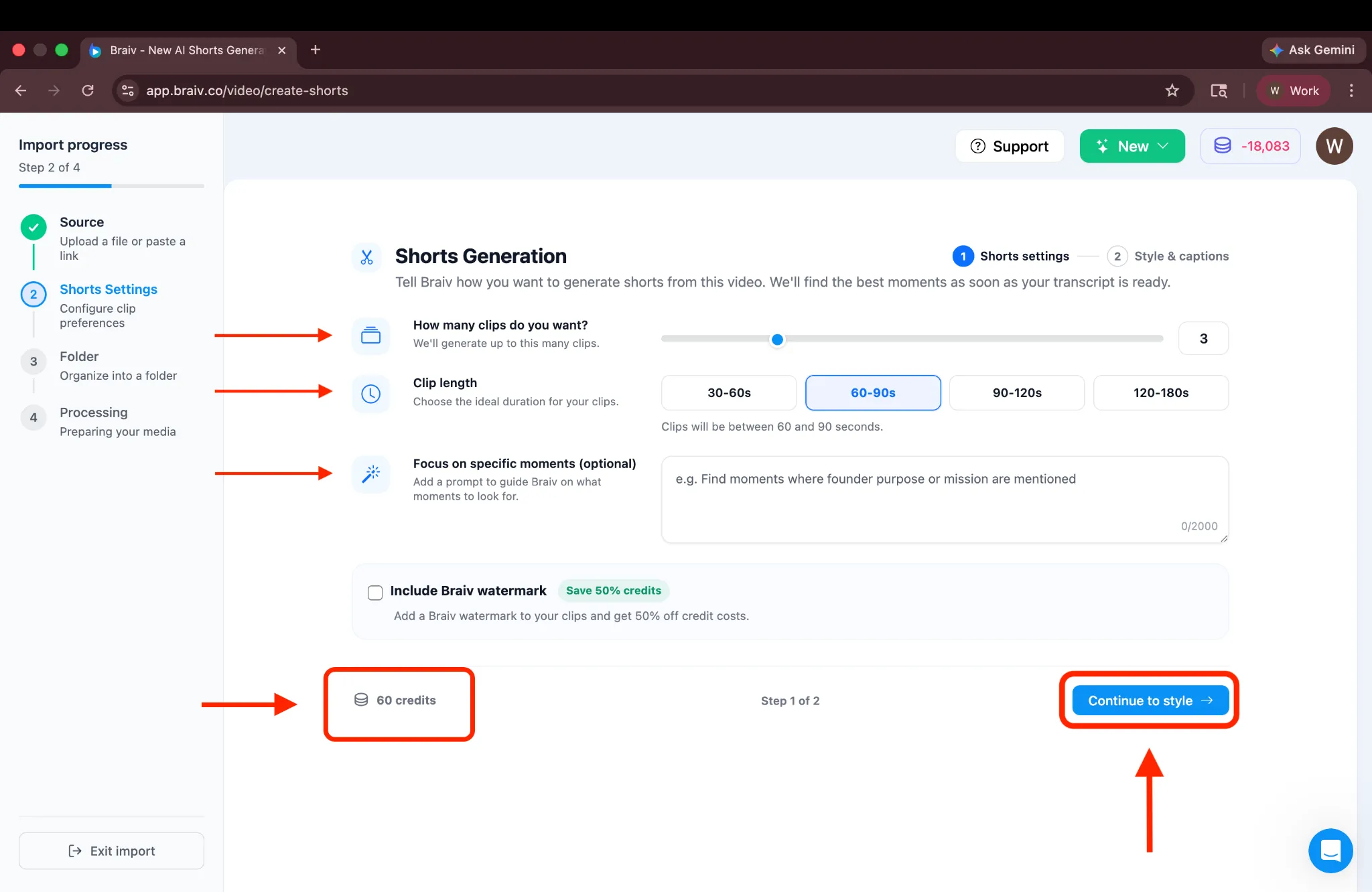
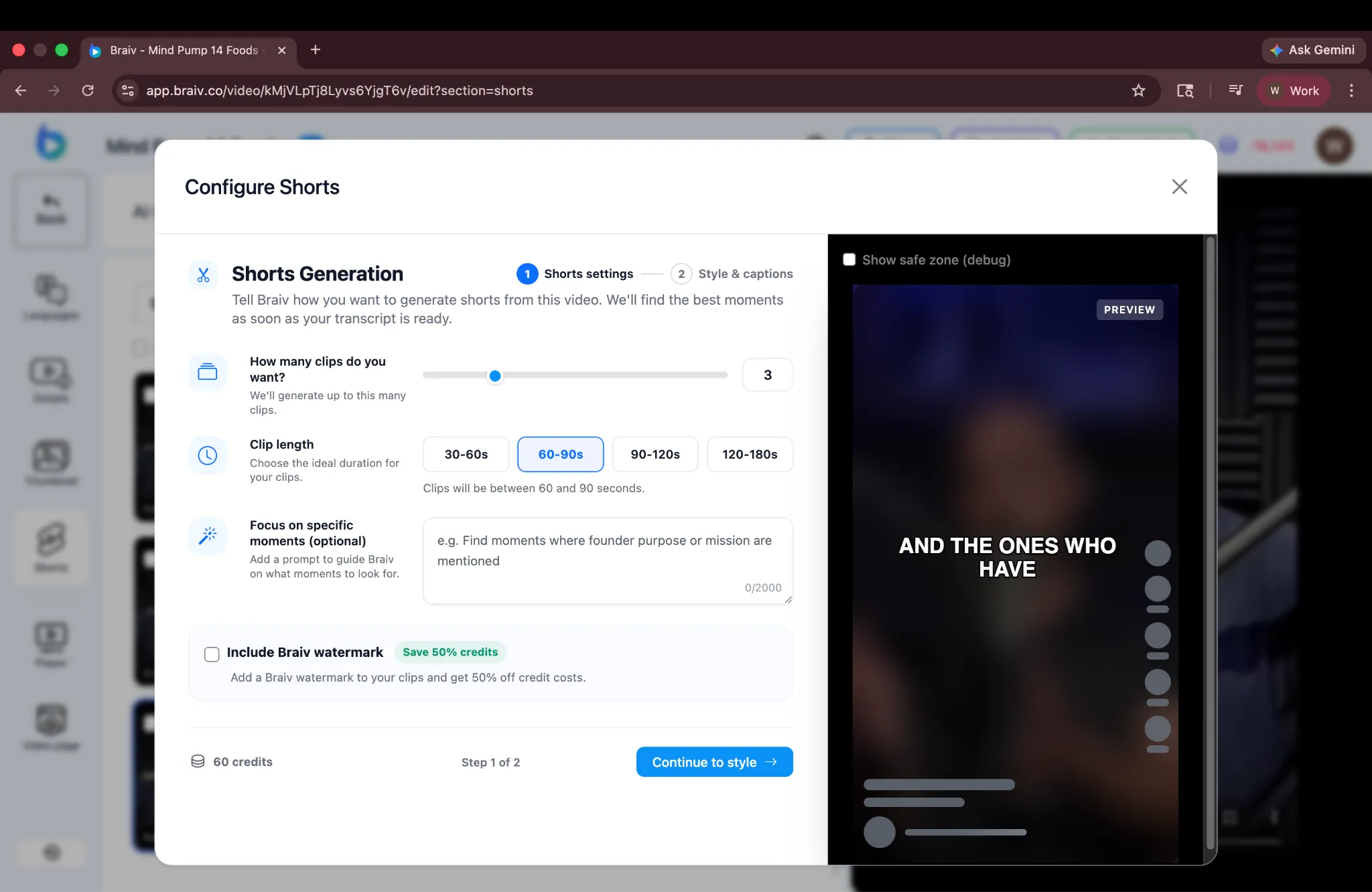
Seção intitulada “Etapa 3: Configure as Definições dos Seus Shorts”Você será levado para a página de Configurações de Short, onde todas as opções de configuração estão disponíveis.
Aqui, você pode escolher:
- Número de Shorts: Escolha quantos shorts gerar (até um máximo de 10).
- Duração: Defina a duração desejada para cada short.
- Prompt (Opcional): Se você tiver momentos específicos em mente, você pode adicionar um prompt para guiar a Braiv sobre o que focar ao gerar Shorts. Para este tutorial, deixaremos o prompt em branco, permitindo que a Braiv detecte automaticamente os melhores momentos de destaque.
- Marca d’água: Inclua uma marca d’água para ajudar a gerenciar créditos, ou desative-a.
Abaixo desta seção, você verá os créditos de IA estimados necessários para a configuração selecionada. (Observação: Os créditos exibidos no canto inferior esquerdo não são deduzidos quando você clica em “Continuar”; eles são exibidos apenas para referência, para que você possa entender o custo potencial antes de gerar.)
Uma vez satisfeito com a configuração, clique em Continuar para prosseguir para a próxima etapa.
Etapa 4: Personalizar os Estilos das Legendas
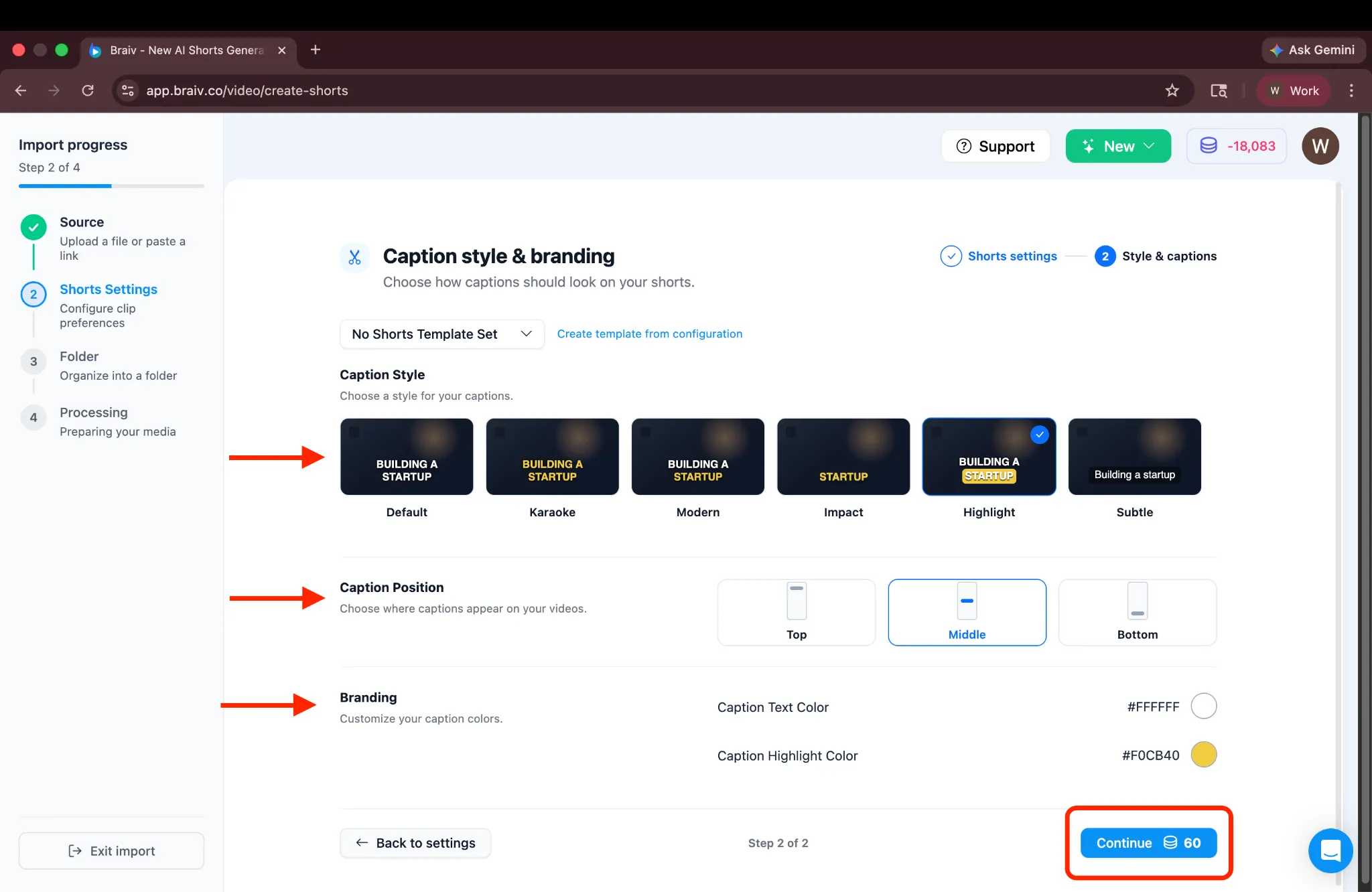
Seção intitulada “Etapa 4: Personalizar os Estilos das Legendas”Você chegará à tela de estilo, onde você pode:
- Selecionar um estilo de legenda.
- Ajustar a posição da legenda.
- Personalizar as cores do texto e do destaque para combinar com sua marca.
(Há também uma opção para “Criar modelo a partir da configuração”, que permite salvar essas configurações para uso futuro. Por enquanto, manteremos as configurações padrão da plataforma.)
Uma vez satisfeito com o estilo, você verá um botão Continuar na parte inferior com os créditos necessários exibidos ao lado. Para prosseguir, clique em Continuar.
Etapa 5: Organizar em Pastas
Seção intitulada “Etapa 5: Organizar em Pastas”A seguir, está a tela de Pasta, onde você pode optar por criar uma nova pasta para ajudar a organizar seus vídeos. Se preferir, você pode pular esta etapa e prosseguir sem criar uma.
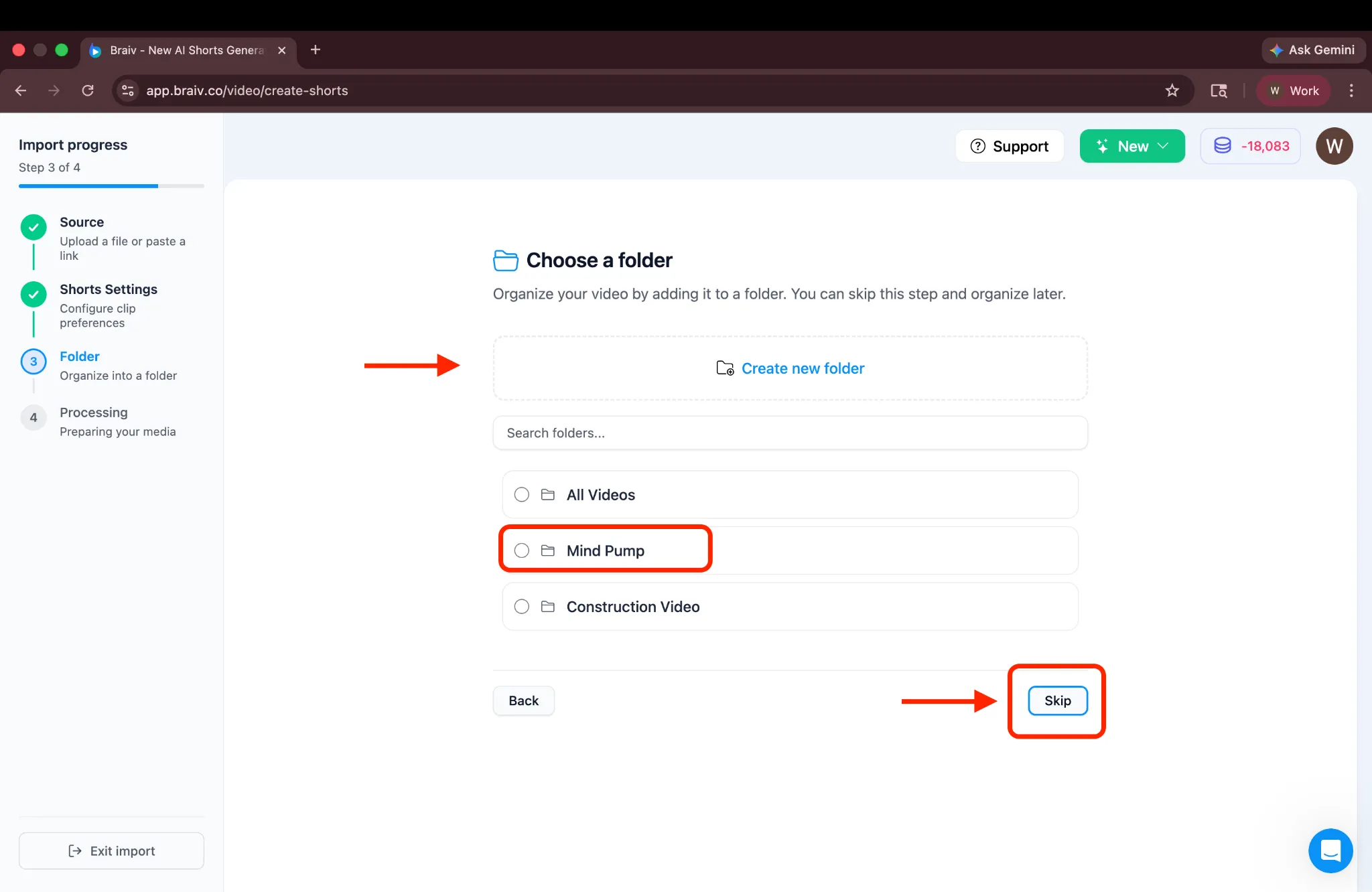
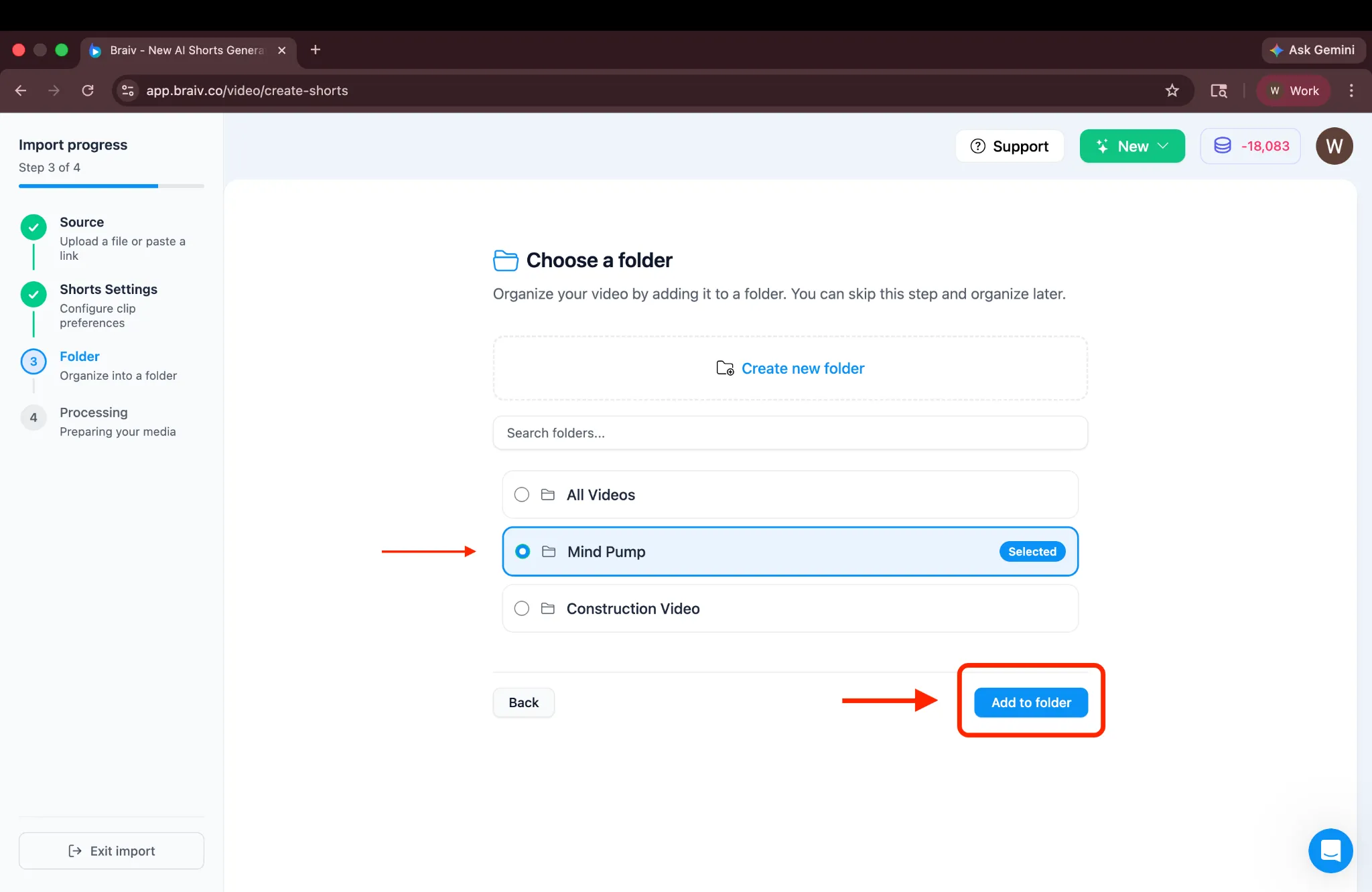
Se você já tiver uma pasta (ou criou uma nova), simplesmente selecione-a e clique em Adicionar à pasta.
Etapa 6: Processamento e Revisão
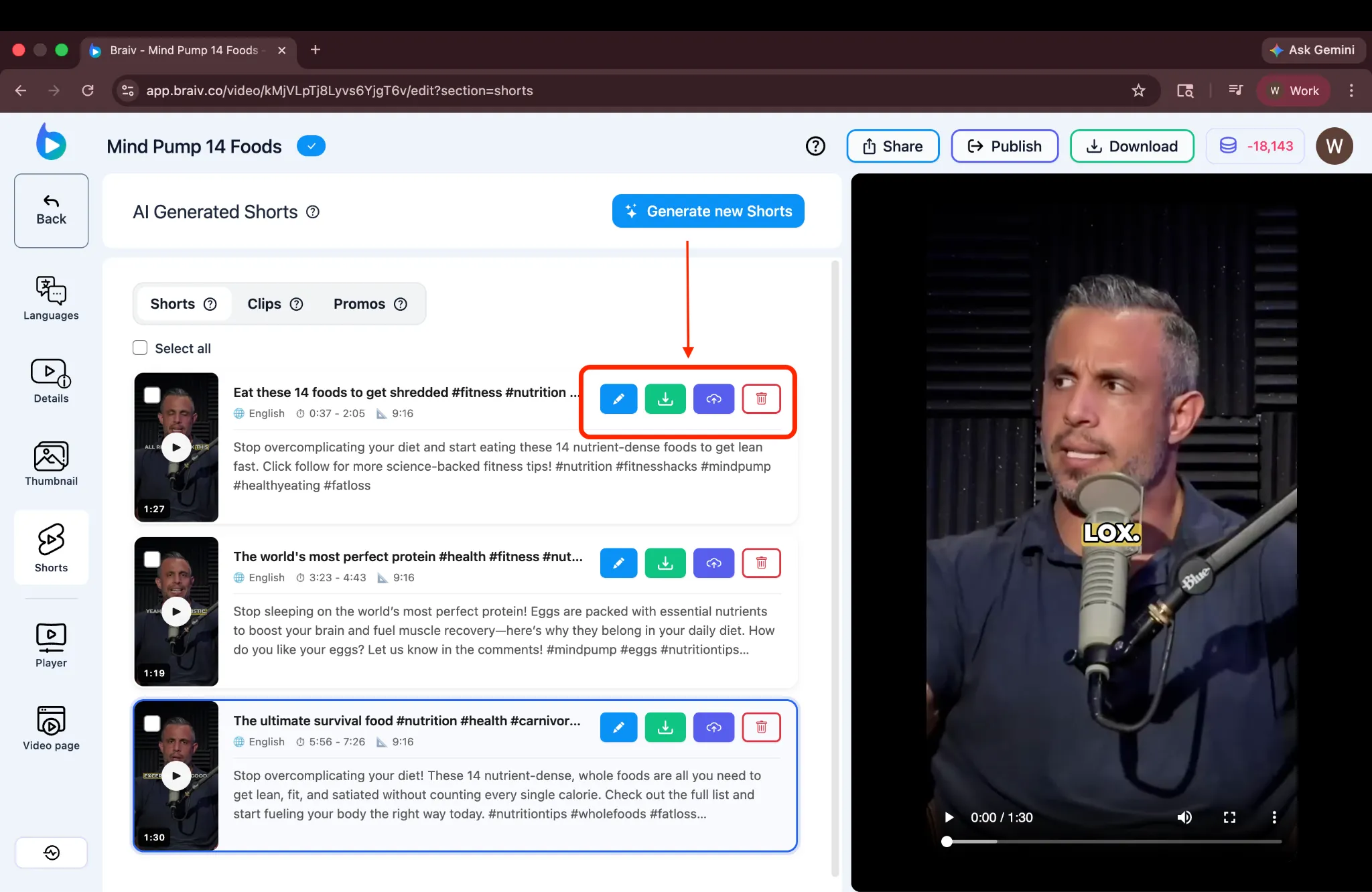
Seção intitulada “Etapa 6: Processamento e Revisão”A Braiv começará imediatamente a processar seus Shorts! Enquanto espera, você pode navegar para outras abas do projeto usando a barra lateral esquerda.
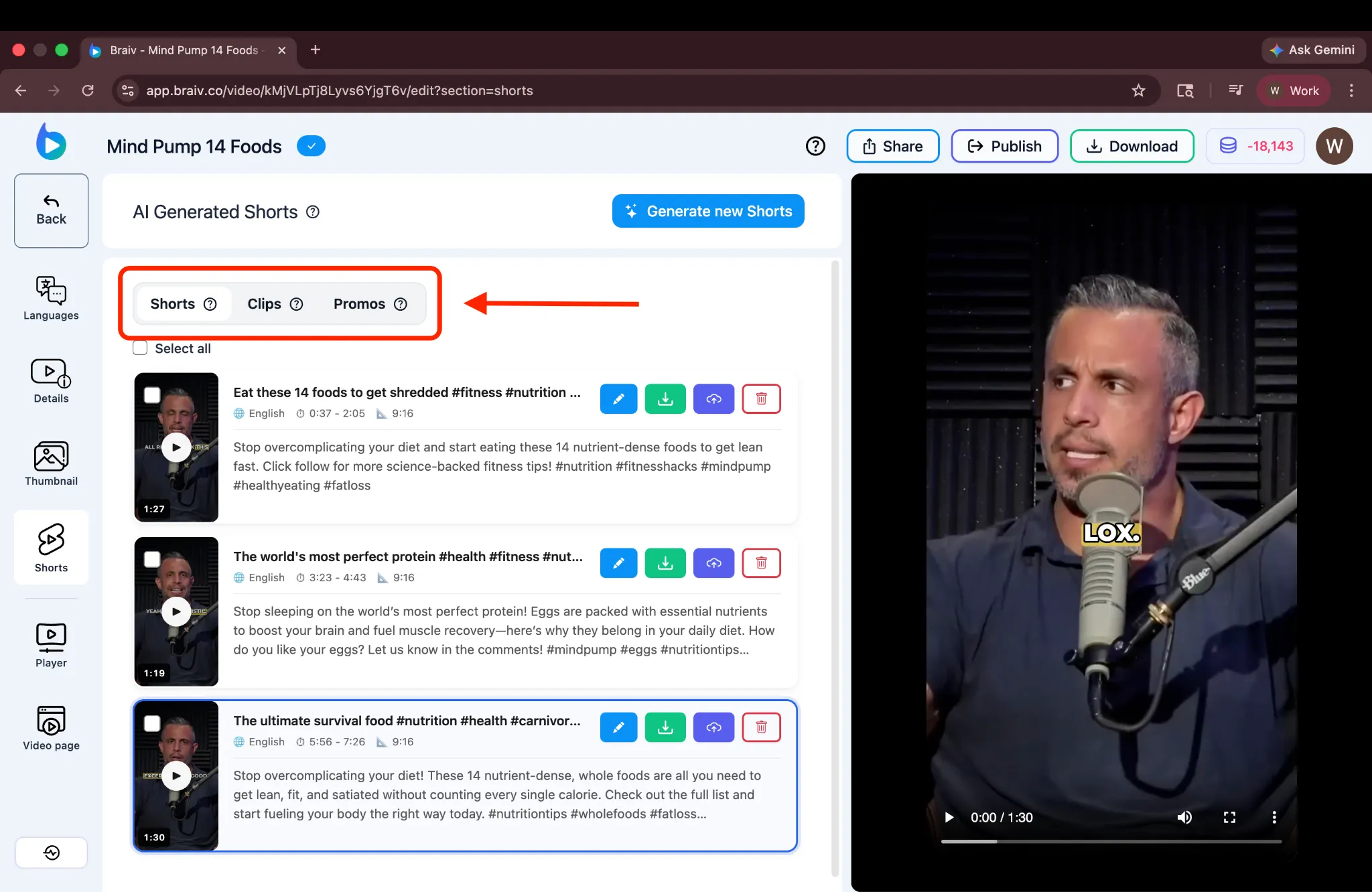
Após alguns minutos, seus Shorts estarão prontos. Você pode reproduzir cada um para revisá-lo e usar as opções ao lado de cada vídeo para editar, baixar, publicar ou excluir um Short.
Gerando Novos Shorts
Seção intitulada “Gerando Novos Shorts”Se você não estiver satisfeito com os Shorts gerados, você pode clicar no botão Gerar novos Shorts na parte superior para retornar diretamente à tela de configuração e criar um novo conjunto.
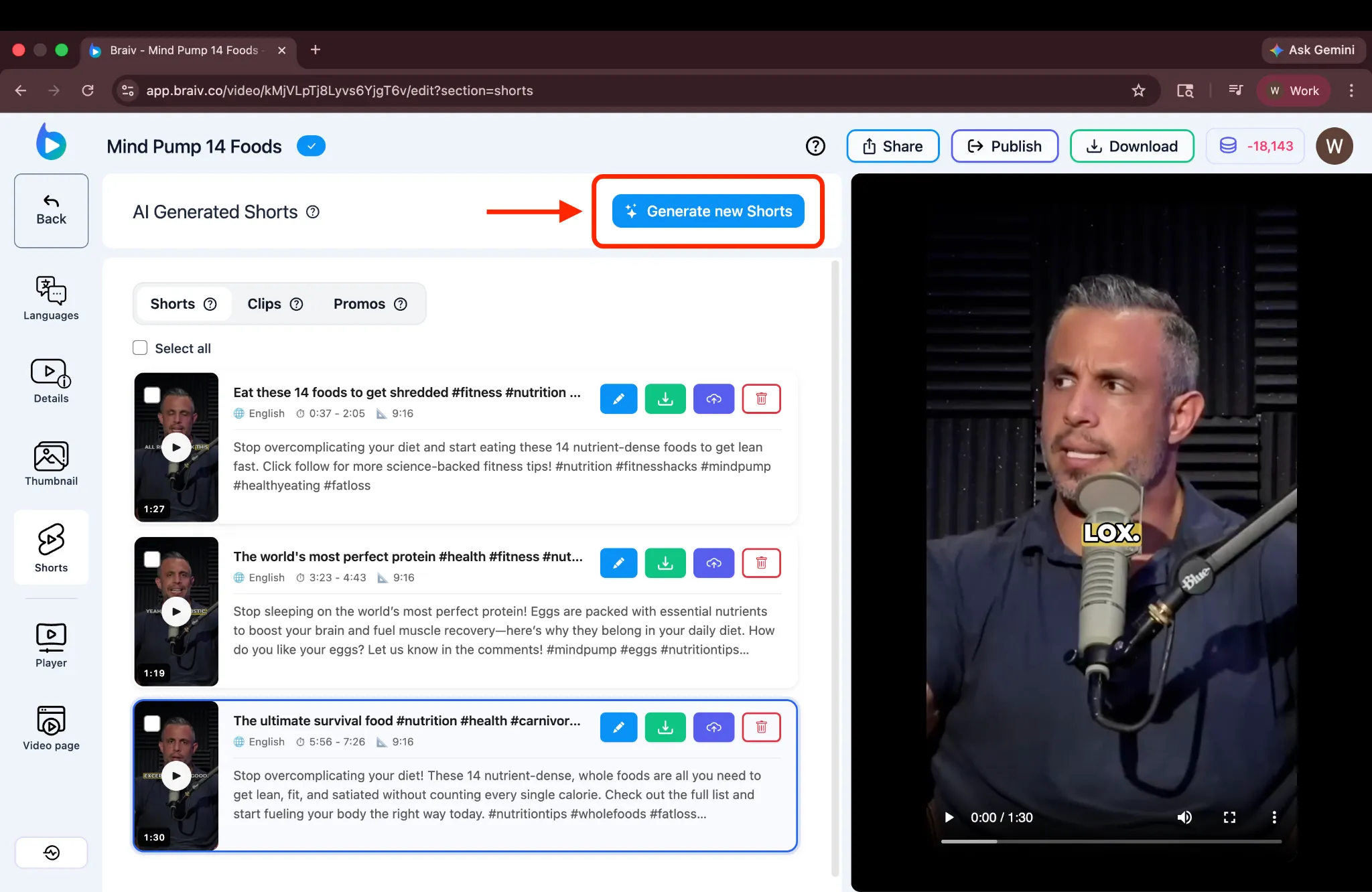
(Observação: Gerar novos Shorts exigirá créditos adicionais. No entanto, na maioria dos casos, a IA da Braiv é capaz de identificar momentos relevantes de forma eficaz na primeira tentativa, então a regeneração pode não ser necessária.)
Gerando Clips e Promos
Seção intitulada “Gerando Clips e Promos”Você também notará abas para Clips e Promos. A Braiv também suporta a geração desses tipos específicos de conteúdo de formato curto, que serão abordados em um tutorial separado.
E é isso! Você gerou com sucesso AI Shorts usando a Braiv. Este processo torna incrivelmente fácil capturar momentos chave dos seus vídeos de formato longo e transformá-los em clipes virais e compartilháveis para seus canais de mídia social.