
Branding
Veja como você pode personalizar o design do seu Braiv Player usando um modelo de branding.
1. Clique em Configurações.
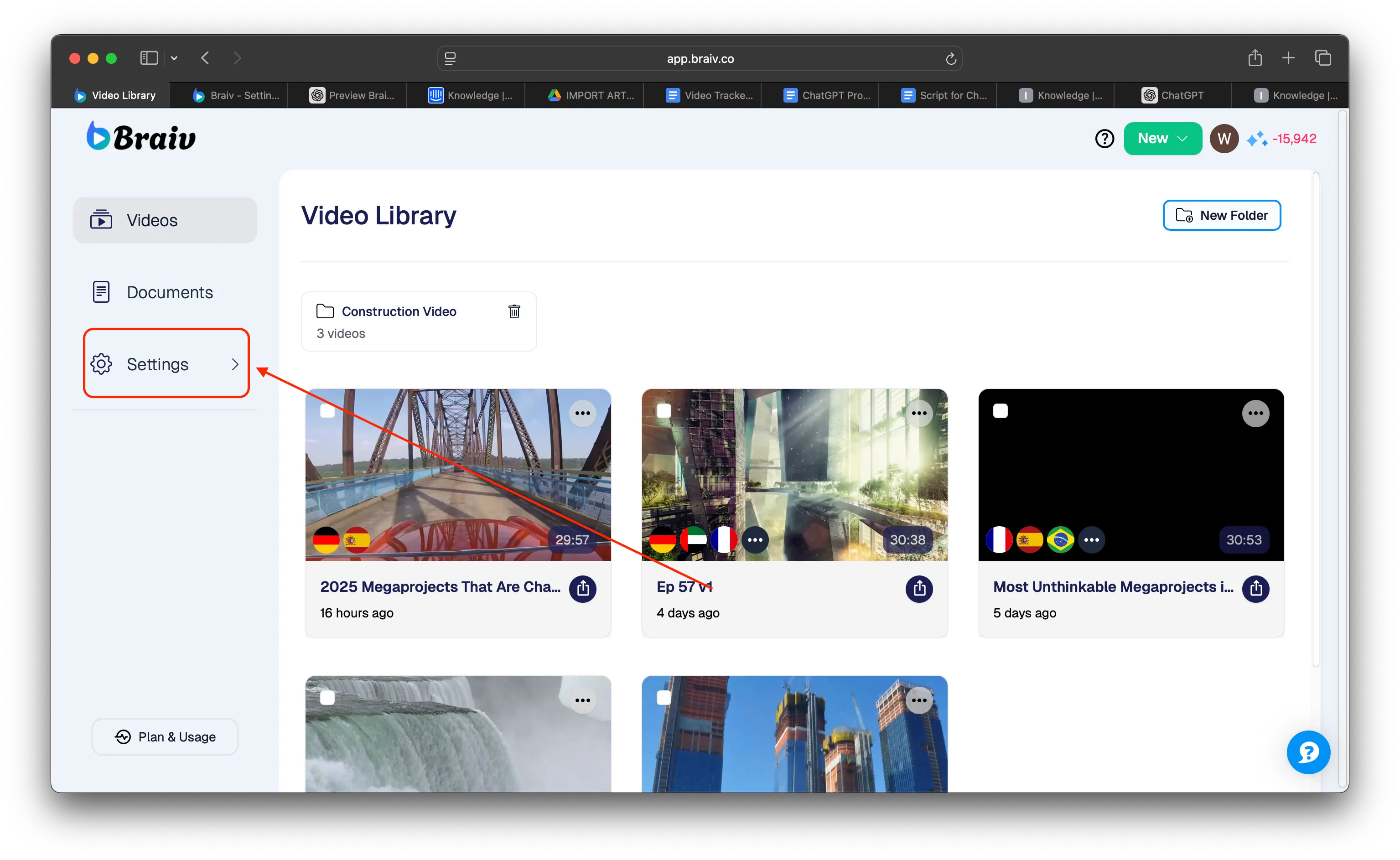
2. Selecione Branding no menu.
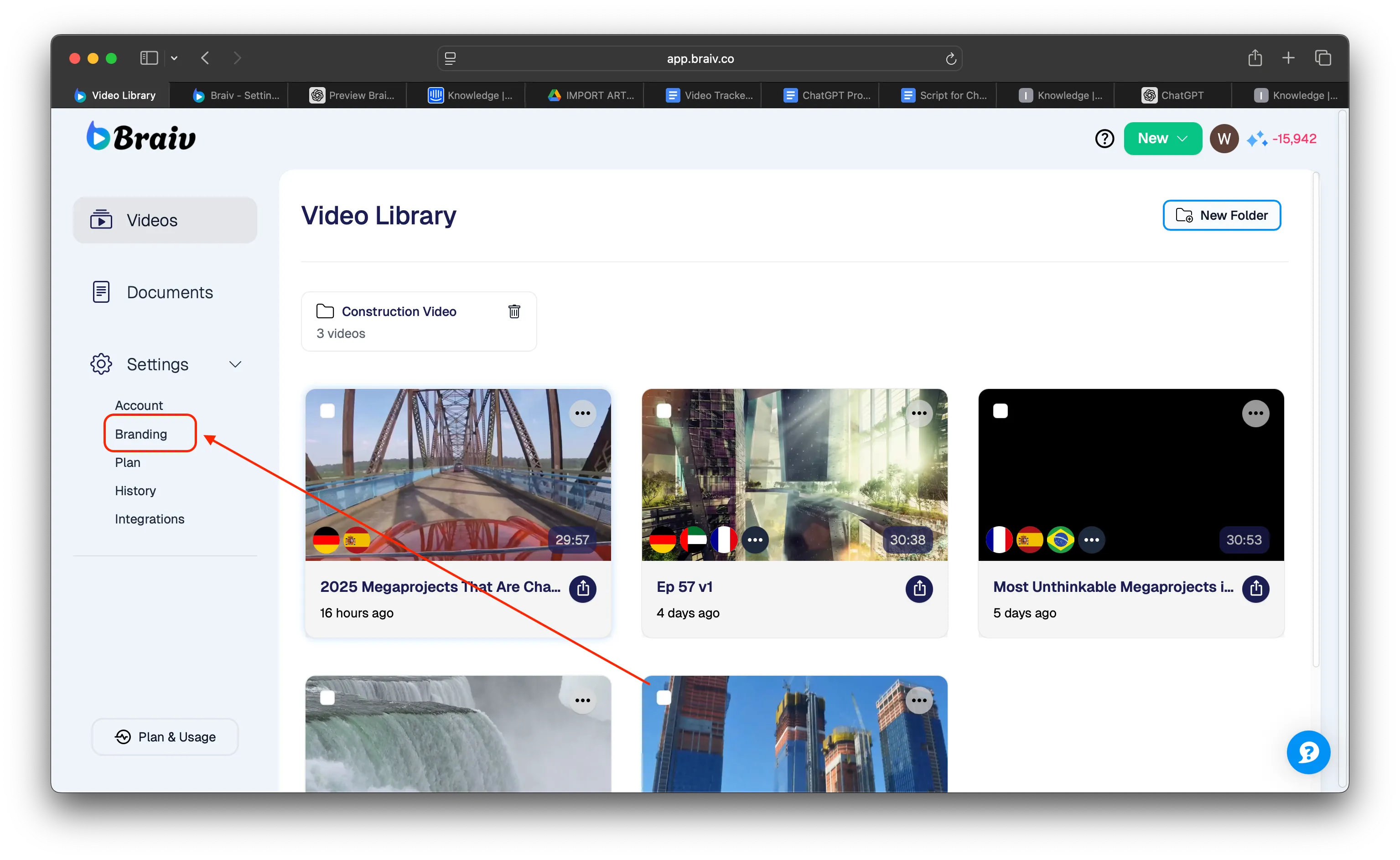
3. Você será direcionado para outra tela onde poderá definir um Modelo Padrão para o seu branding, alterando algumas das configurações ao seu gosto.
Para esta demonstração, estamos focando nas configurações principais que você pode definir no seu Braiv Player.
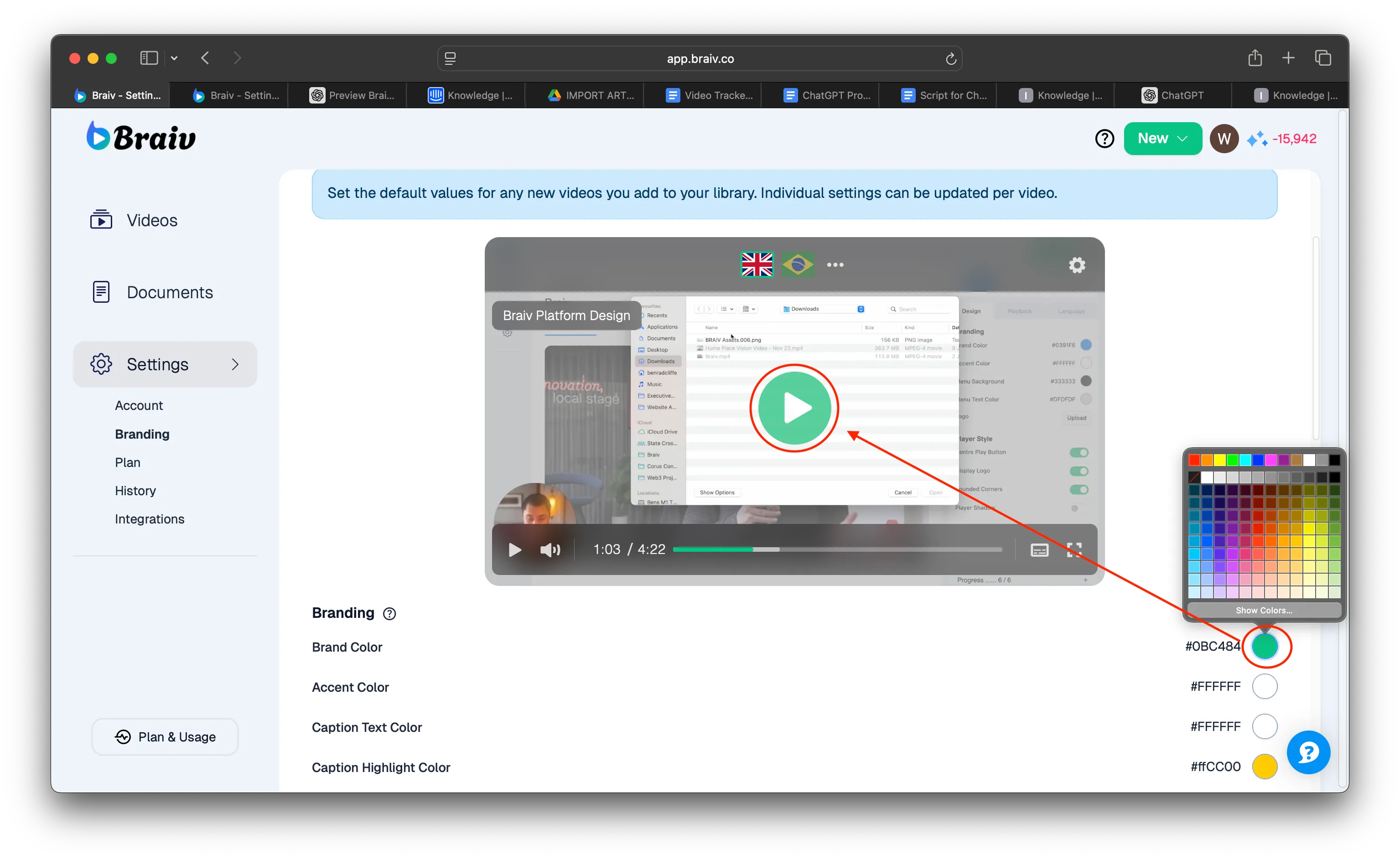
A. Brand Color
É o que também chamamos de ‘Cor Principal’. Clique na cor para ver todas as cores disponíveis para escolher. A cor que você escolher aparecerá no ícone do Player e também nos outros ícones do player.
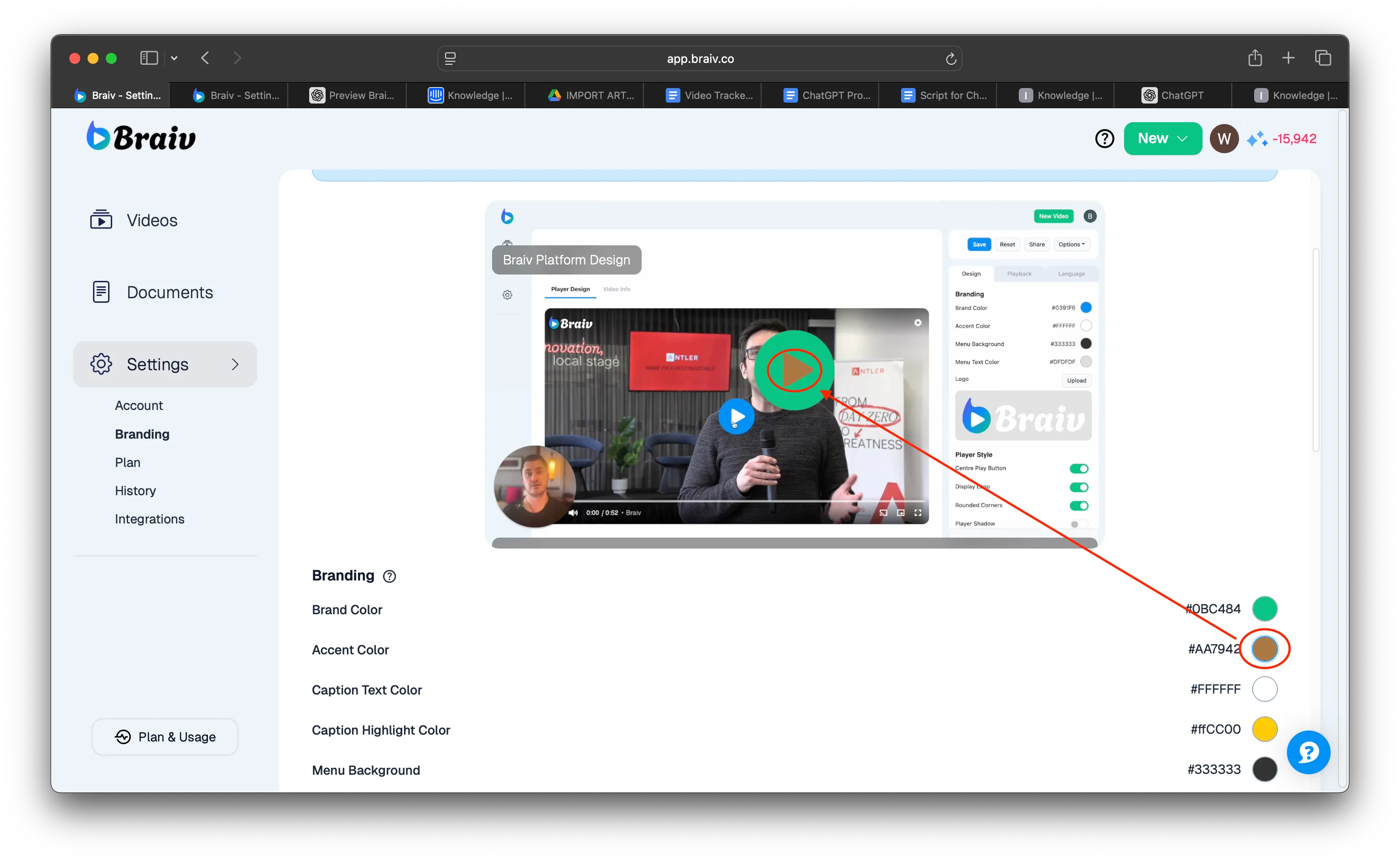
B. Accent Color
Esta é a cor secundária que você pode definir como parte do seu branding. Isso dará uma cor ao ícone principal.
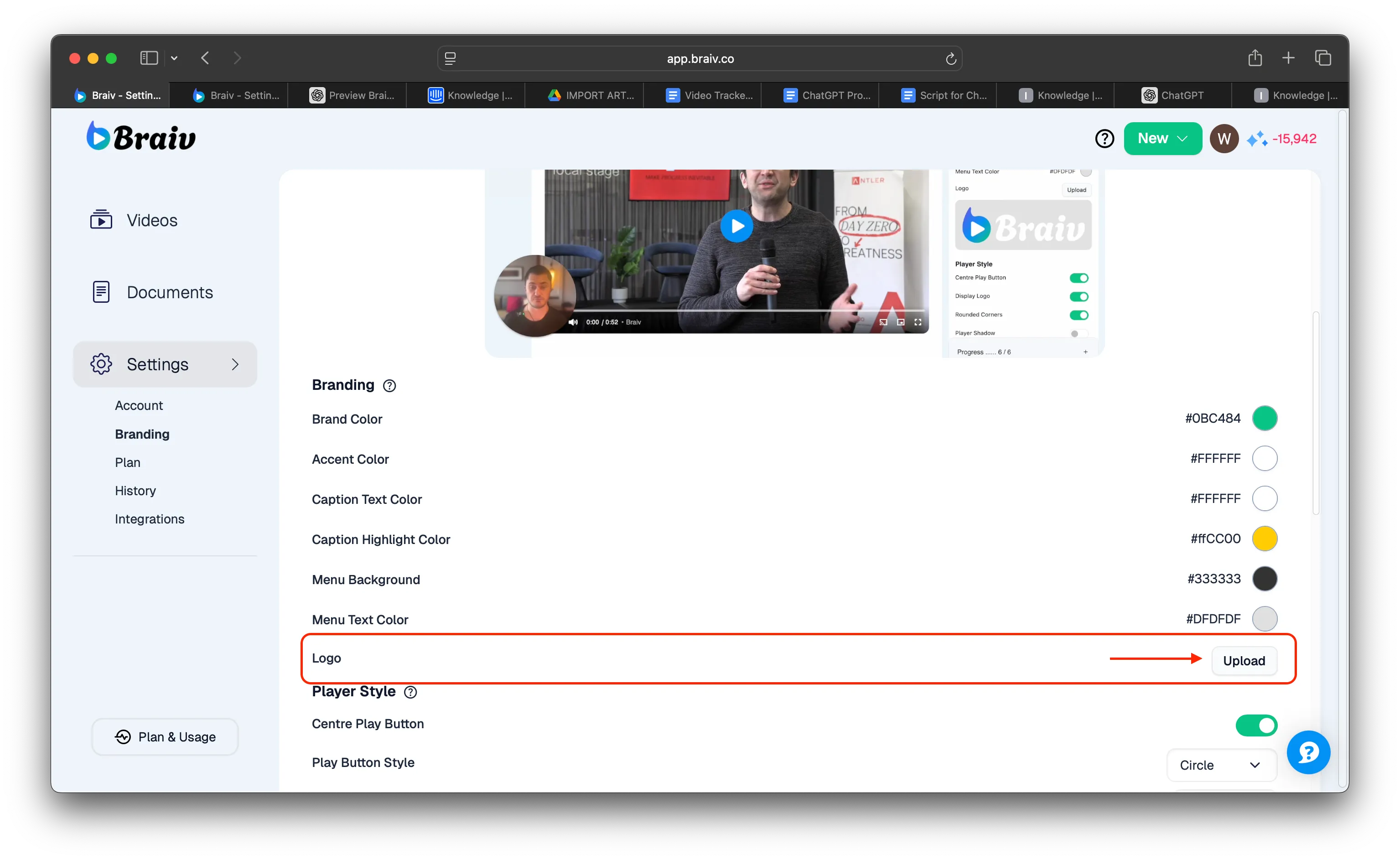
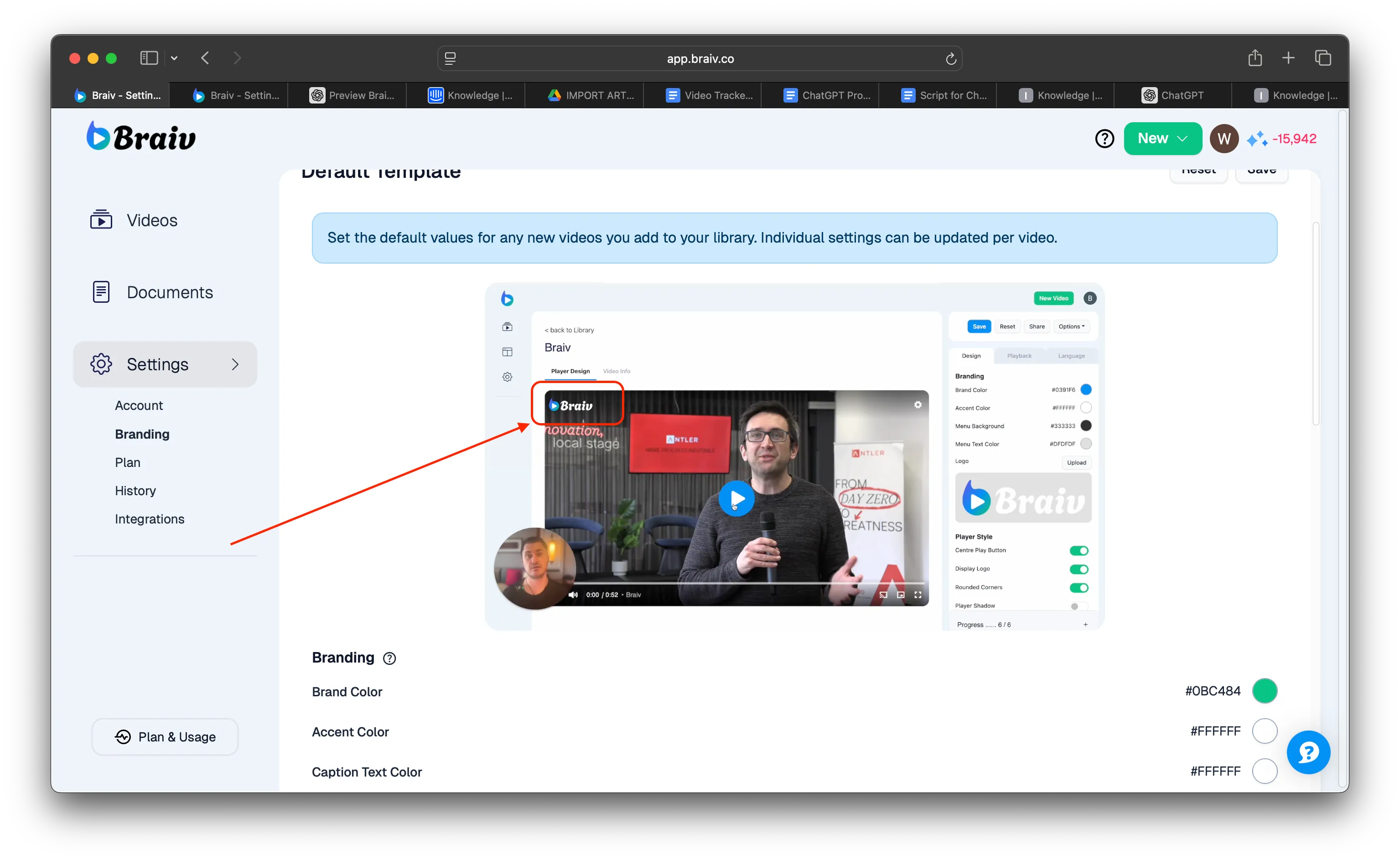
C. Logo
Você também pode carregar o Logotipo da sua Marca e ele aparecerá no canto superior esquerdo do player.
D. Player Button Style
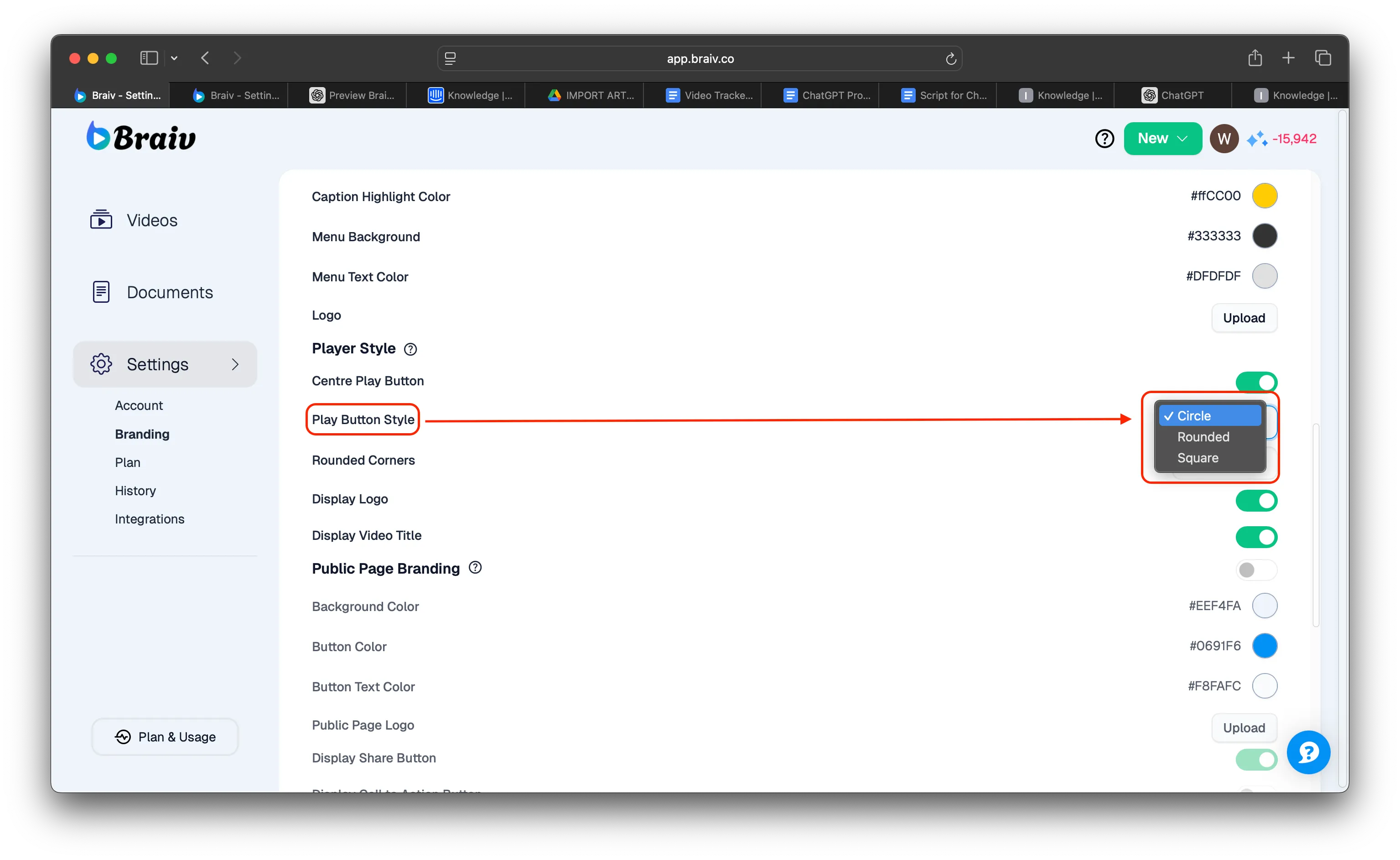
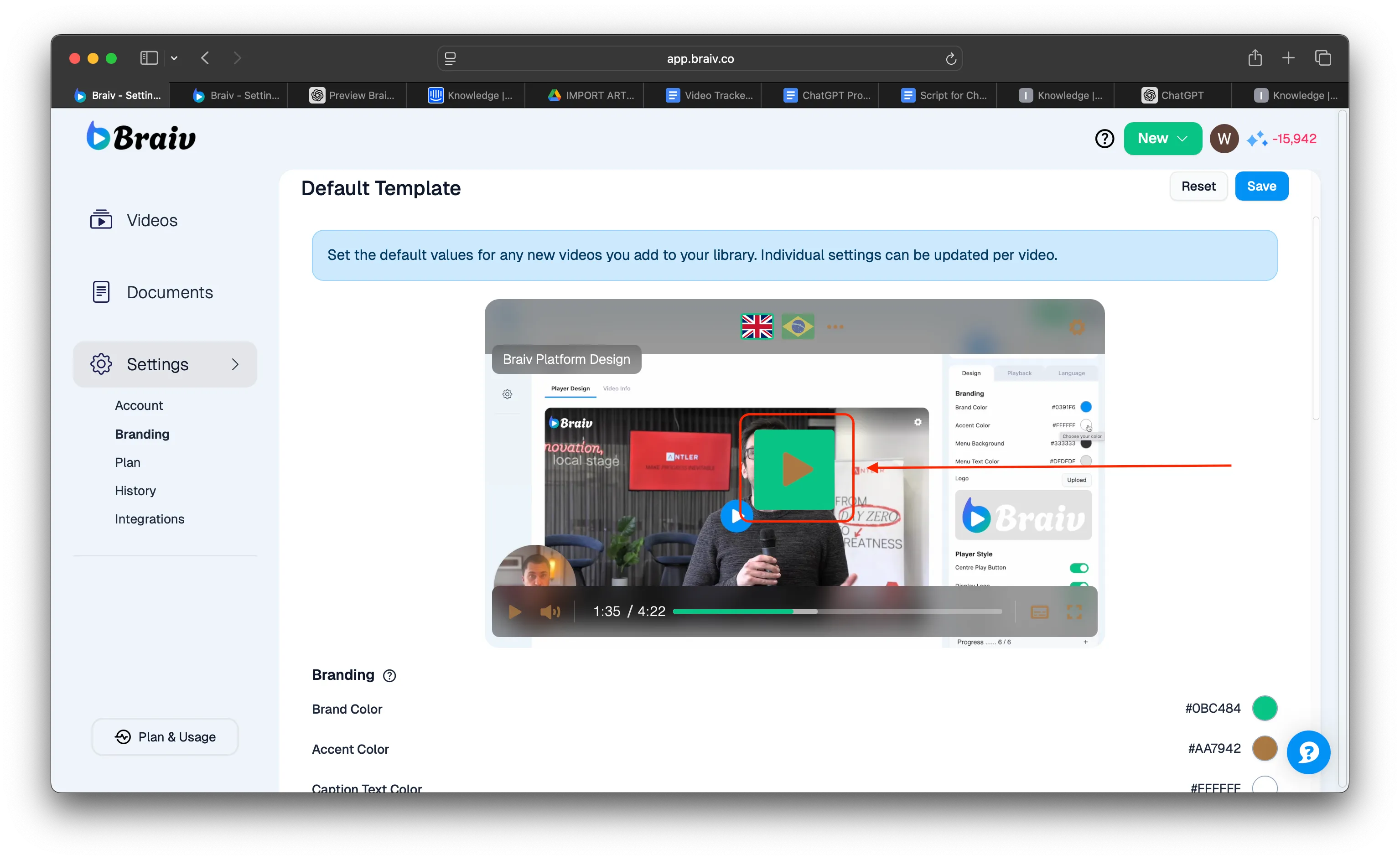
Você também pode definir o estilo do botão do Player para diferentes formas. Clique na seta suspensa e escolha as suas formas preferidas. Para esta demonstração, defini o botão do player como Quadrado para mostrar como exemplo.
E. Rounded Corners
Você também pode definir os cantos do seu Player como parte do seu branding. Defini-os como Grande para mostrar como exemplo.
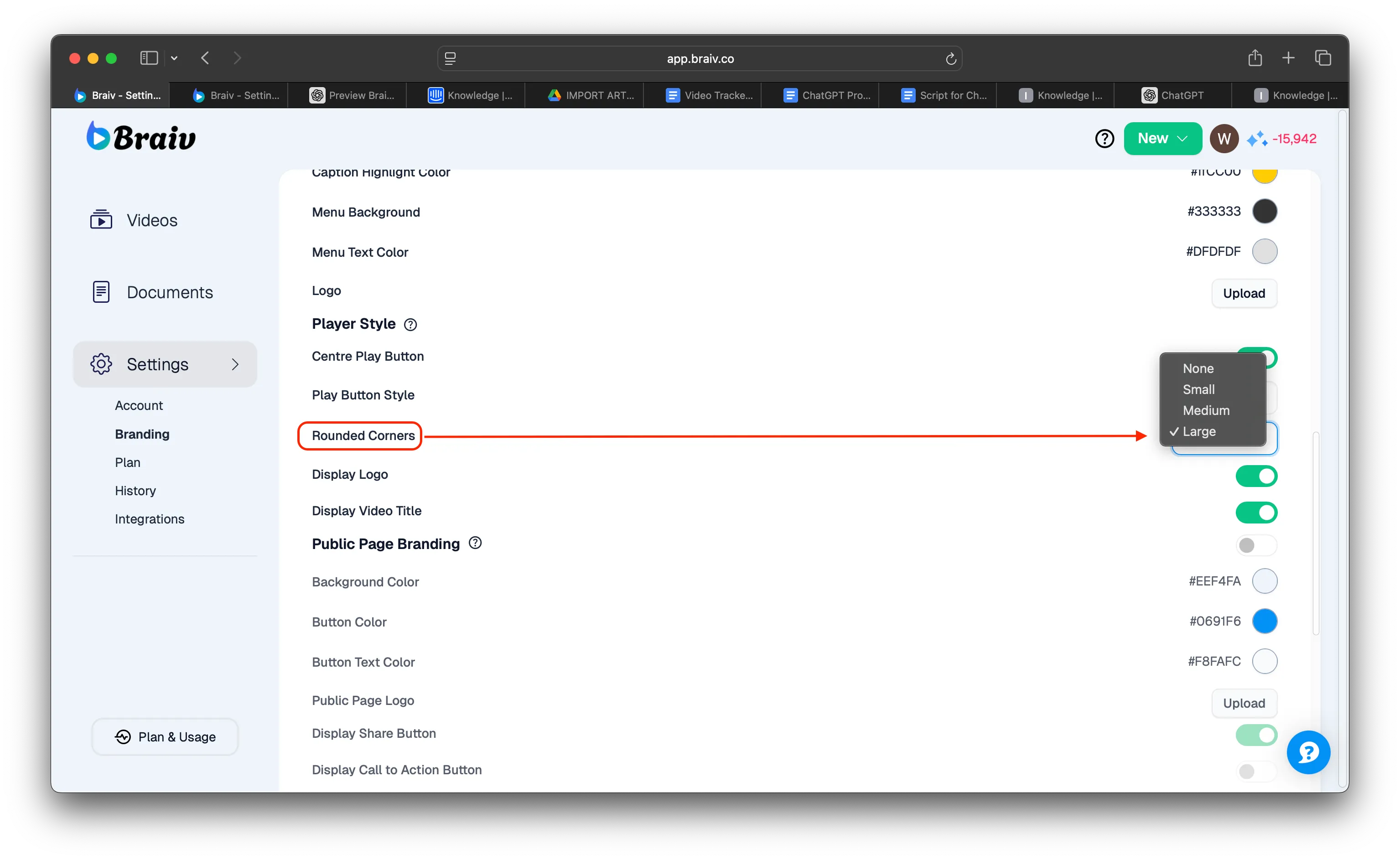
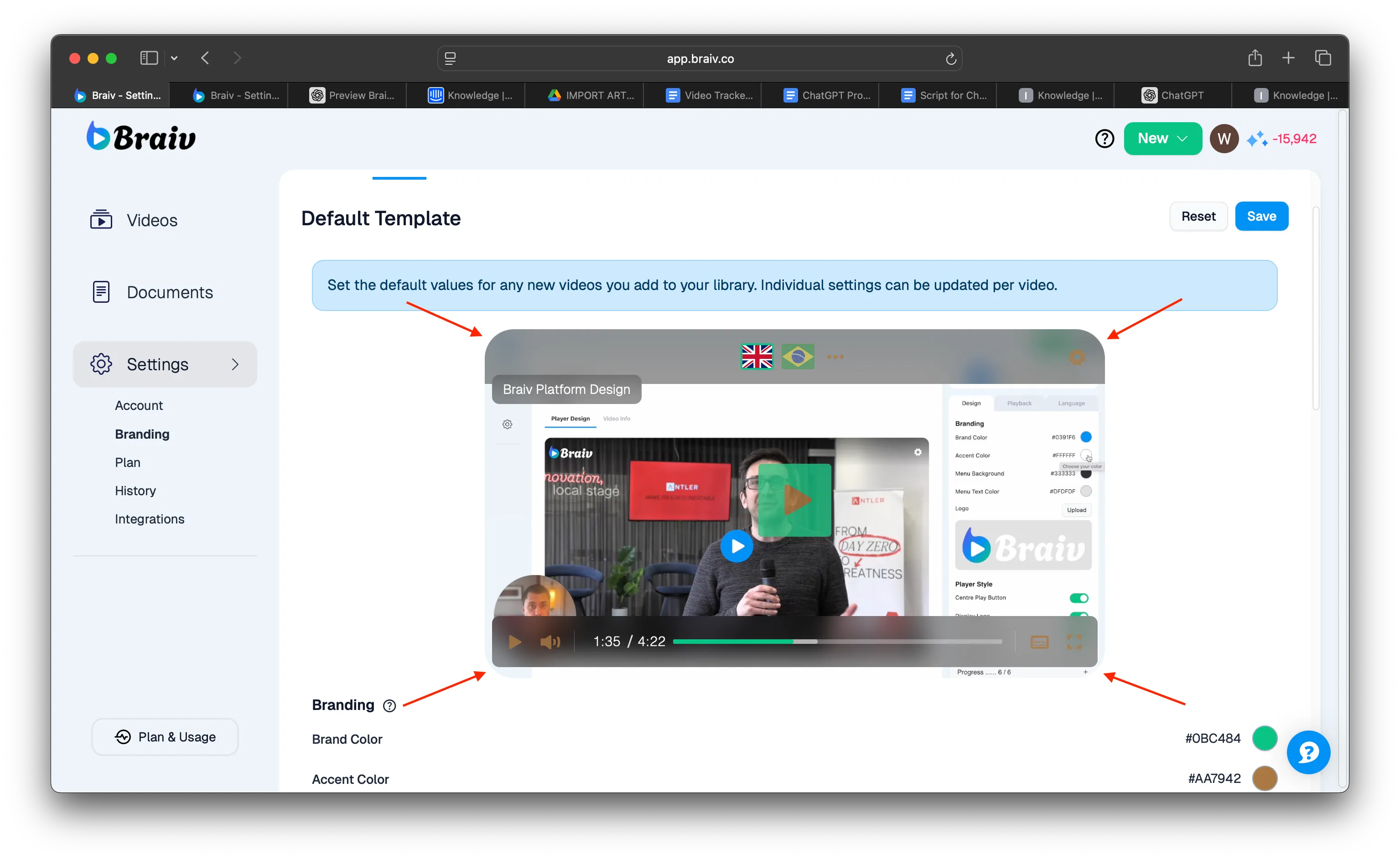
Estas são algumas das configurações que você pode definir para ajudar a criar o seu branding. Tente explorar algumas das configurações para ver se há algo que você gostaria de definir como parte do seu branding.
4. Depois que tudo estiver configurado ao seu gosto, não se esqueça de clicar no botão Salvar no canto superior direito para salvar as alterações que você definiu.
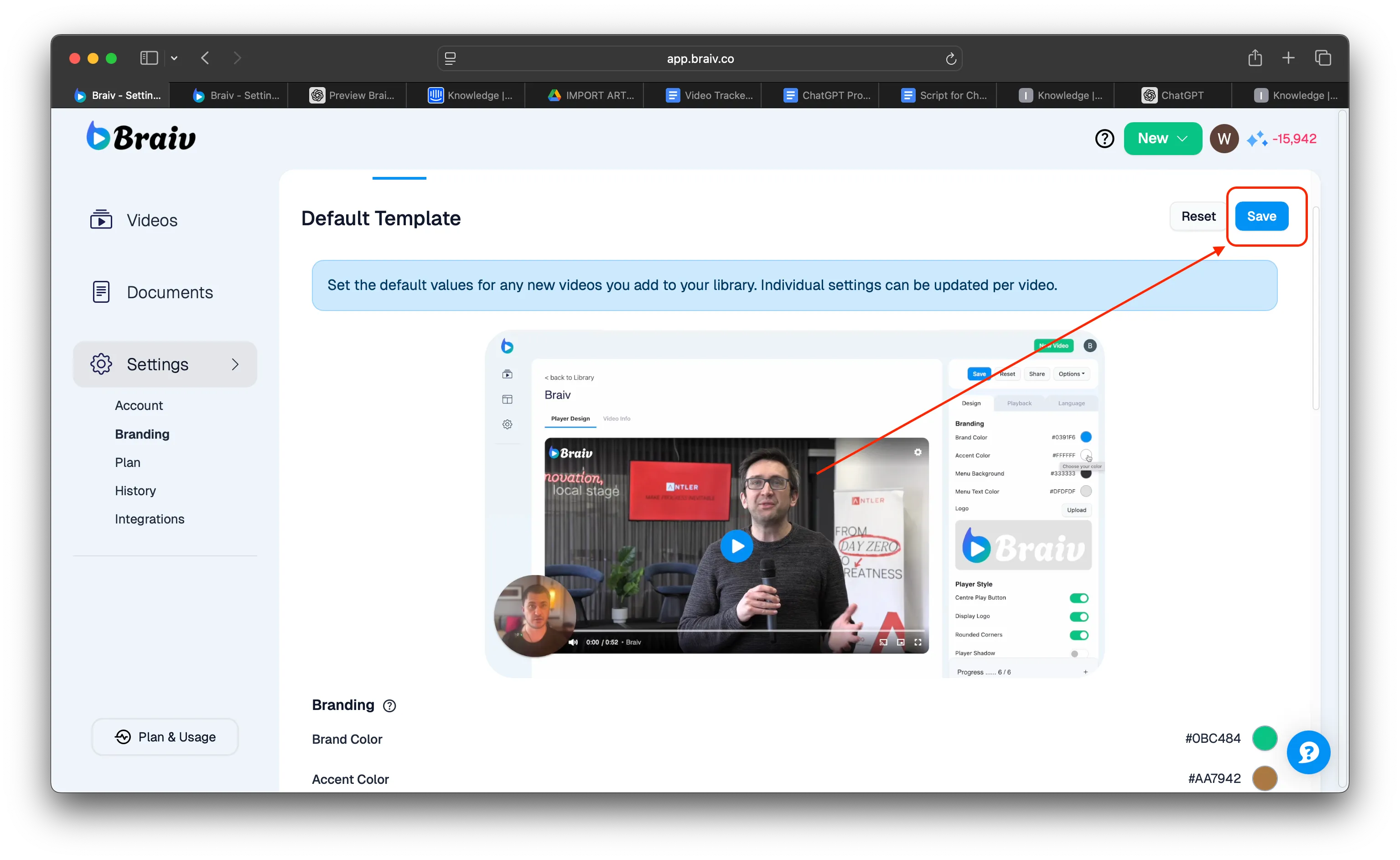
Agora, todos os novos vídeos que você carregar adotarão este modelo de design, o que significa que você não precisará editar o design do player para cada vídeo.