
Traduzir Legendas e Metadados para os Idiomas Selecionados
Veja como começar a traduzir suas legendas e metadados.
Passo 1: Criar uma Nova Tradução
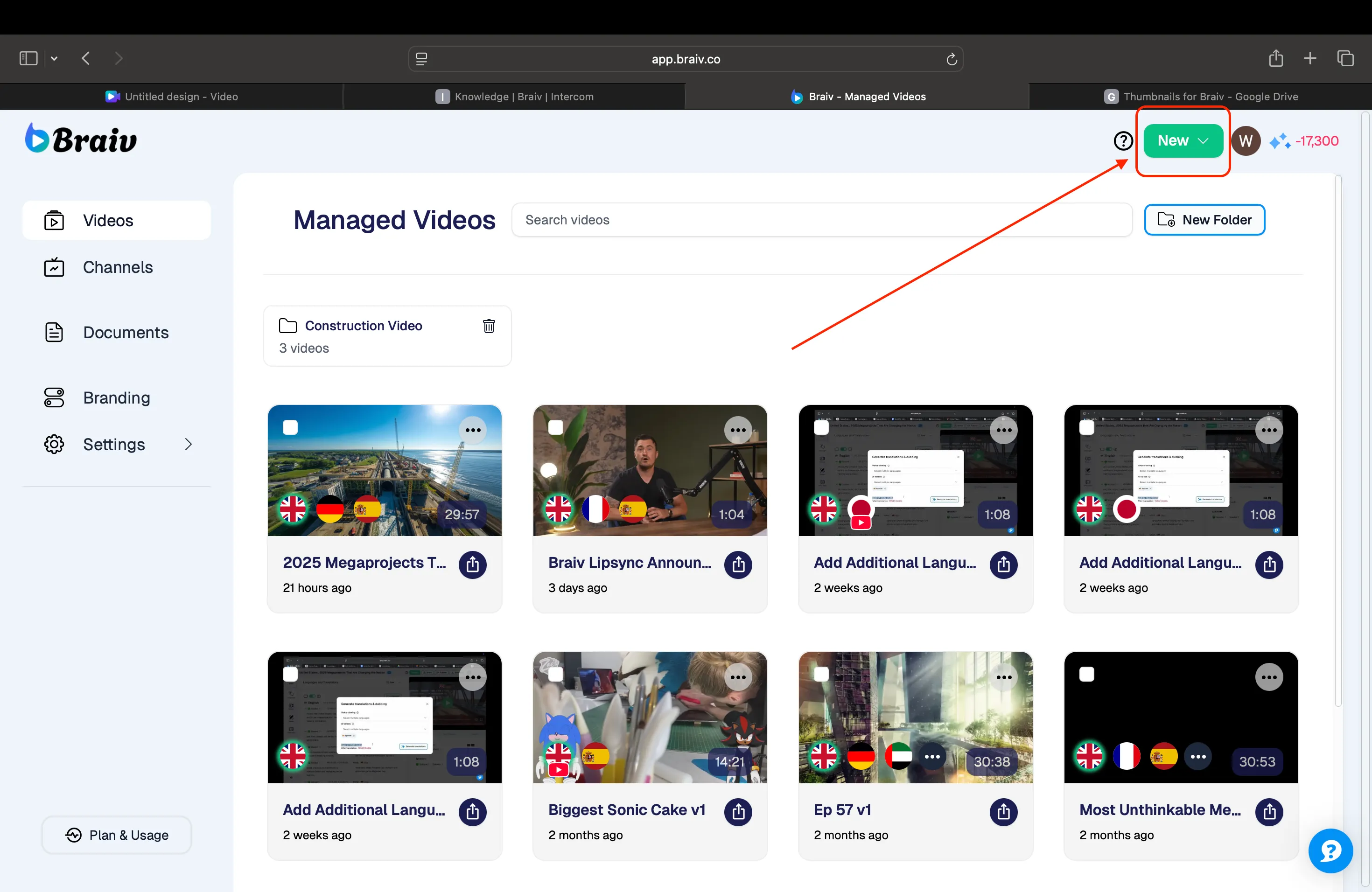
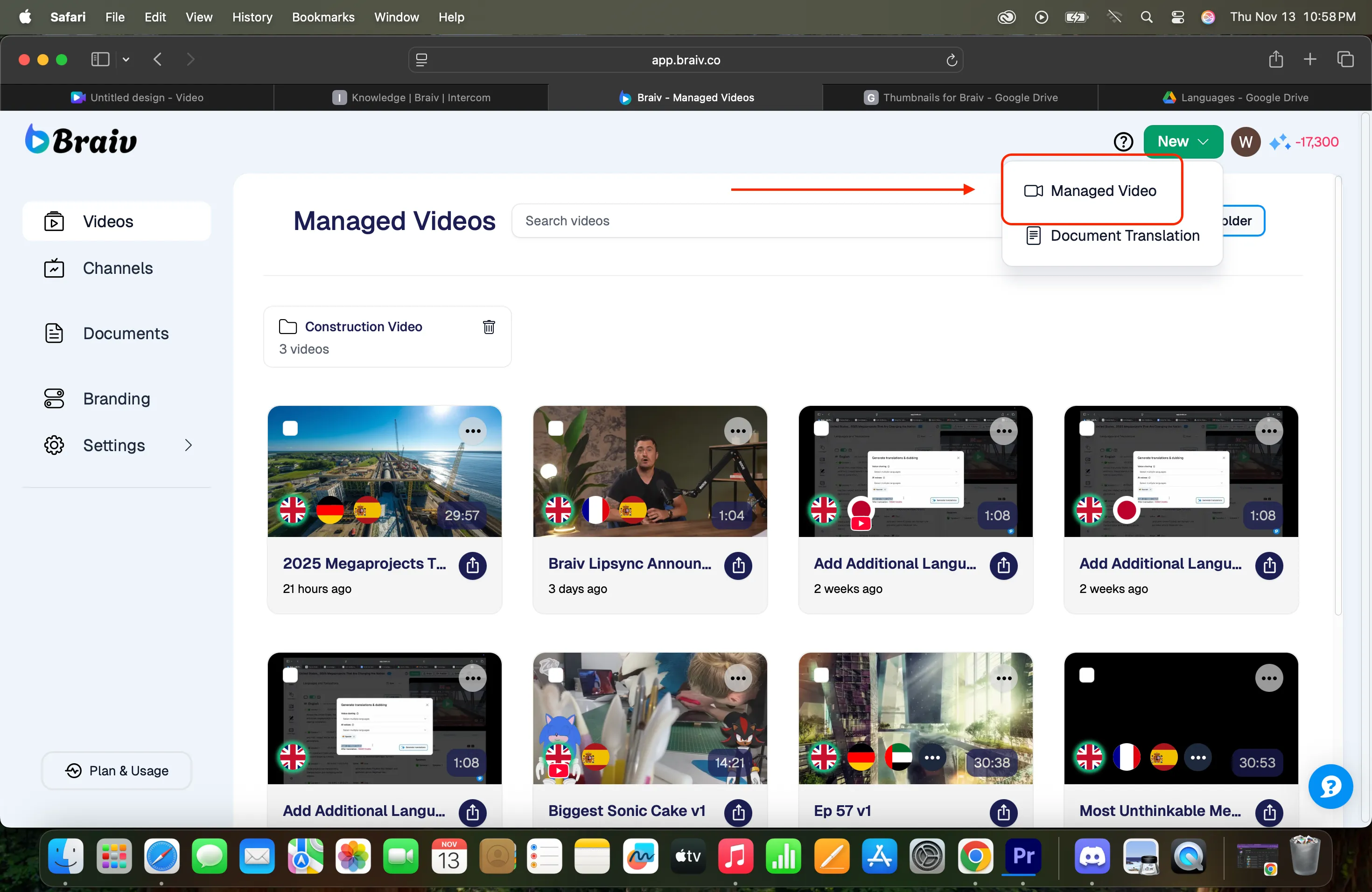
No canto superior direito, clique em ‘Novo’ para começar a traduzir legendas e metadados. Clique em Gerenciar Vídeo.
Passo 2: Carregar seu Vídeo
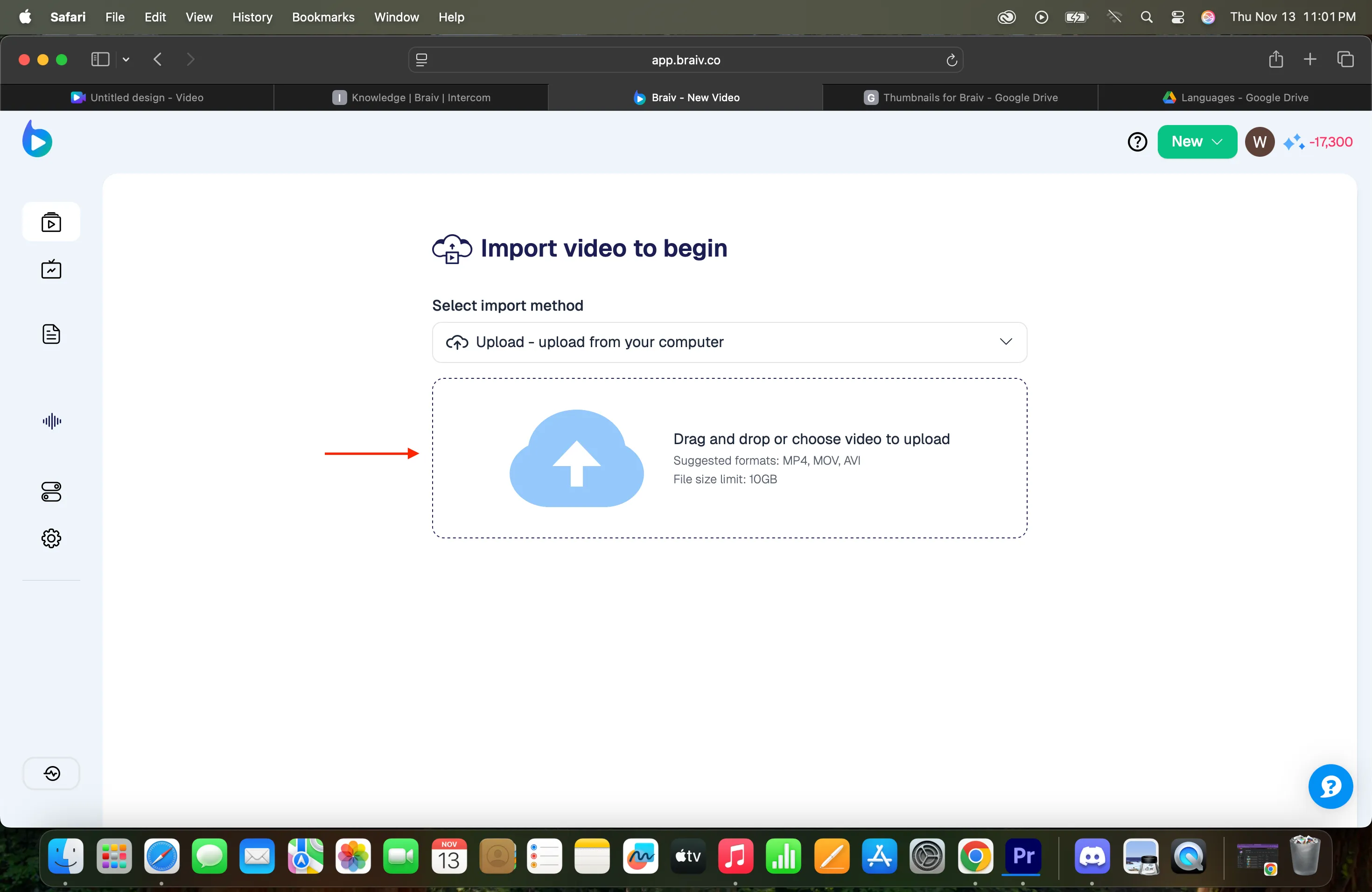
Clique na seta suspensa para ver todos os métodos disponíveis para importar um vídeo.
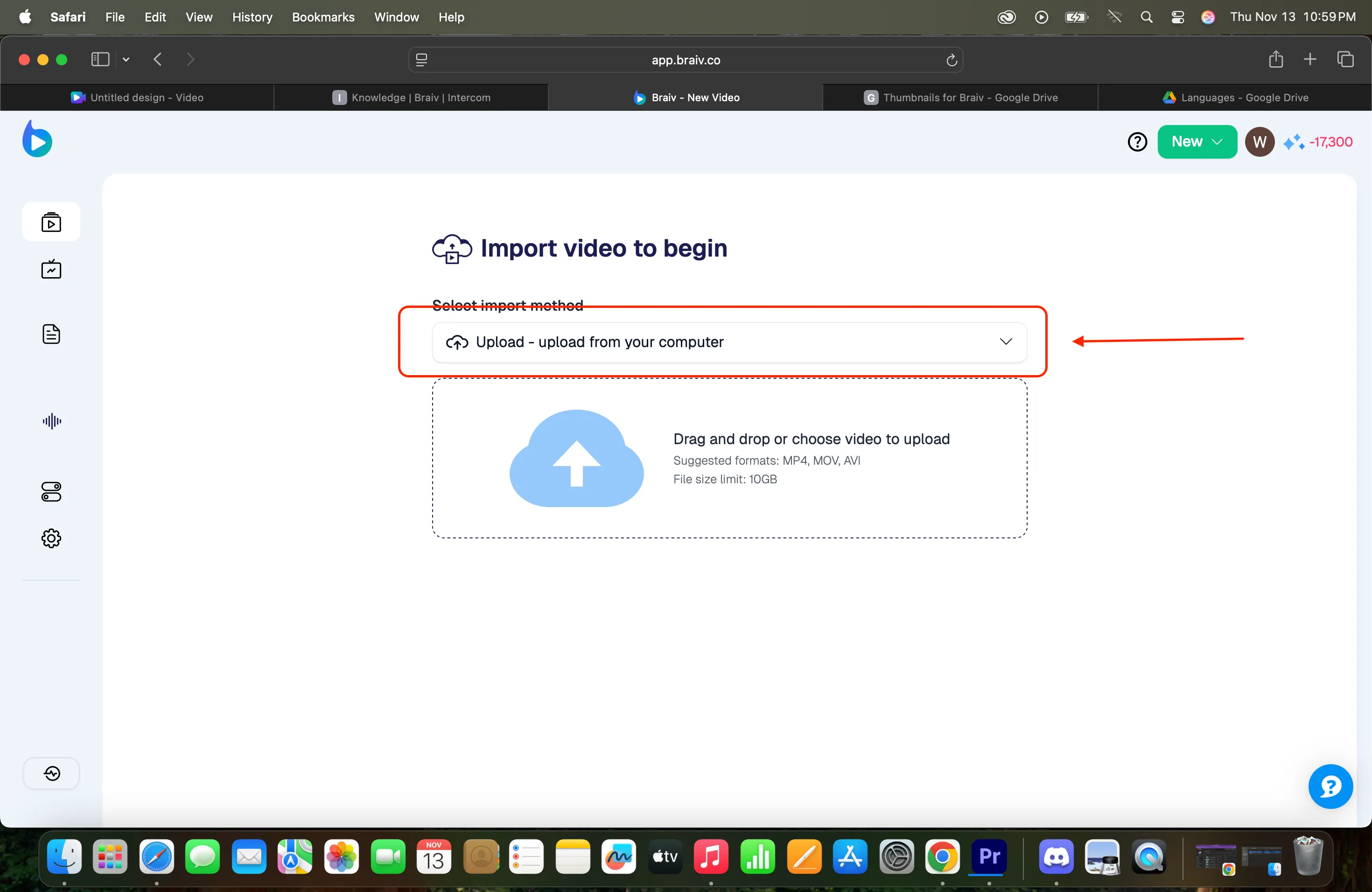
Selecione Carregar do seu computador.
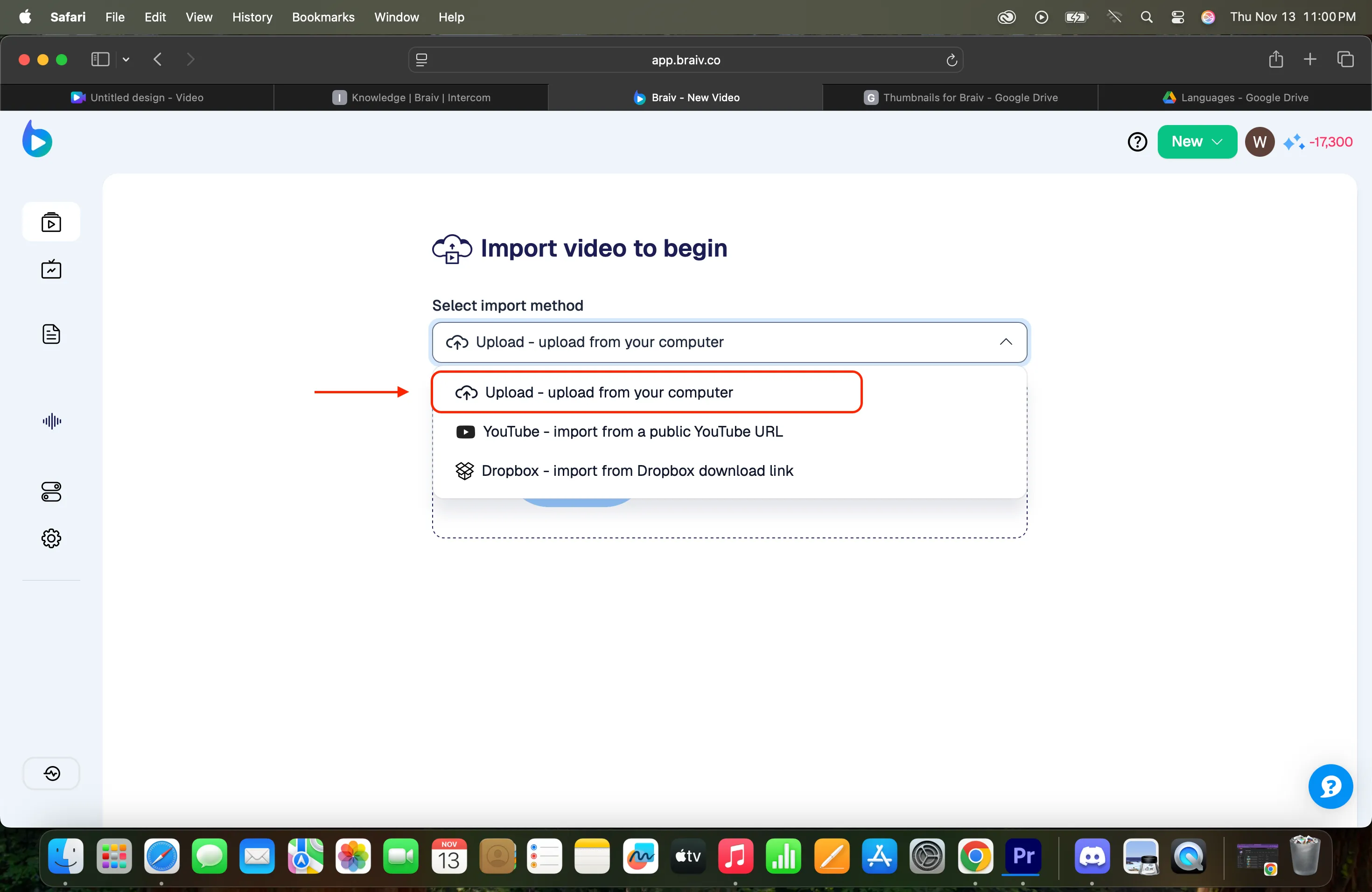
Clique na ‘Caixa de Upload’ para abrir o gerenciador de arquivos do computador.
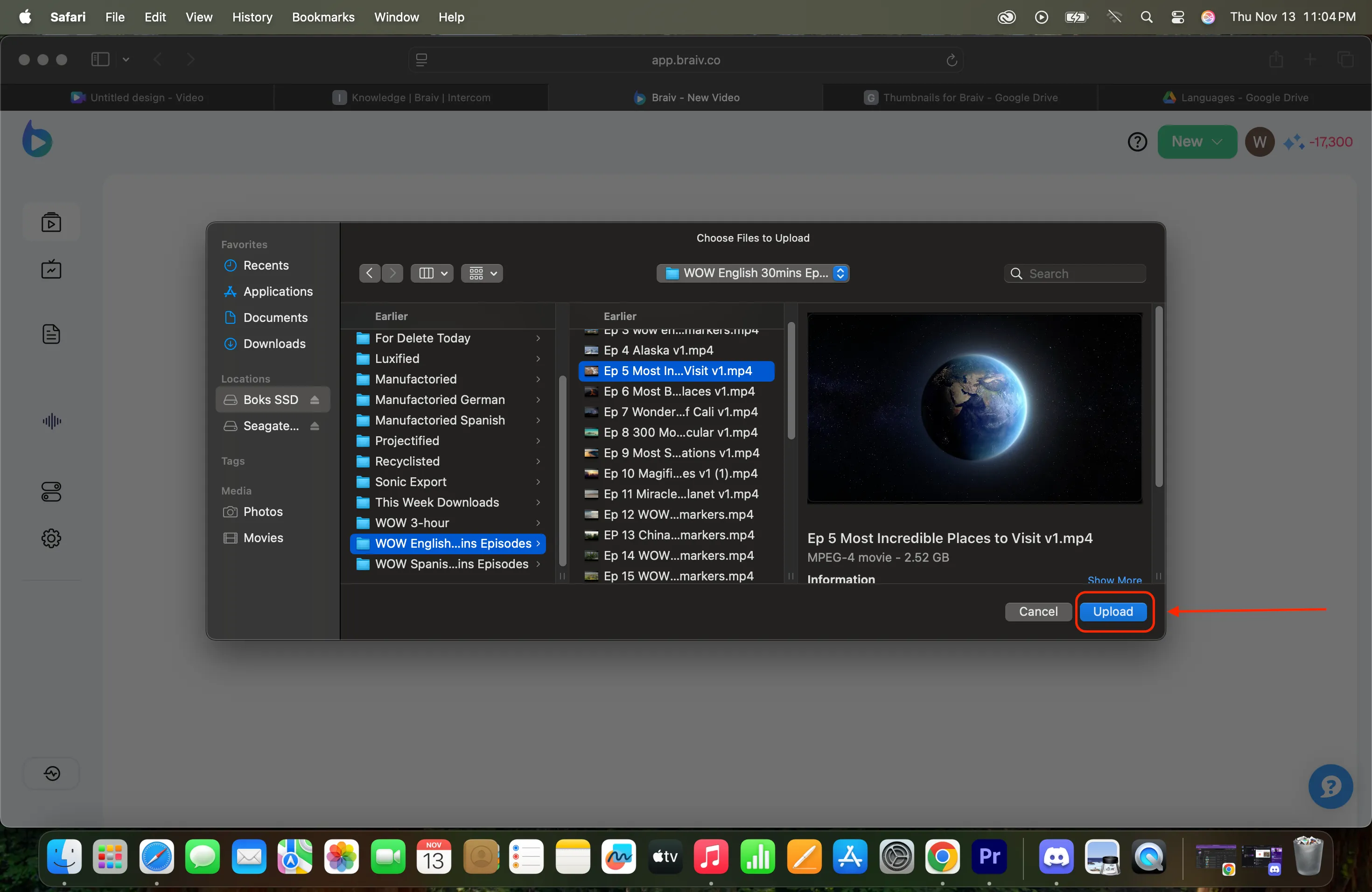
Escolha o vídeo para o qual você deseja traduzir legendas e metadados.
Passo 3: Importar o Arquivo
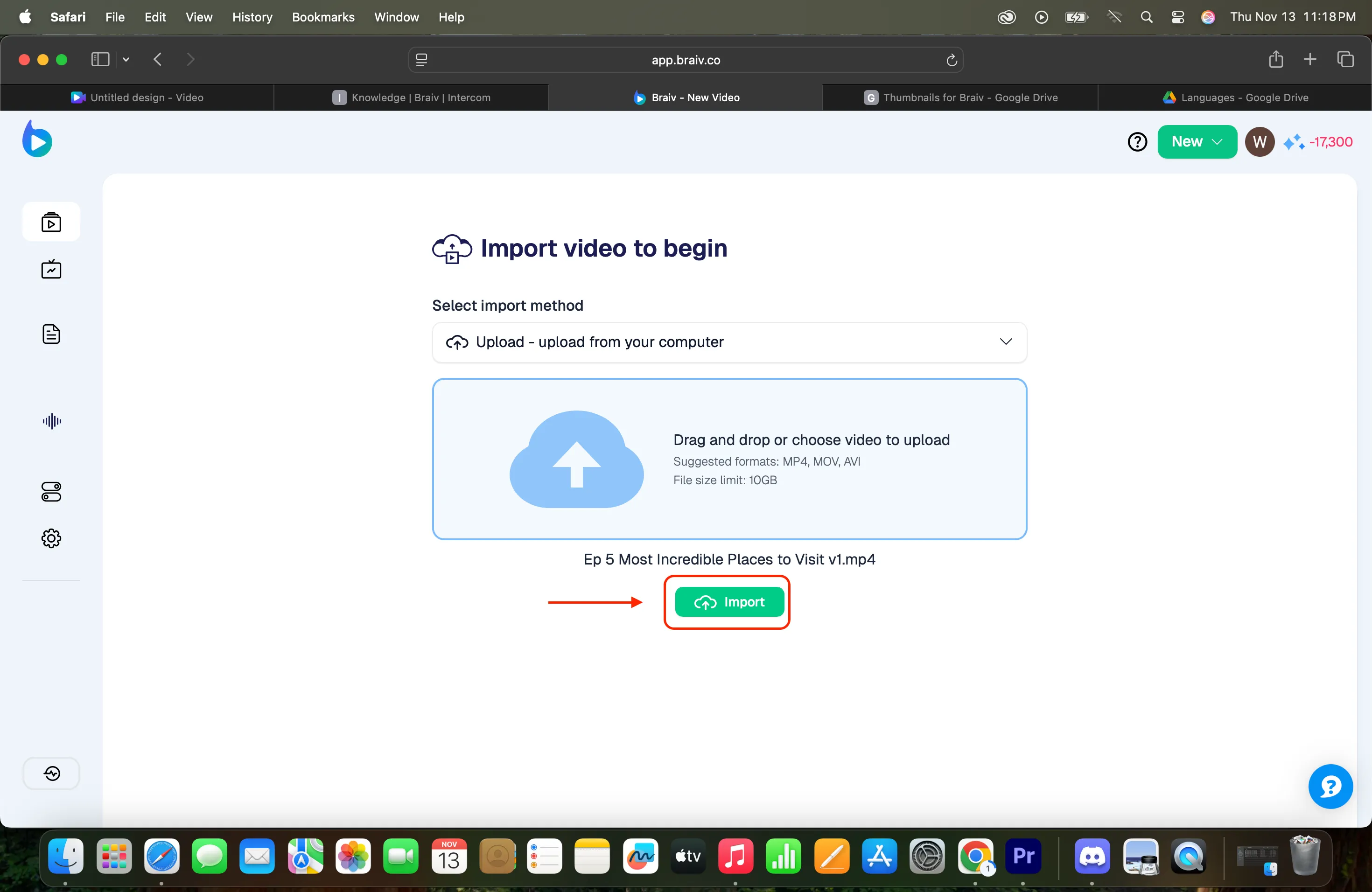
Assim que o arquivo estiver pronto, clique no botão Importar para carregá-lo.
Passo 4: Escolher Legendas e Metadados
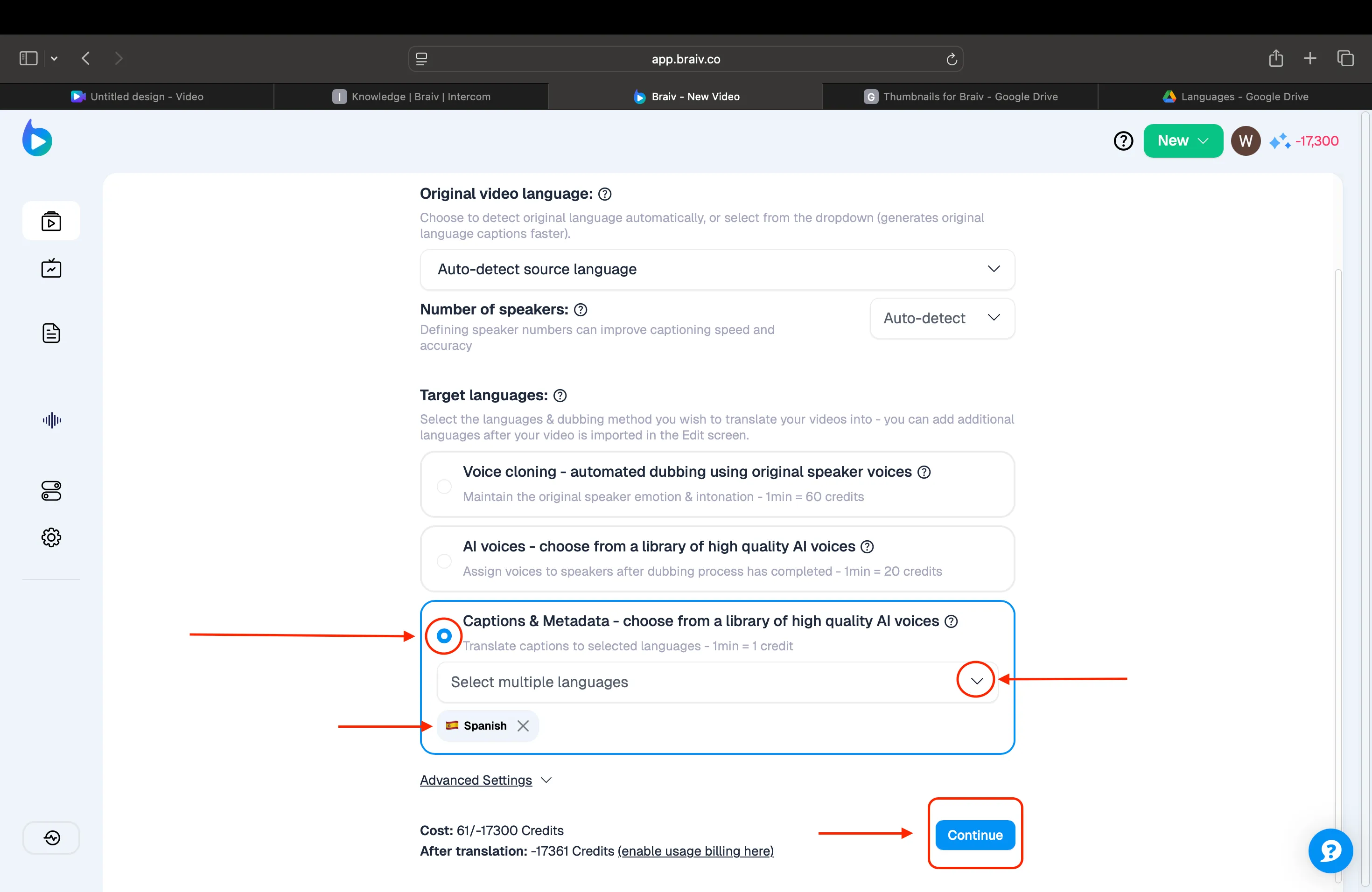
Selecione Legendas e Metadados, escolha o idioma para o qual deseja que a legenda seja traduzida e, em seguida, clique em Continuar.
Na próxima tela, clique em Continuar para a Interface de Edição.
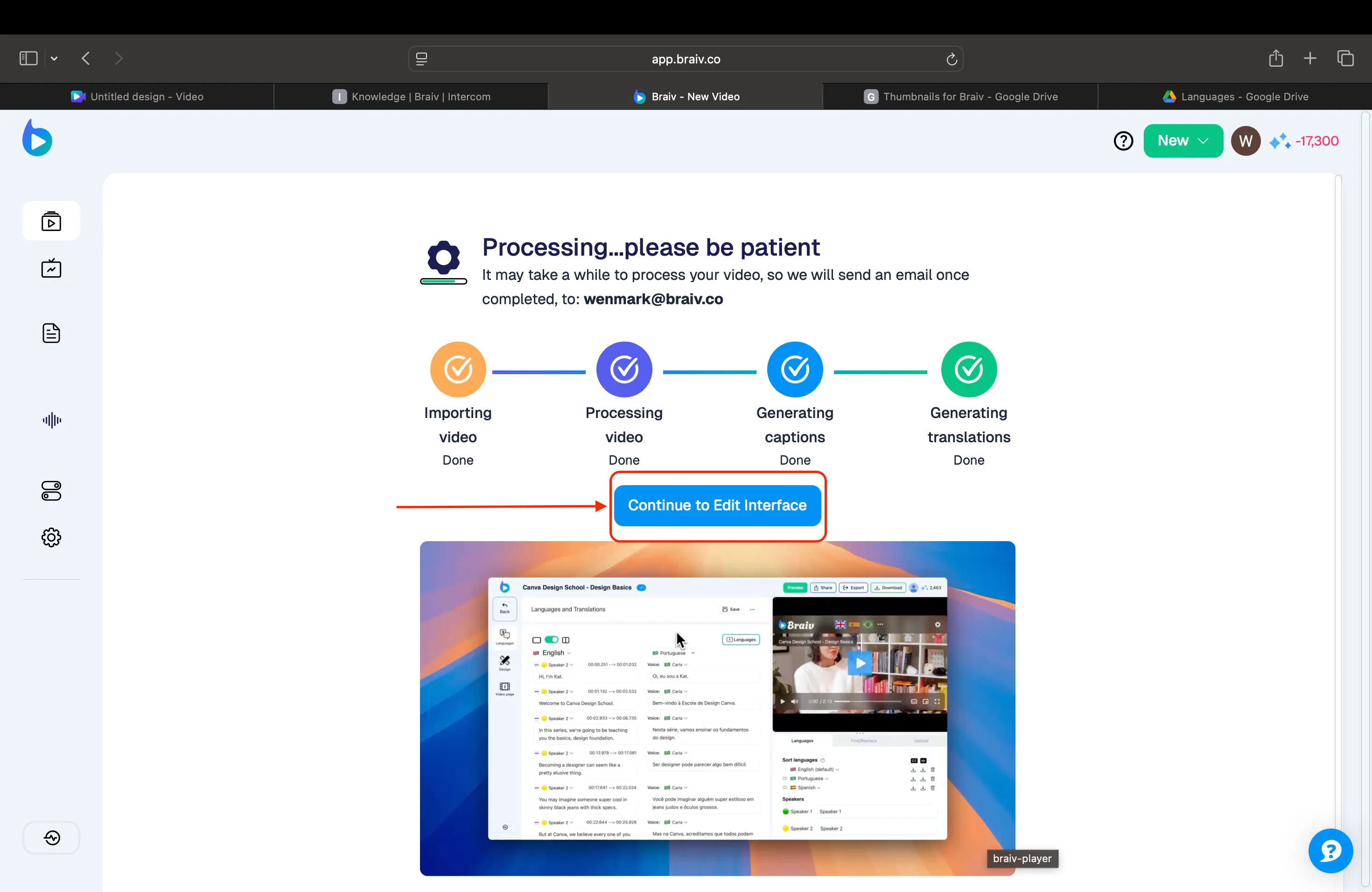
Você será levado para a tela de Idiomas e Traduções, onde verá um status de processamento.
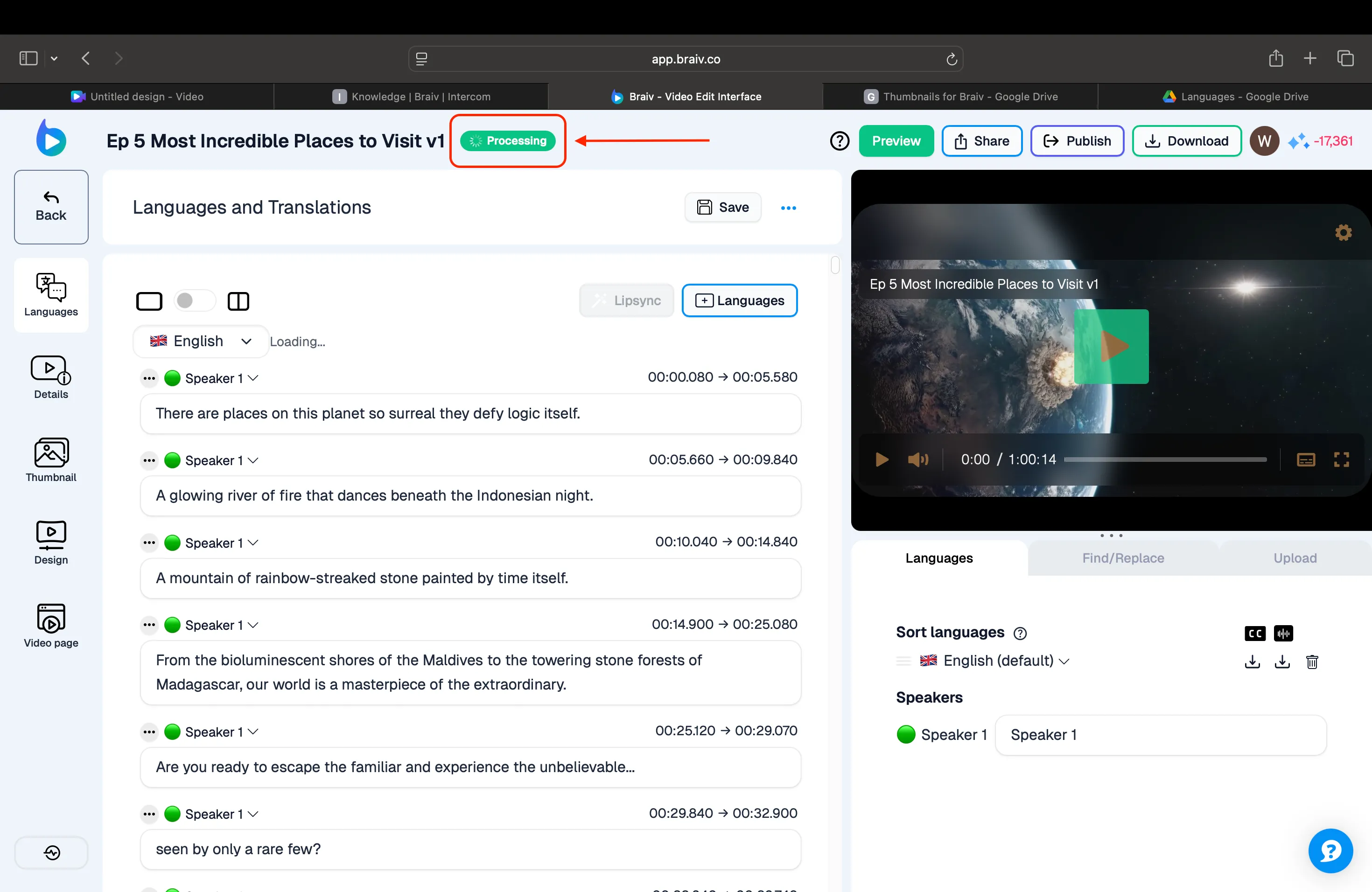
Passo 6: Confirmar e Baixar a Tradução
Assim que o processo for concluído, uma marca de verificação azul aparecerá acima. Você também verá que a legenda foi traduzida para o idioma selecionado. Para baixar o arquivo de legenda, basta clicar no ícone de download no canto inferior direito.
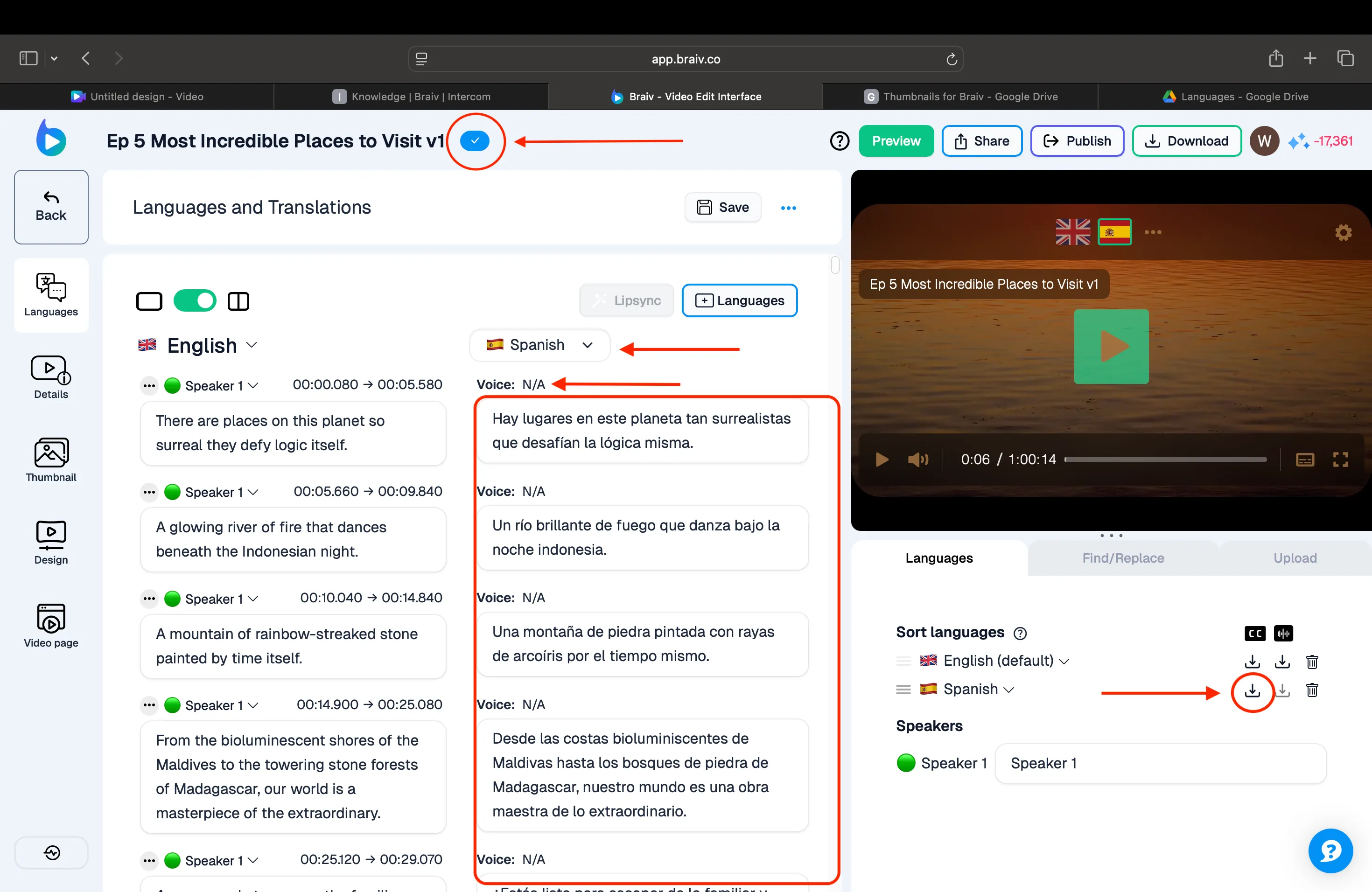
É tudo — suas traduções estão completas e prontas para uso.