
Fazendo Upload de Vídeos do Google Drive
A importação de vídeos diretamente do Google Drive permite que você obtenha arquivos armazenados em seu armazenamento em nuvem para o Braiv, para hospedagem e tradução, sem a necessidade de baixá-los manualmente para o seu computador.
Aqui está o fluxo de trabalho passo a passo:
1. Iniciar um Novo Upload de Vídeo
Seção intitulada “1. Iniciar um Novo Upload de Vídeo”- Faça login no painel da sua conta Braiv.
- No canto superior direito da tela, clique no botão NOVO.
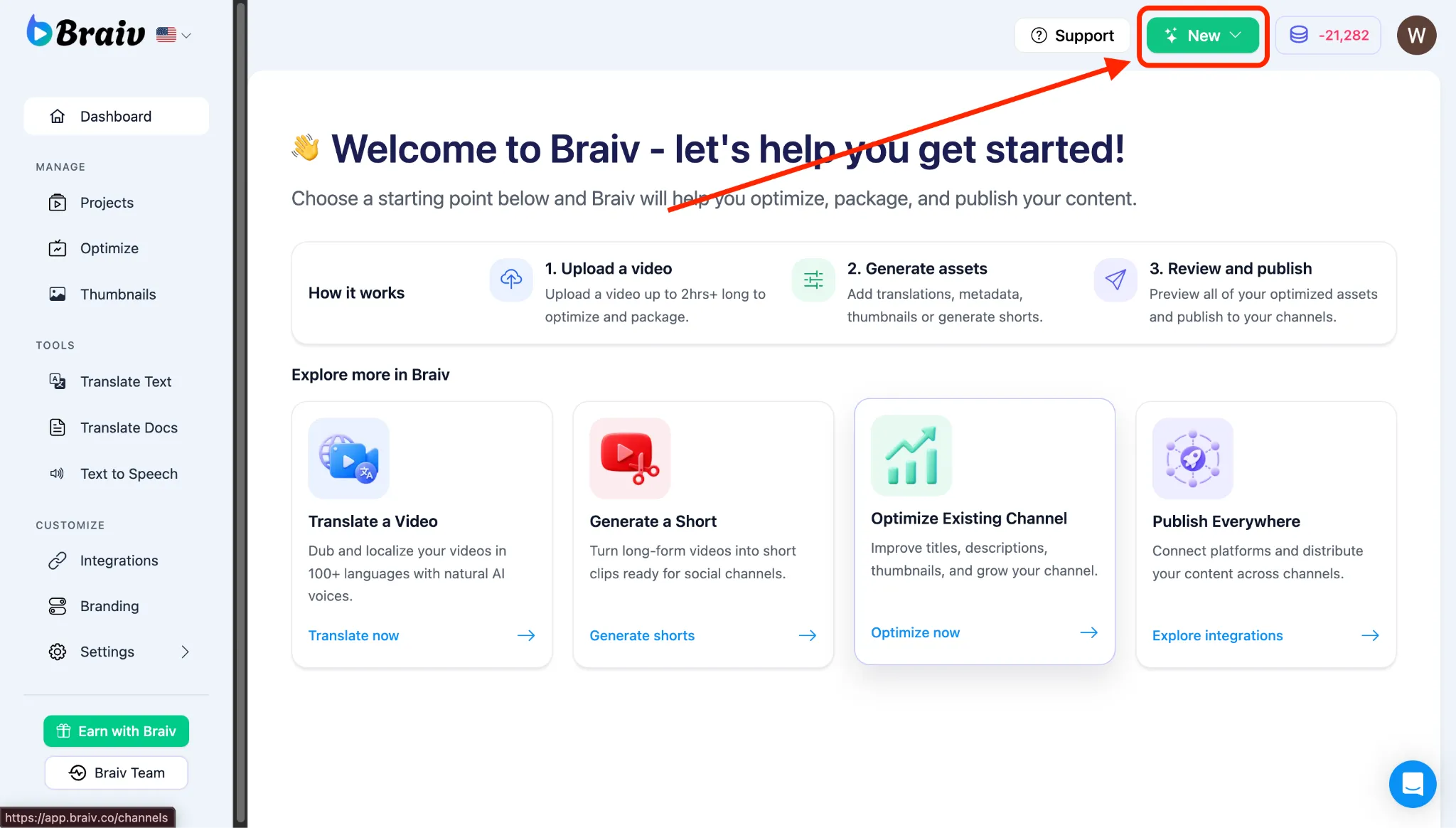
- Um menu aparecerá, escolha Projeto de Áudio/Vídeo.
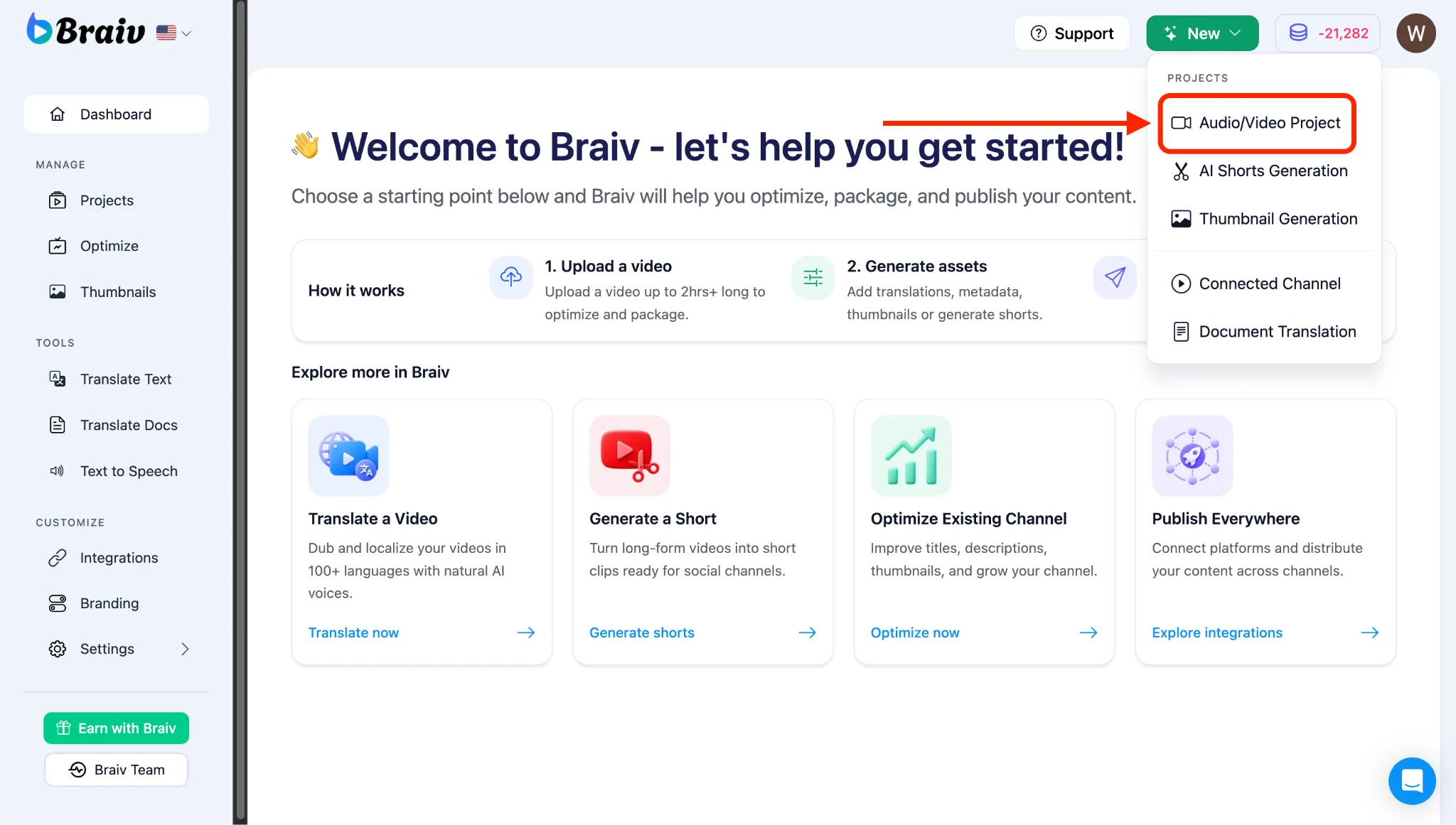
2. Conectar e Selecionar Google Drive
Seção intitulada “2. Conectar e Selecionar Google Drive”- Você será direcionado para a página de Importação. Nas opções de upload da navegação superior, selecione Google Drive.
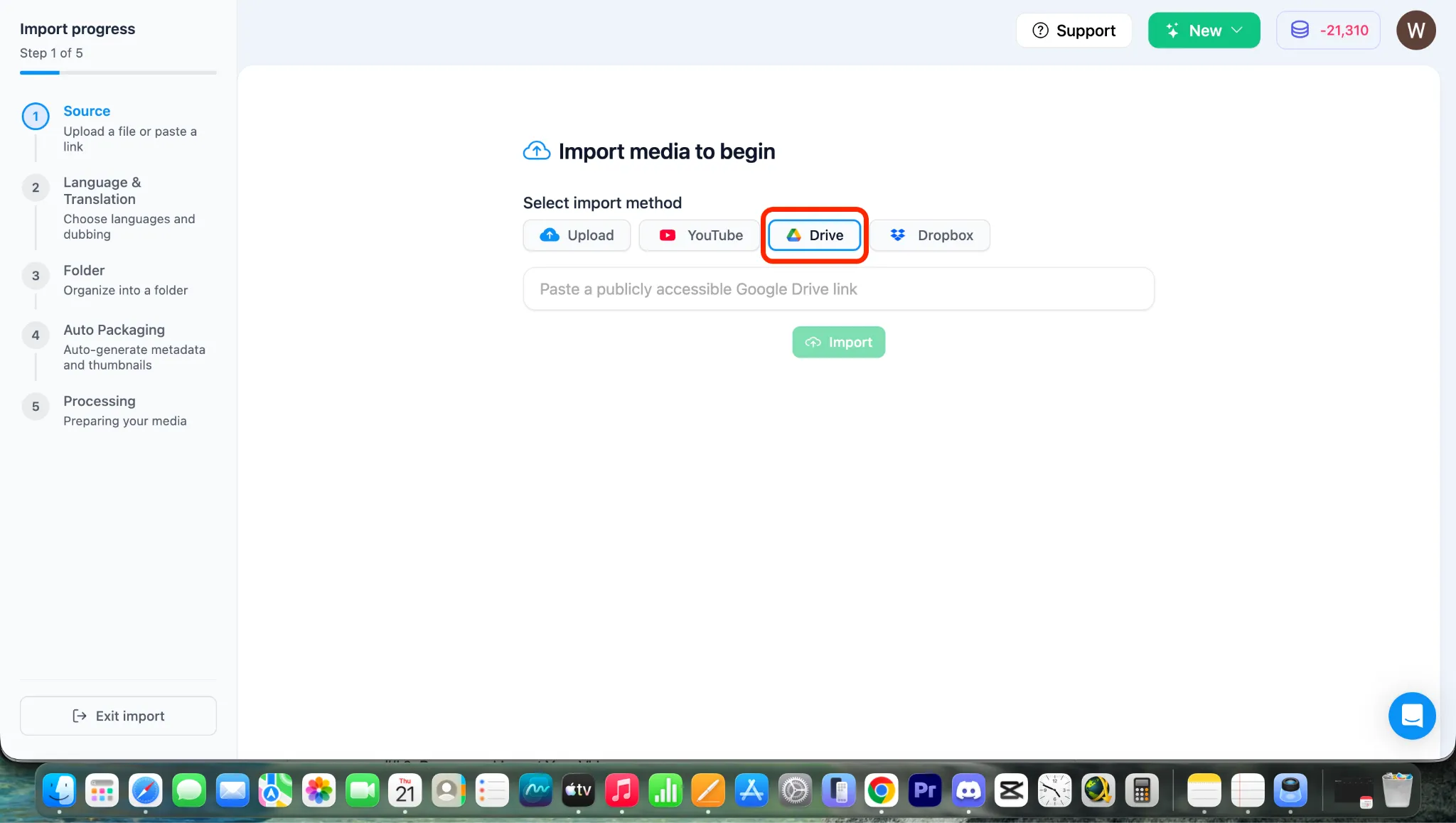
3. Navegar e Importar Seu Vídeo
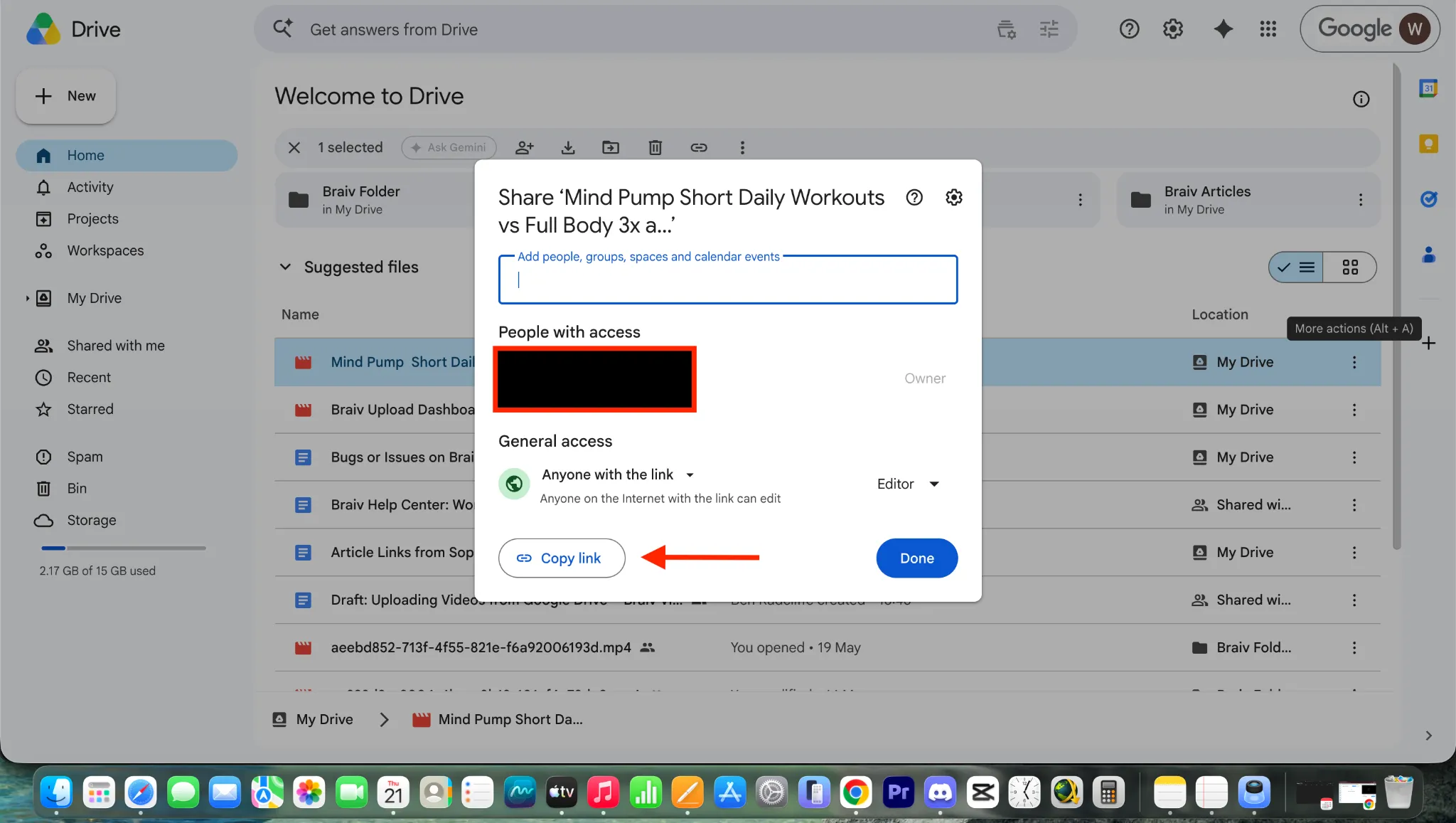
Seção intitulada “3. Navegar e Importar Seu Vídeo”- Vá para o seu Google Drive, procure o vídeo que deseja fazer upload. Copie o link.
- Selecione seu arquivo de vídeo e clique no botão IMPORTAR.
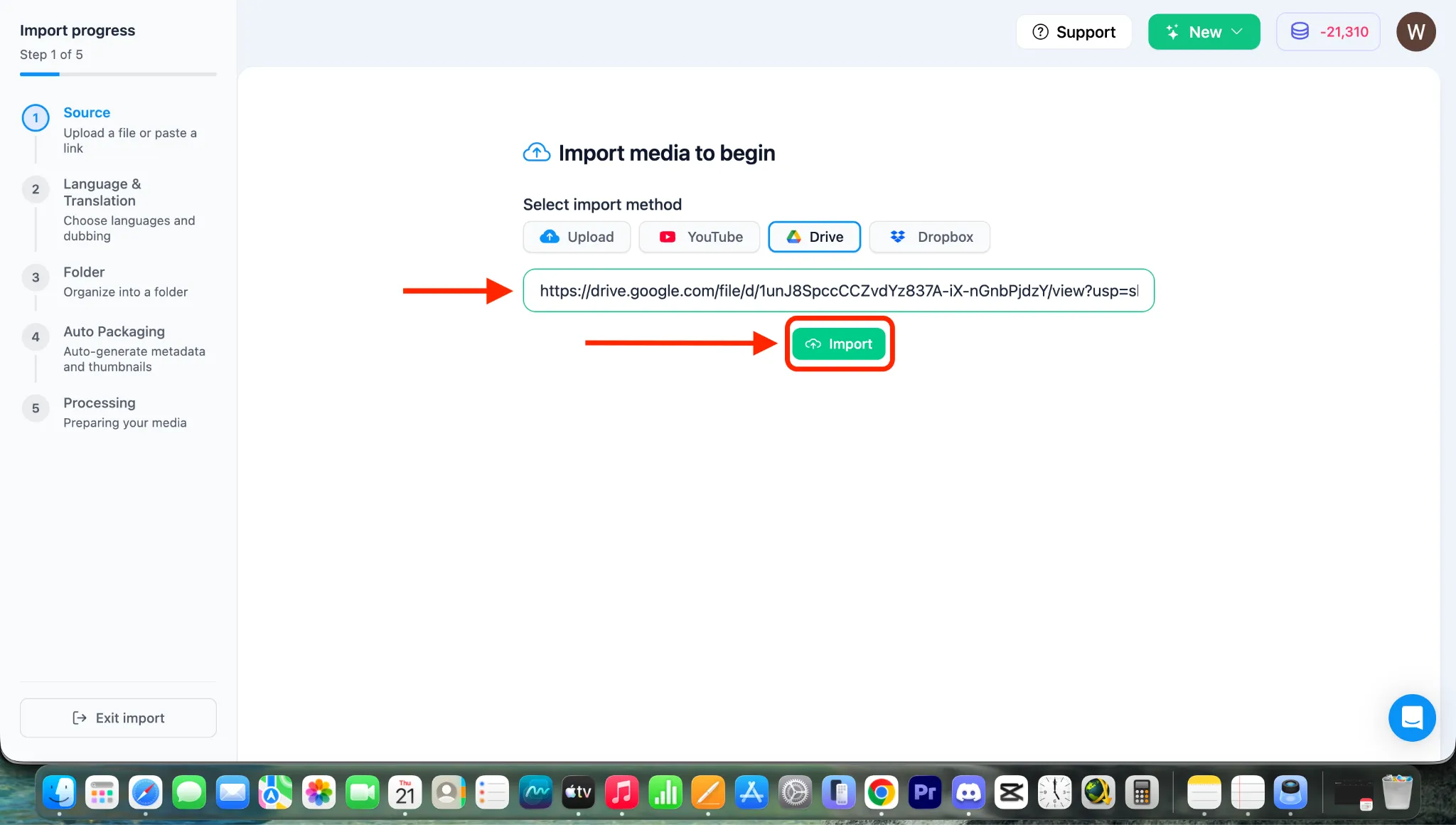
Nota: Após clicar em IMPORTAR, o vídeo começará a ser importado diretamente da sua nuvem do Google Drive, e você será levado para a página de configuração de tradução e dublagem. Para personalizar essas configurações, consulte nossos guias dedicados na Categoria 4: O Processo Principal de Dublagem e Multilinguismo do Braiv Dubbing.