
Fazendo Upload do Seu Computador
Fazer upload de vídeos diretamente do seu computador é a maneira mais rápida de ingerir arquivos de vídeo locais (como MP4, MOV ou MKV) na plataforma Braiv para hospedagem, otimização e tradução.
Aqui está o fluxo de trabalho passo a passo:
1. Iniciar um Novo Upload de Vídeo
Seção intitulada “1. Iniciar um Novo Upload de Vídeo”- Faça login no painel da sua conta Braiv.
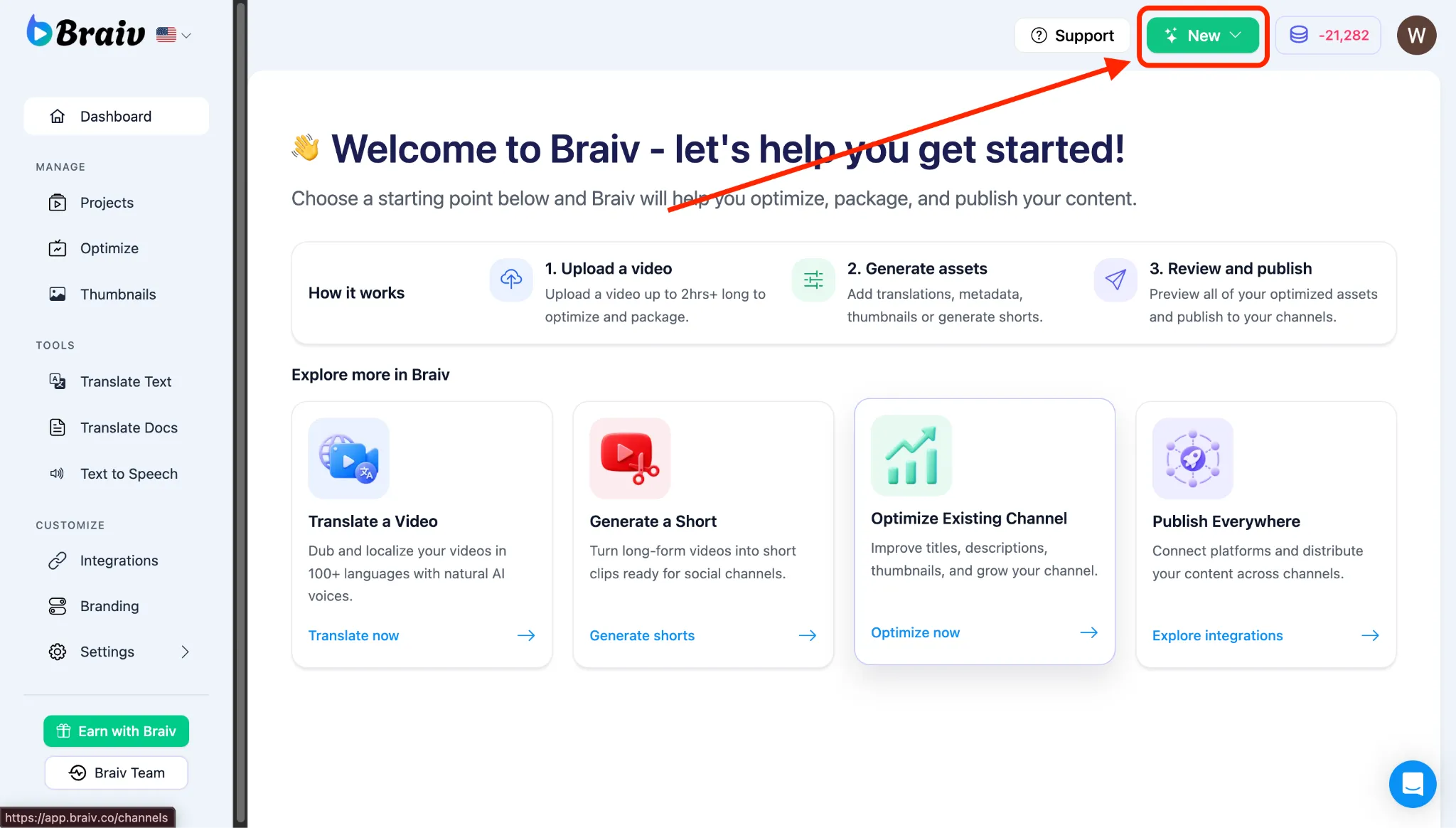
- No canto superior direito da tela, clique no botão “NOVO”.
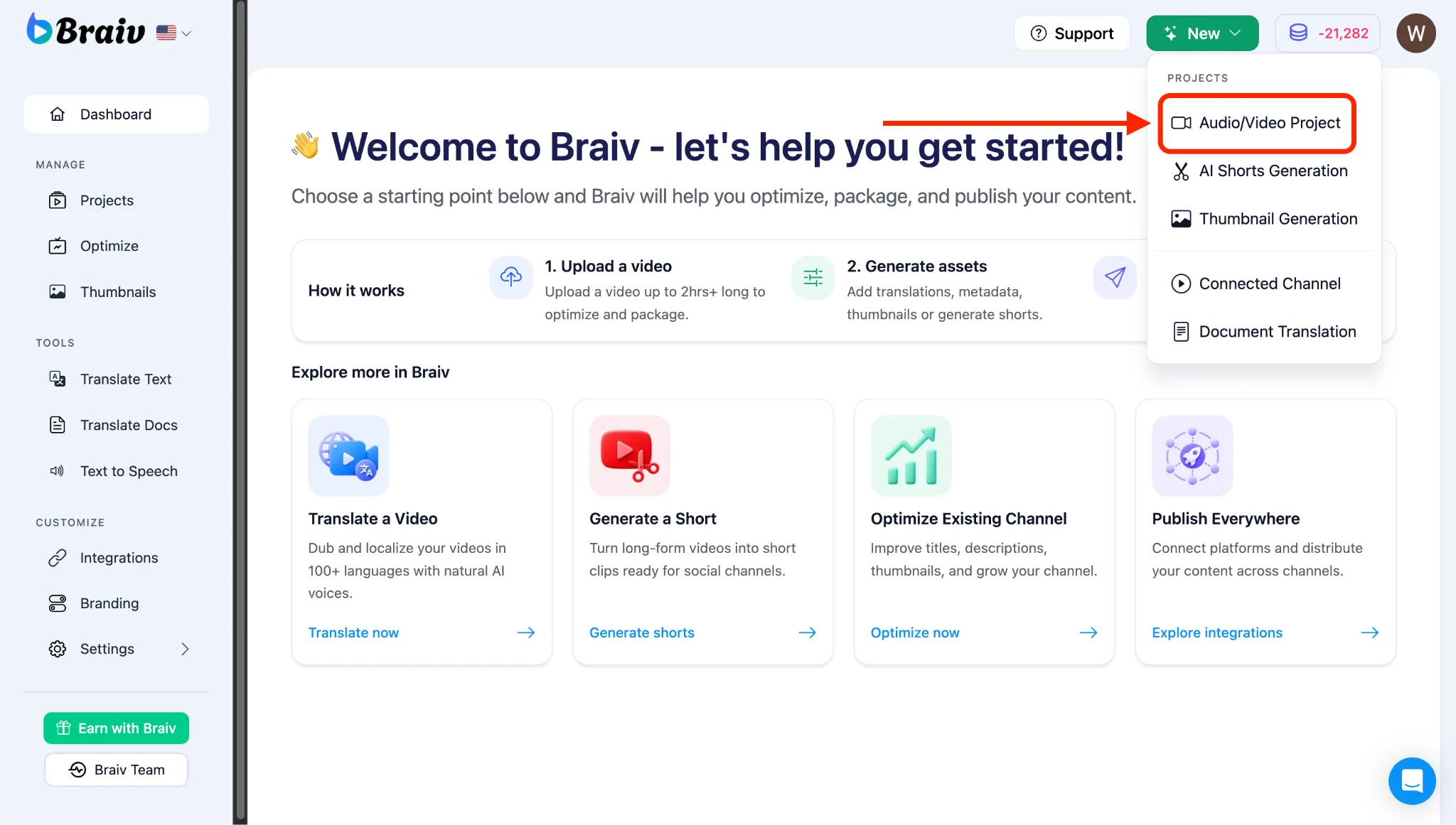
- Um menu aparecerá, escolha Projeto de Áudio/Vídeo.
2. Selecionar Seu Arquivo de Vídeo
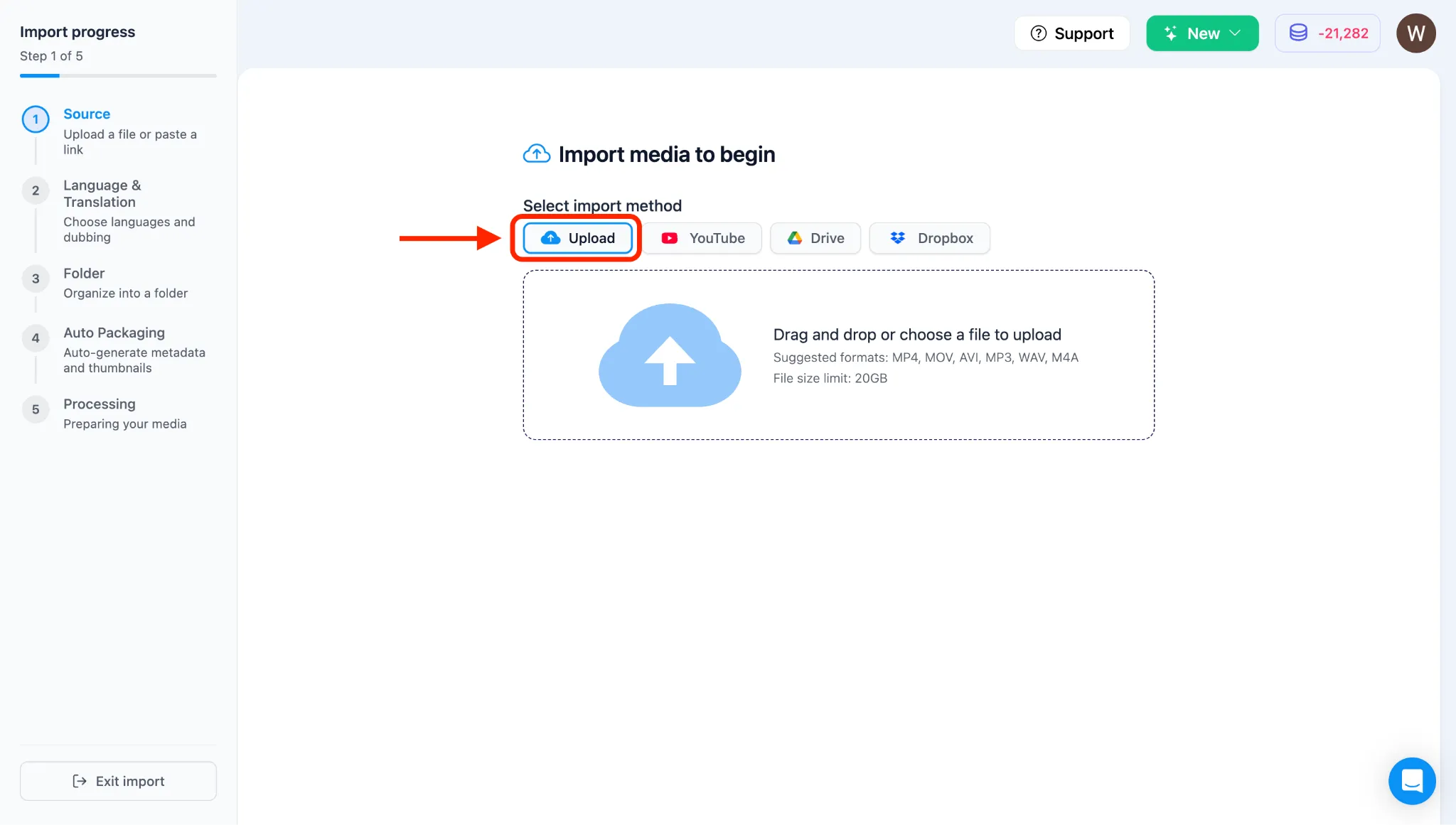
Seção intitulada “2. Selecionar Seu Arquivo de Vídeo”- Você será levado à página de Importação com quatro opções de Upload: Upload (computador), YouTube, Google Drive e Dropbox.
- O sistema é configurado para Upload (computador) por padrão.
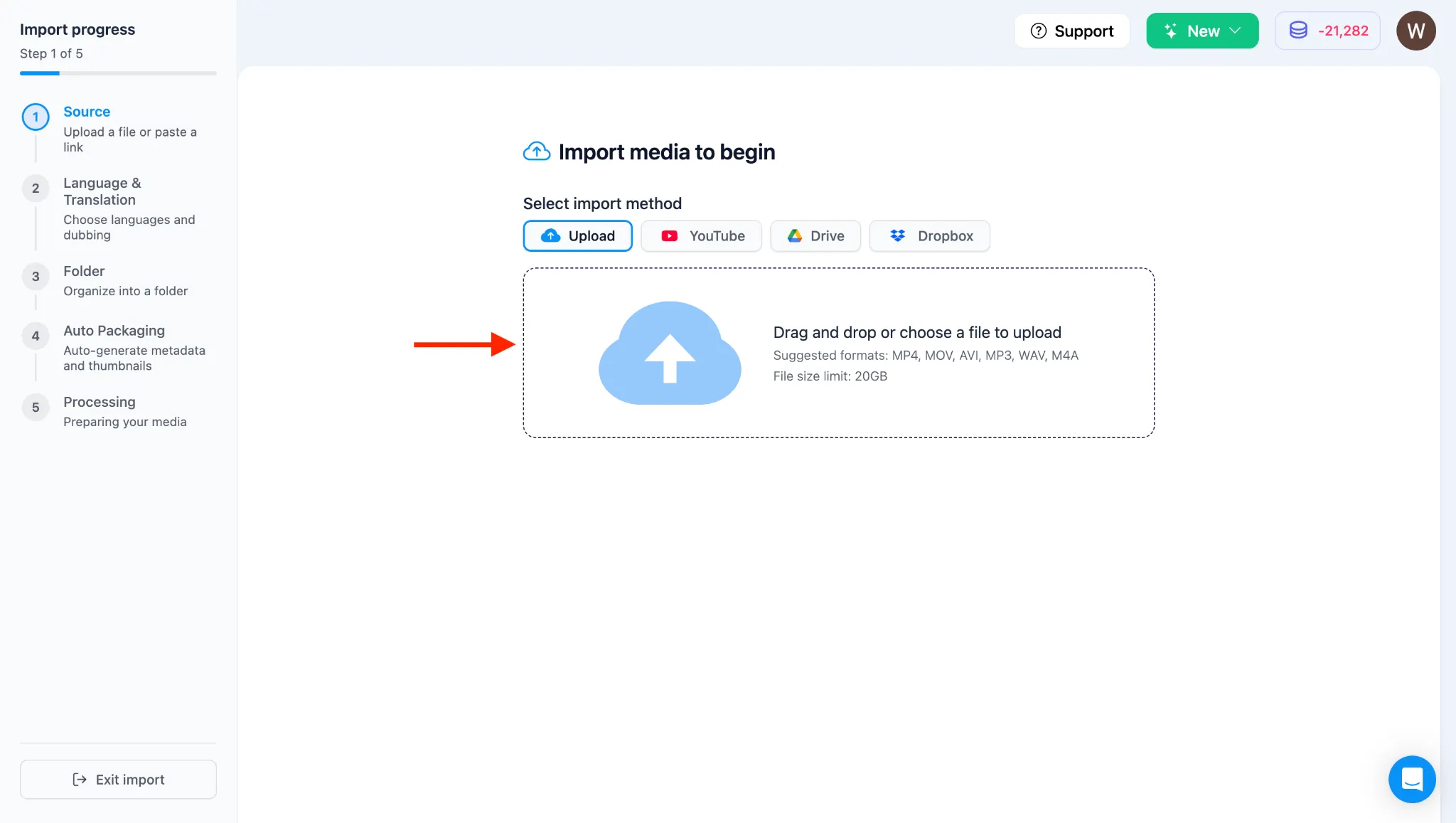
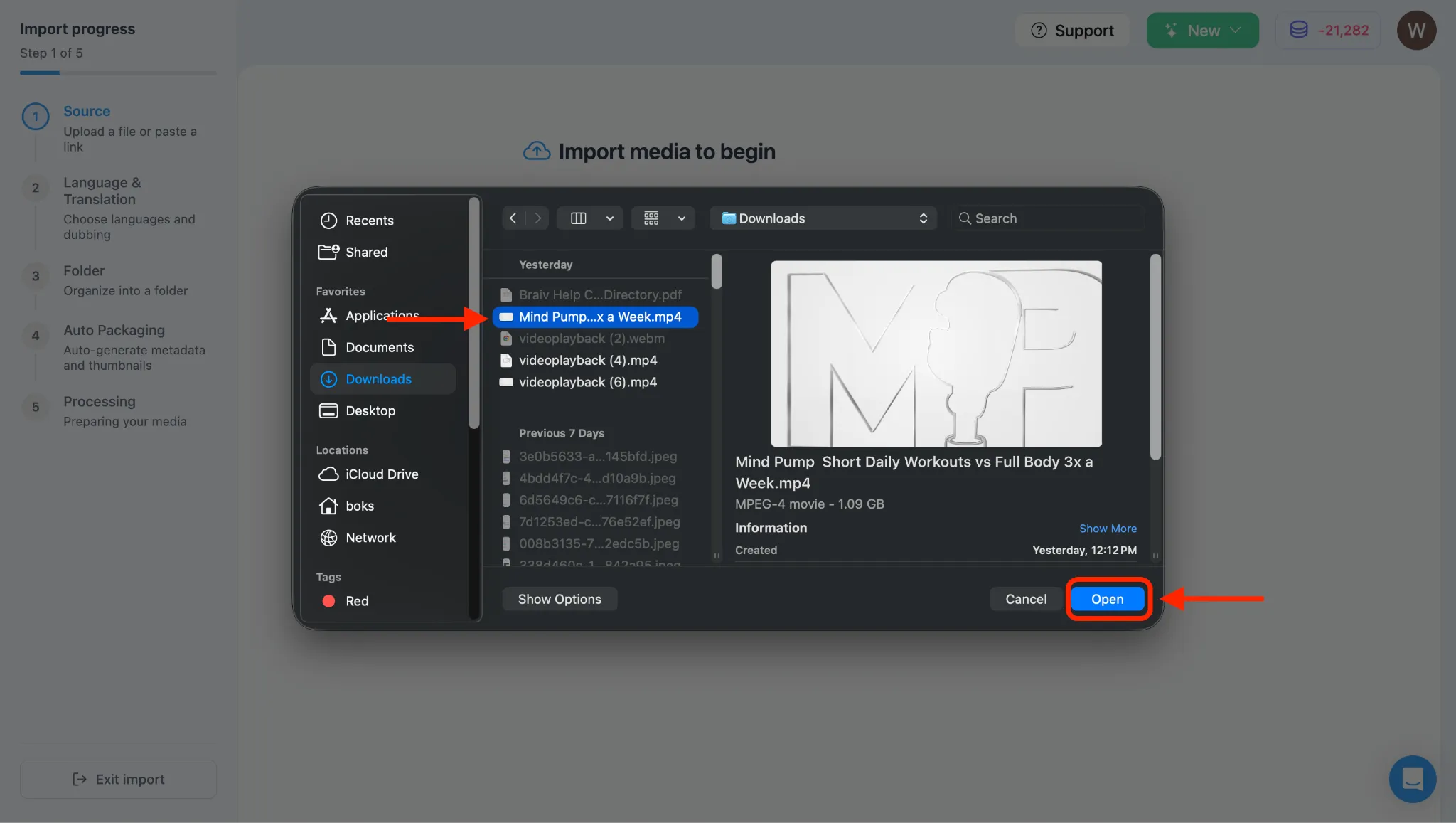
- Clique dentro da caixa de upload tracejada (onde diz “Arraste e solte arquivos de vídeo aqui”) para abrir o Gerenciador de Arquivos do seu computador.
- Selecione o arquivo de vídeo que deseja fazer upload do seu diretório local e clique em “Abrir” ou “Escolher”.
3. Verificar Metadados do Vídeo e Importar
Seção intitulada “3. Verificar Metadados do Vídeo e Importar”- Após selecionar o arquivo, você verá o nome do arquivo exibido dentro do Braiv.
- Aguarde alguns segundos para que os metadados do vídeo carreguem completamente.
- Assim que os detalhes do vídeo carregarem, clique no botão IMPORTAR. (Se o botão estiver temporariamente sem resposta, aguarde mais um momento e tente novamente).
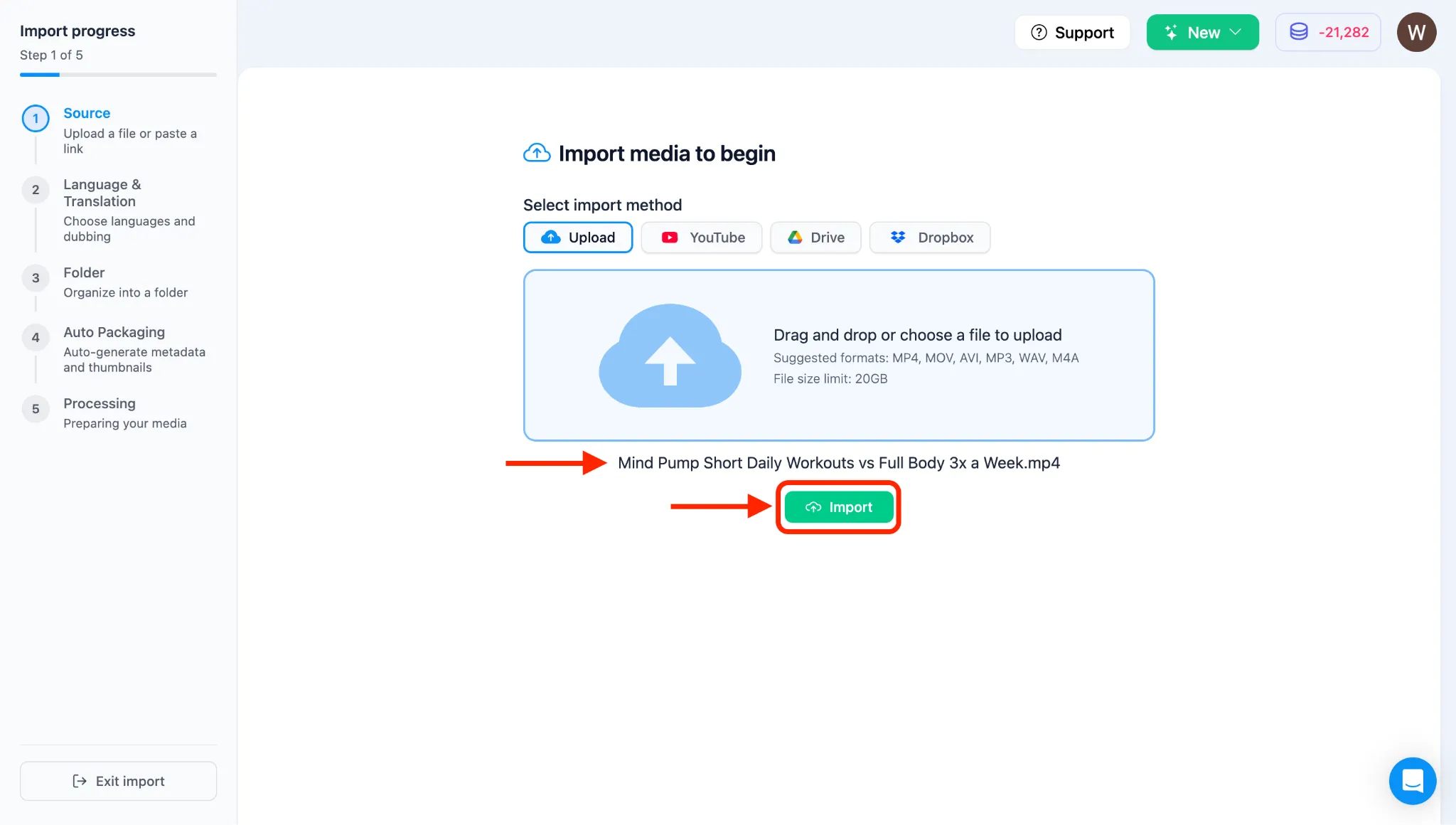
Nota: Após clicar em IMPORTAR, o vídeo começará a ser carregado, e você será direcionado para a página de configuração de tradução e dublagem. Para personalizar essas configurações, consulte nossos guias dedicados na Categoria 4: O Processo Central de Dublagem e Multilíngue do Braiv Dubbing.