
Navegando no Braiv
A interface do Braiv é projetada em torno de algumas áreas de navegação principais para que você possa se mover rapidamente entre gerenciar projetos, criar ativos localizados e personalizar seu fluxo de trabalho de publicação.
Navegando no Braiv (Menu Esquerdo)
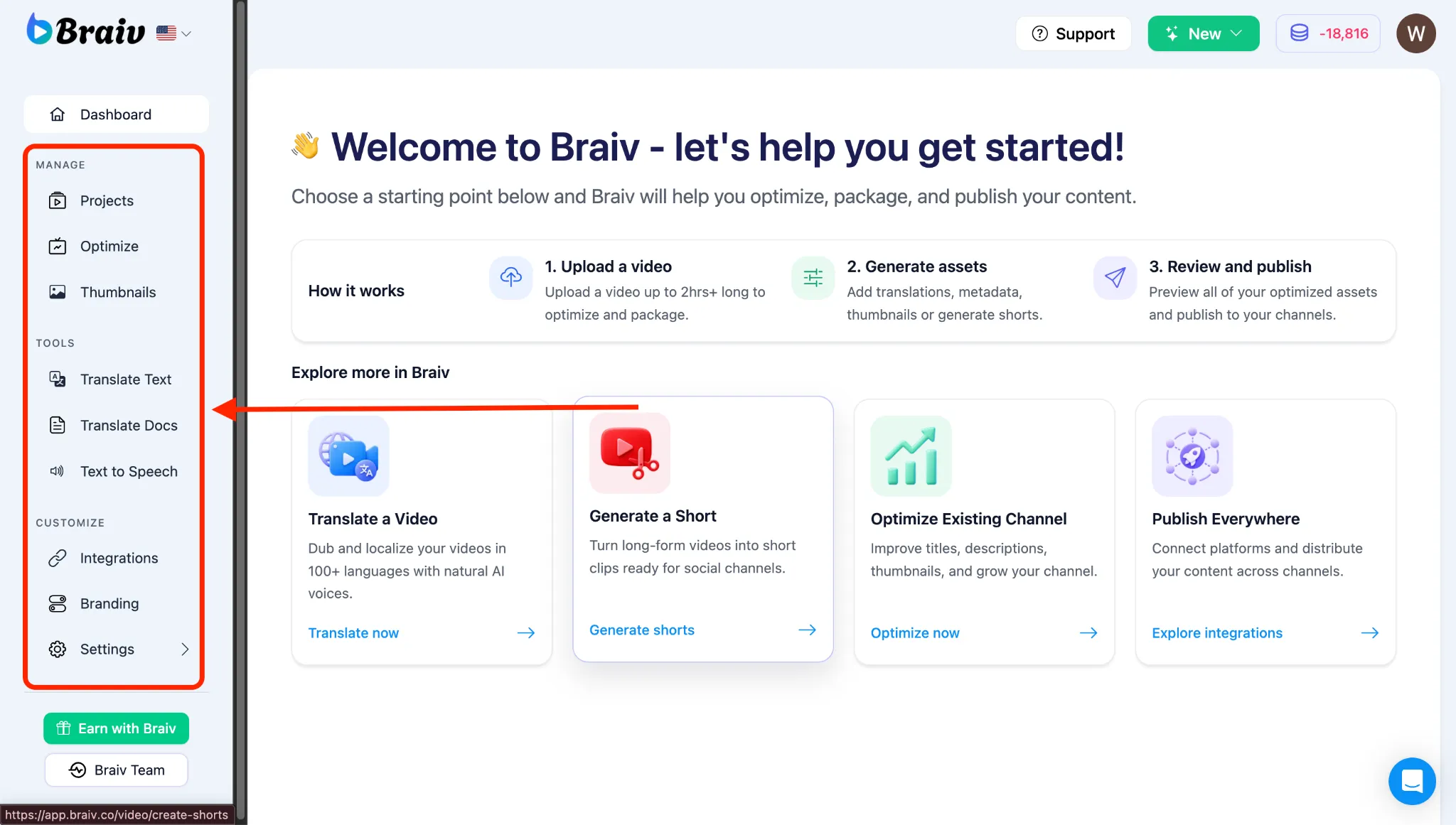
Seção intitulada “Navegando no Braiv (Menu Esquerdo)”O menu de navegação esquerdo principal é seu centro de comando. Ele é dividido em três seções principais:
Gerenciar
Seção intitulada “Gerenciar”- Projects: O centro principal para seus projetos de vídeo e áudio localizados na sua Project Library. É aqui que você organiza seus vídeos com pastas, aciona ações em massa selecionando vários vídeos e acessa arquivos individuais.
- Channels: Conecte e gerencie seus canais de distribuição social (YouTube, TikTok, etc.) para configurar a publicação automática com um clique.
Ferramentas
Seção intitulada “Ferramentas”- Translate Text: Acesse ferramentas rápidas e independentes de tradução de texto fora do fluxo de trabalho de vídeo.
- Text to Speech: Acesse a Clonagem e Design de Voz de IA Ultra-Realista. Gere narrações realistas em mais de 80 idiomas usando o Braiv Speech.
Personalizar
Seção intitulada “Personalizar”- Integrations: Conecte o Braiv a plataformas externas, fluxos de trabalho LMS (como Thinkific) e outras ferramentas via Integrações e Conexões.
- Branding: Gerencie sua identidade visual. Configure fontes, cores e estilos de legendas animadas personalizados nas suas Configurações de Marca para garantir que seus vídeos localizados permaneçam fiéis à marca.
- Settings: Gerencie os detalhes da sua conta, planos de faturamento e visualize seu histórico de tradução.
Barra de Navegação Superior
Seção intitulada “Barra de Navegação Superior”A barra de navegação superior oferece acesso rápido a ferramentas de nível de conta e às suas principais ações de criação.
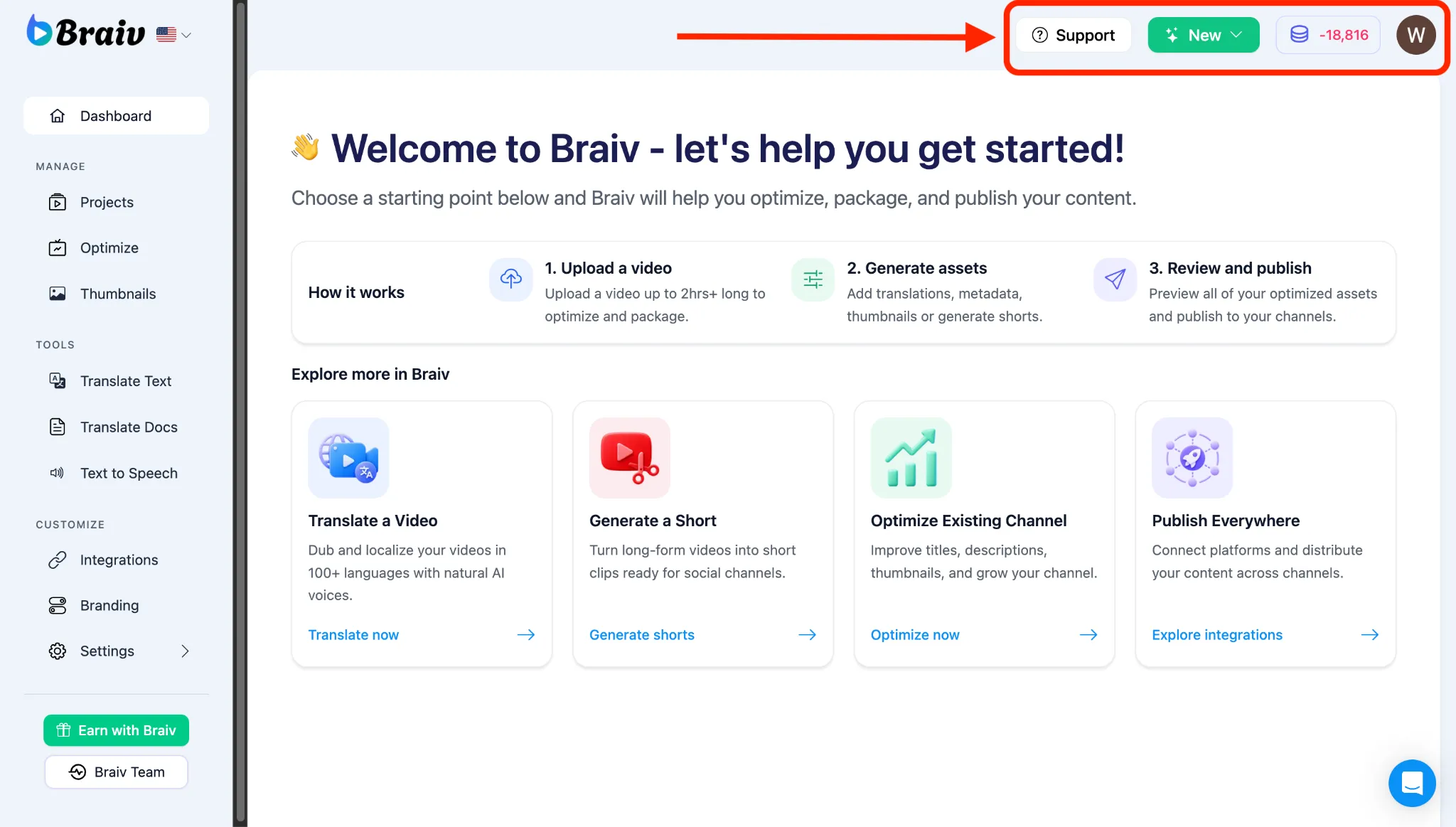
- New (Create Button): A maneira mais rápida de iniciar um novo fluxo de trabalho. Clique aqui para carregar um novo Vídeo Gerenciado ou conectar um novo canal de distribuição.
- AI Credit Counter: Exibe seus Créditos de IA disponíveis. O Braiv usa Créditos de IA para tarefas avançadas como sincronização labial de IA e geração de voz Ultra-Realista. Saiba como eles funcionam em Faturamento e Créditos.
- Support: Acesso rápido ao Centro de Ajuda do Braiv.
- User Profile: Acesse as configurações da sua conta ou saia da plataforma.