Clonagem de Voz Automatizada usando Auto-Dubbing
A clonagem de voz da Braiv permite traduzir seu vídeo para outros idiomas, preservando a voz, o tom e a entonação únicos do orador original. Com o Auto-Dubbing, todo o processo de tradução e clonagem de voz é completamente automatizado, proporcionando narrações globais ultrarrealistas em instantes.
Nota: Auto-Dubbing é um processo de dublagem totalmente automatizado e sem intervenção manual. As transcrições traduzidas são geradas diretamente pelo motor de IA e não podem ser editadas manualmente após a conclusão. Para transcrições editáveis com clonagem de voz, consulte Dublagem com Voz Clonada. Para escolher qualidade e custo, consulte Premium vs Plus (Premium 24 créditos/min · Plus 18 créditos/min).
Aqui está o fluxo de trabalho passo a passo:
1. Comece Enviando Seu Vídeo
Seção intitulada “1. Comece Enviando Seu Vídeo”- Faça login no painel da sua conta Braiv.
- No canto superior direito da tela, clique no botão NOVO.
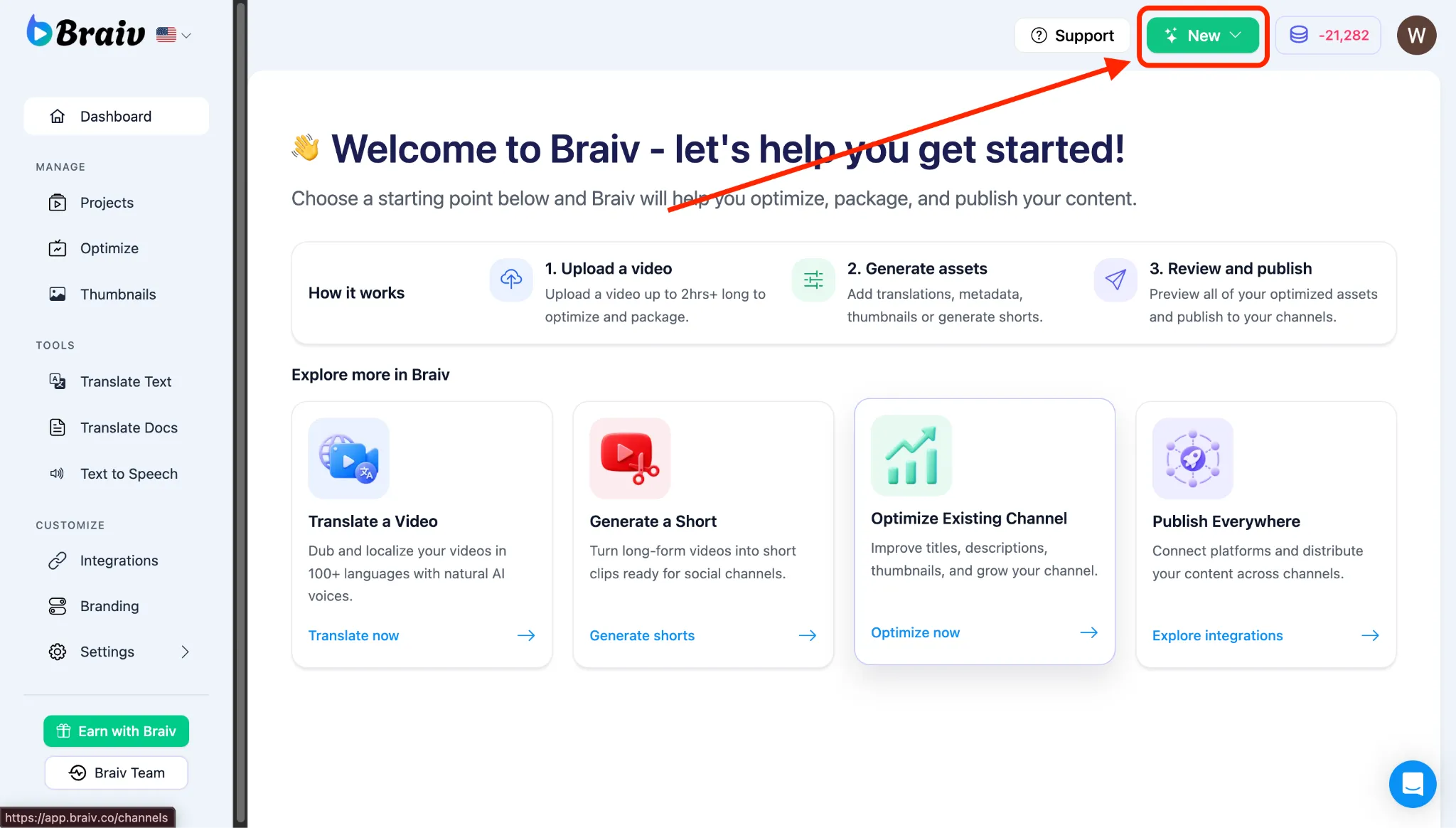
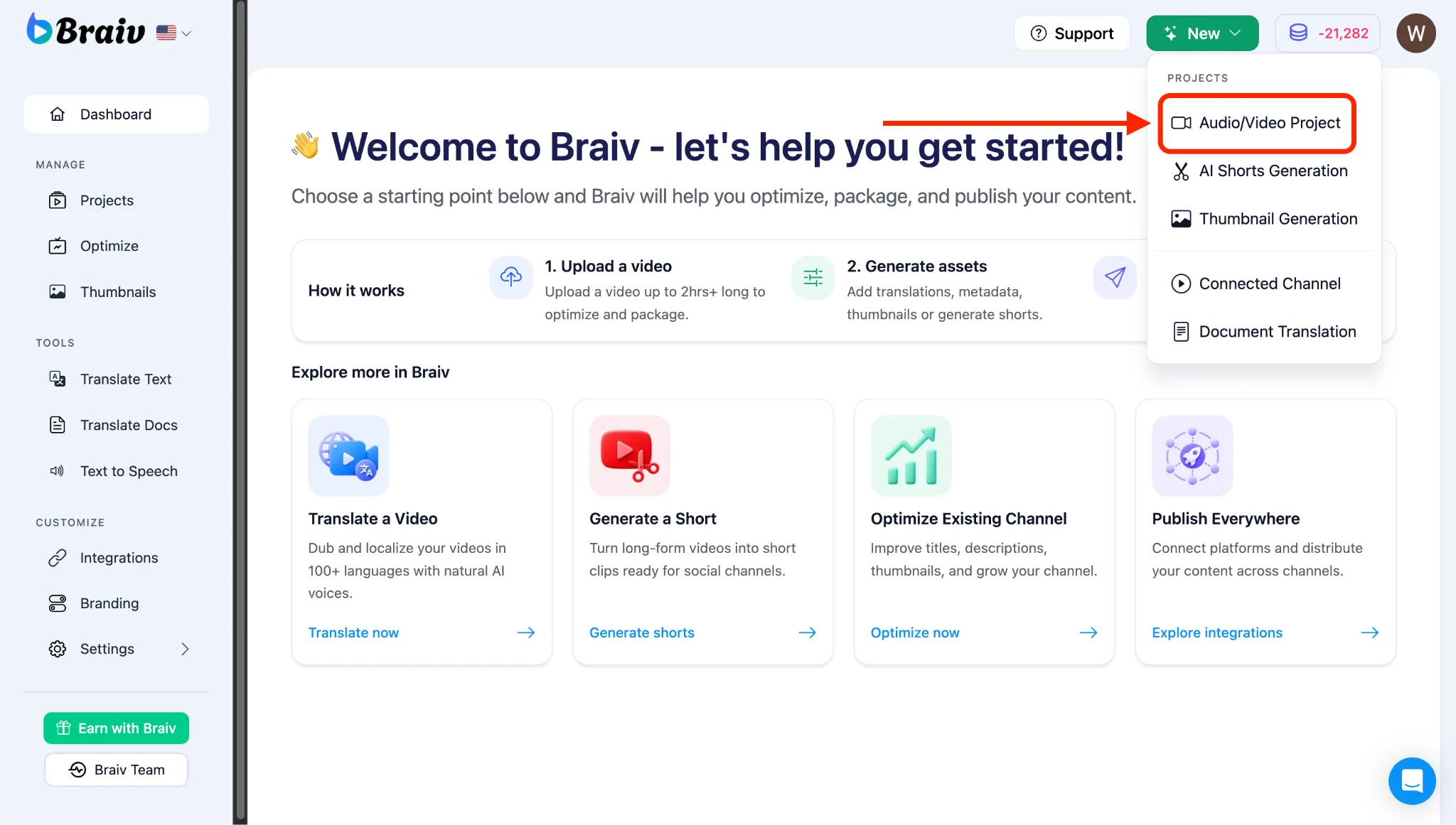
- Um menu aparecerá, escolha Projeto de Áudio/Vídeo.
2. Selecione Seu Arquivo de Vídeo
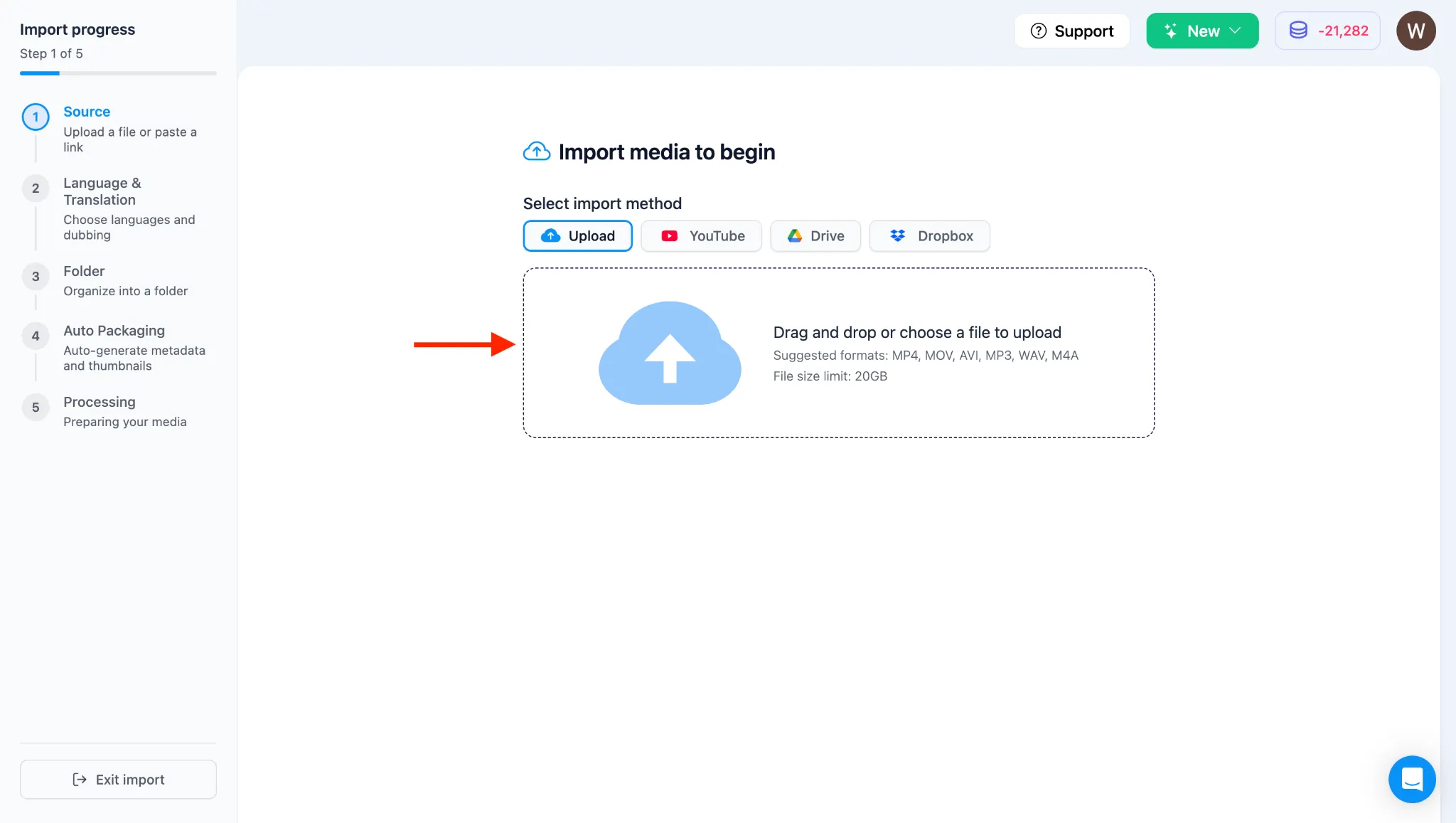
Seção intitulada “2. Selecione Seu Arquivo de Vídeo”- Você será levado à página de Importação com quatro opções de Upload: Upload (computador), YouTube, Google Drive e Dropbox.
- O sistema é selecionado para Upload por padrão. Para este tutorial, faremos o upload de um computador.
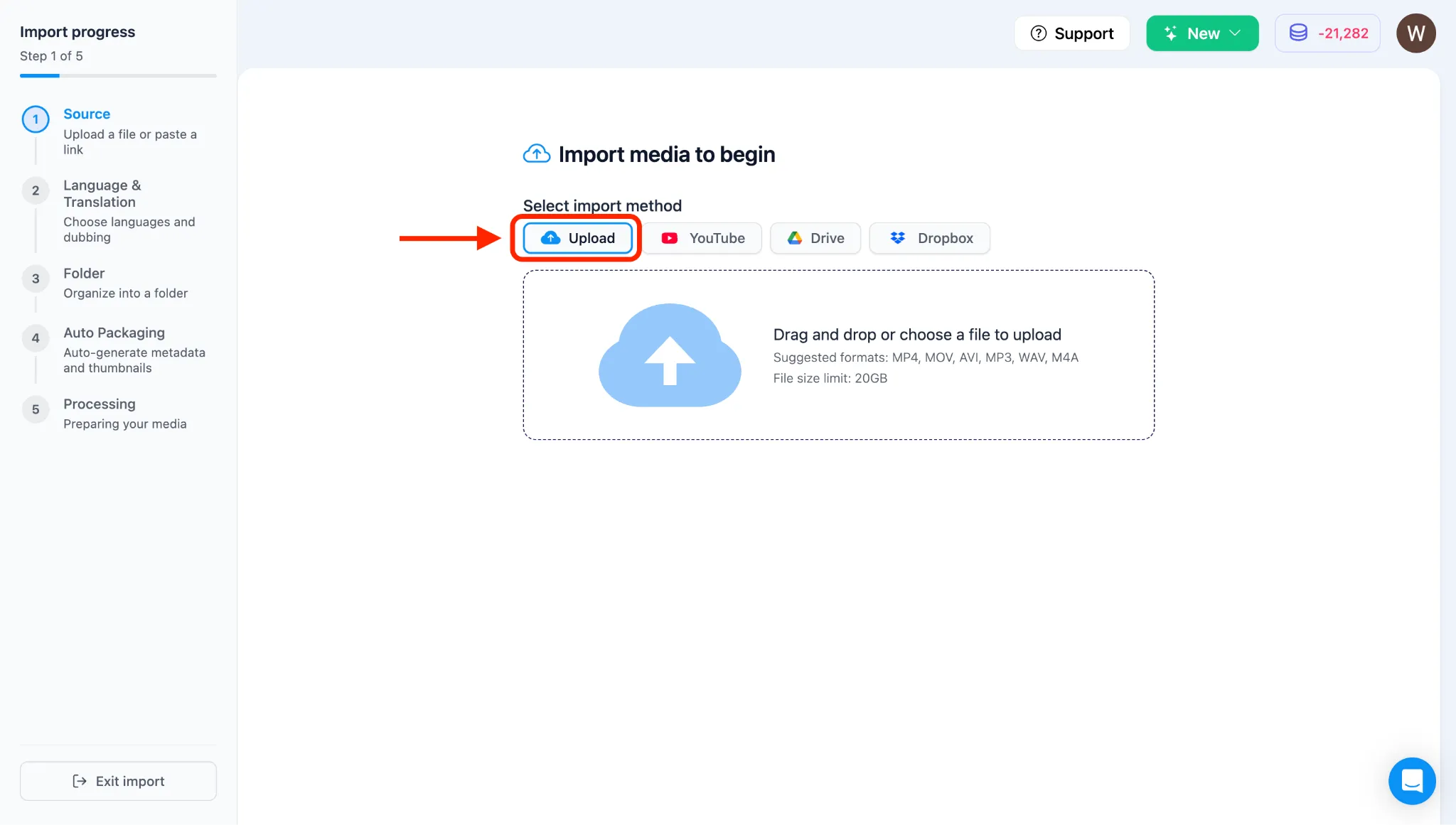
- Clique dentro da caixa de upload tracejada (onde diz “Arraste e solte arquivos de vídeo aqui”) para abrir o Gerenciador de Arquivos do seu computador.
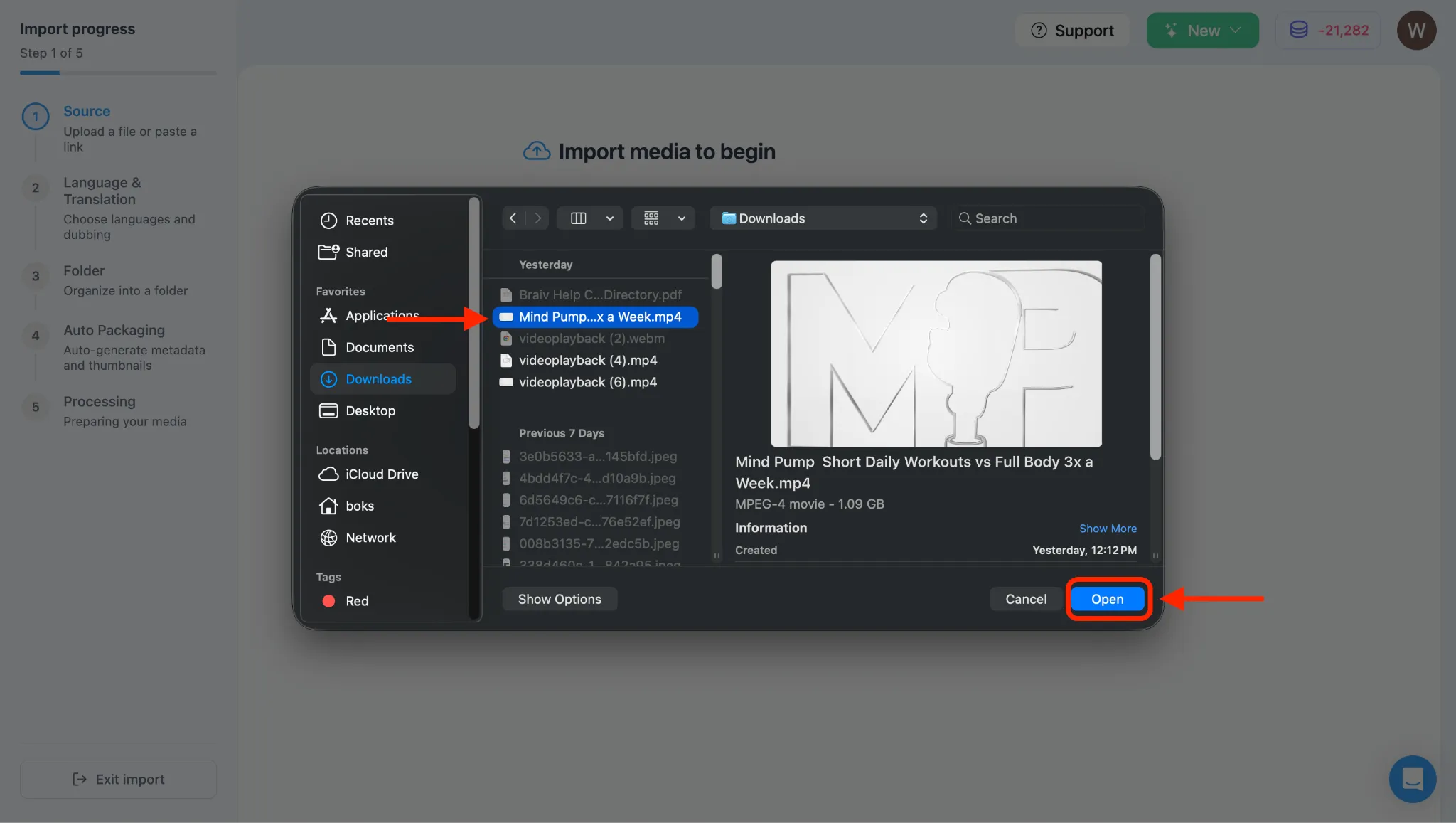
- Selecione o arquivo de vídeo que deseja enviar do seu diretório local e clique em Abrir ou Escolher.
3. Verifique os Metadados do Vídeo e Importe
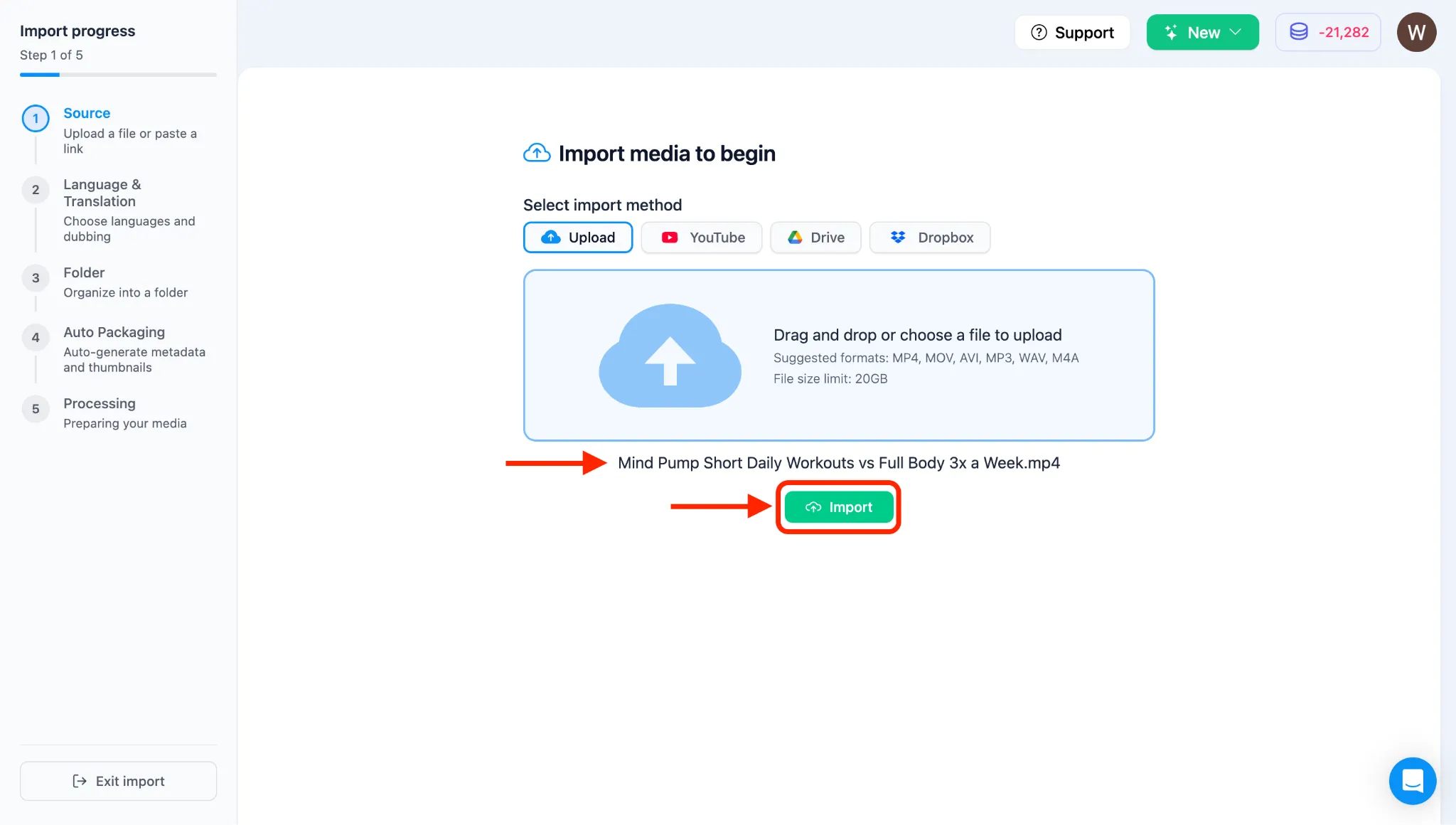
Seção intitulada “3. Verifique os Metadados do Vídeo e Importe”- Após selecionar o arquivo, você verá o nome do arquivo exibido dentro da Braiv.
- Aguarde alguns segundos para que os metadados do vídeo sejam carregados completamente.
- Assim que os detalhes do vídeo forem carregados, clique no botão IMPORTAR. (Se o botão estiver temporariamente sem resposta, aguarde um momento e clique novamente).
4. Selecione a Opção de Clonagem de Voz (Auto-Dubbing)
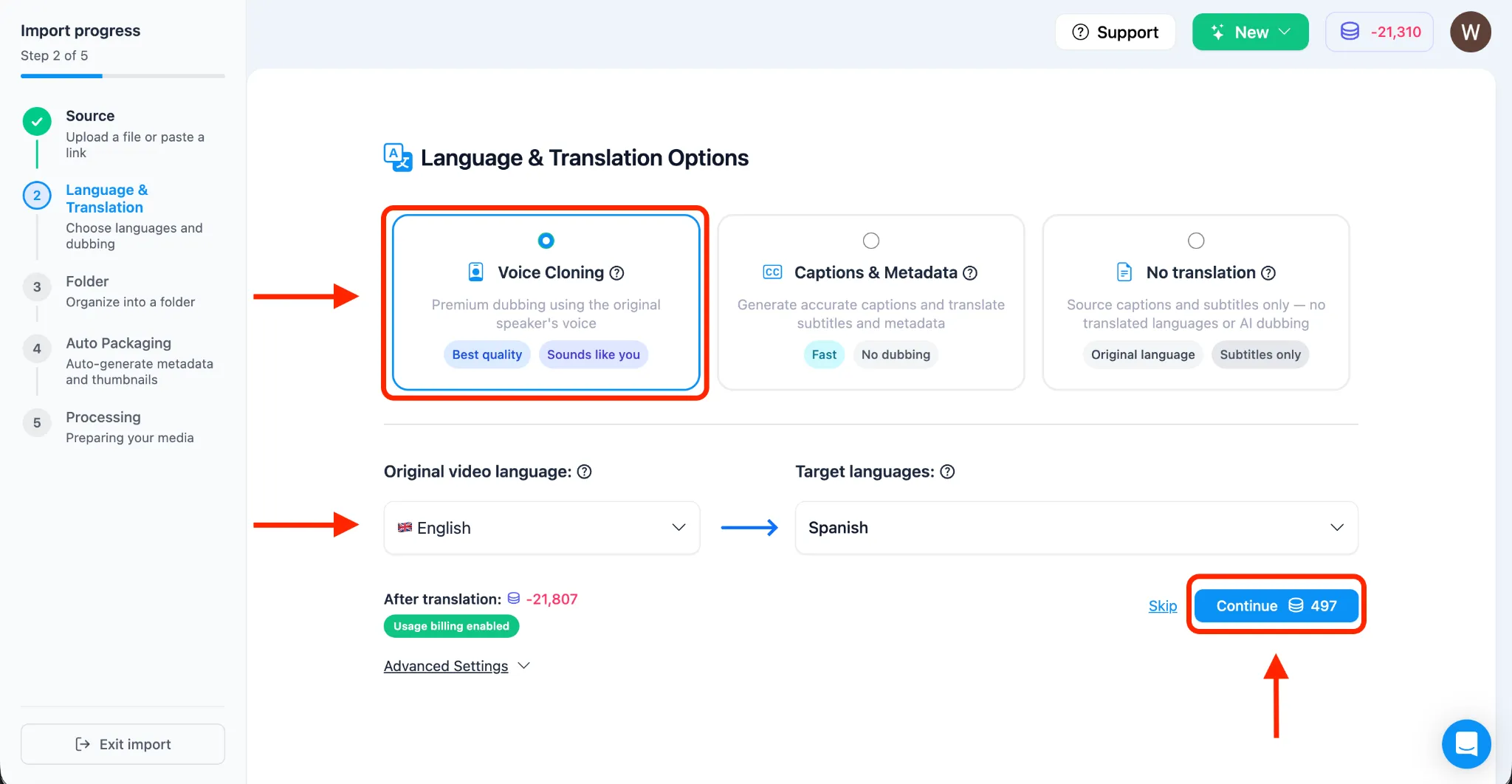
Seção intitulada “4. Selecione a Opção de Clonagem de Voz (Auto-Dubbing)”- Assim que seu vídeo for importado e você chegar à página de Opções de Idioma e Tradução, na seção Opções de Idioma e Traduções, selecione Clonagem de Voz (Auto-Dubbing).
- Selecione manualmente o seu Idioma Original do Vídeo na seção Idiomas Alvo, pois isso ajudará o motor a realizar uma tradução melhor em vez de depender da detecção automática.
- Selecione os idiomas para os quais você deseja traduzir seu vídeo. Você pode selecionar vários idiomas alvo para processar ao mesmo tempo. (Para este tutorial, selecionaremos o Espanhol).
5. Selecione a Pasta para Organizar Vídeos
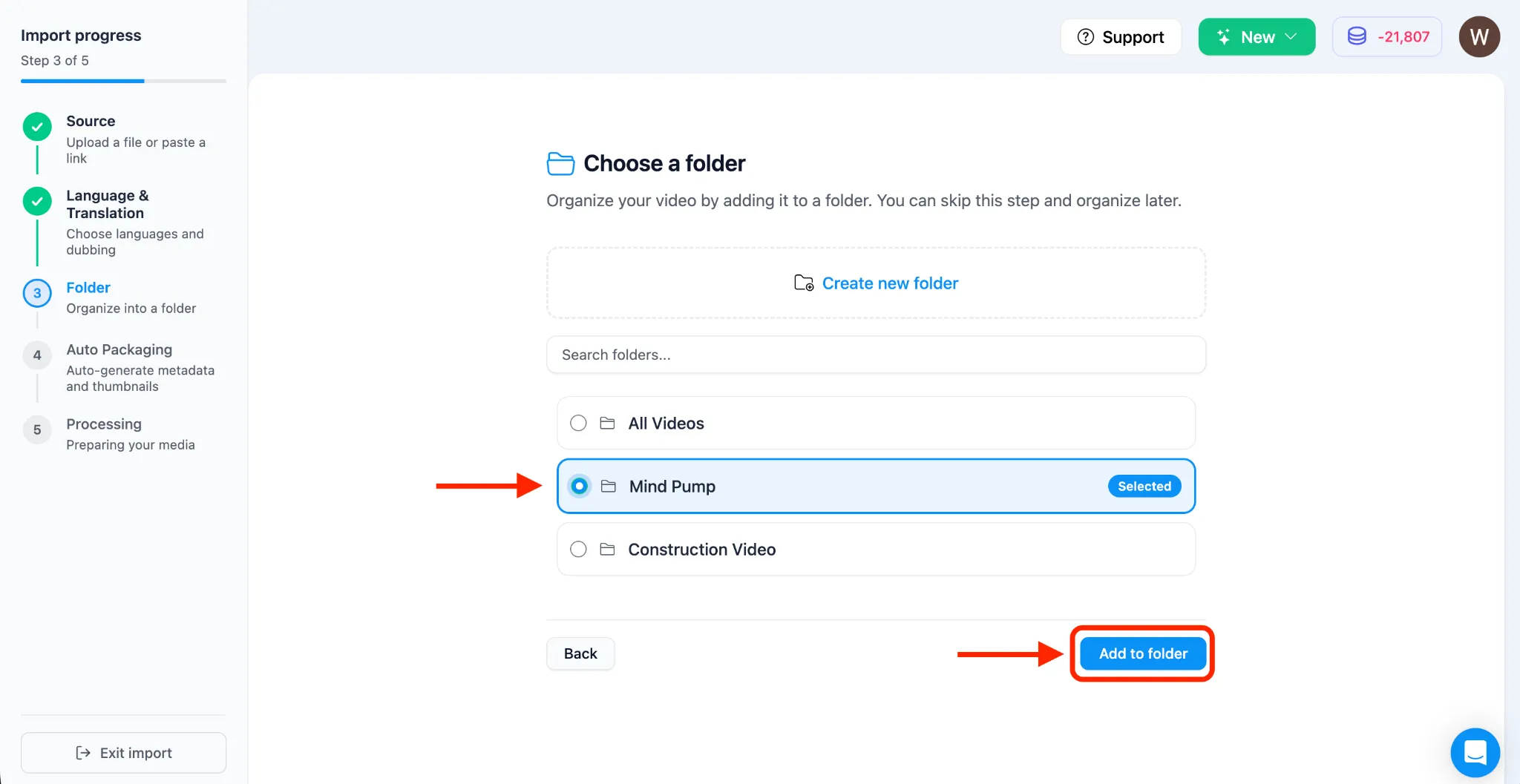
Seção intitulada “5. Selecione a Pasta para Organizar Vídeos”- O sistema solicitará que você escolha uma pasta para organizar seu vídeo. Se você ainda não tiver uma, poderá criar uma.
6. Autopacote do Seu Vídeo
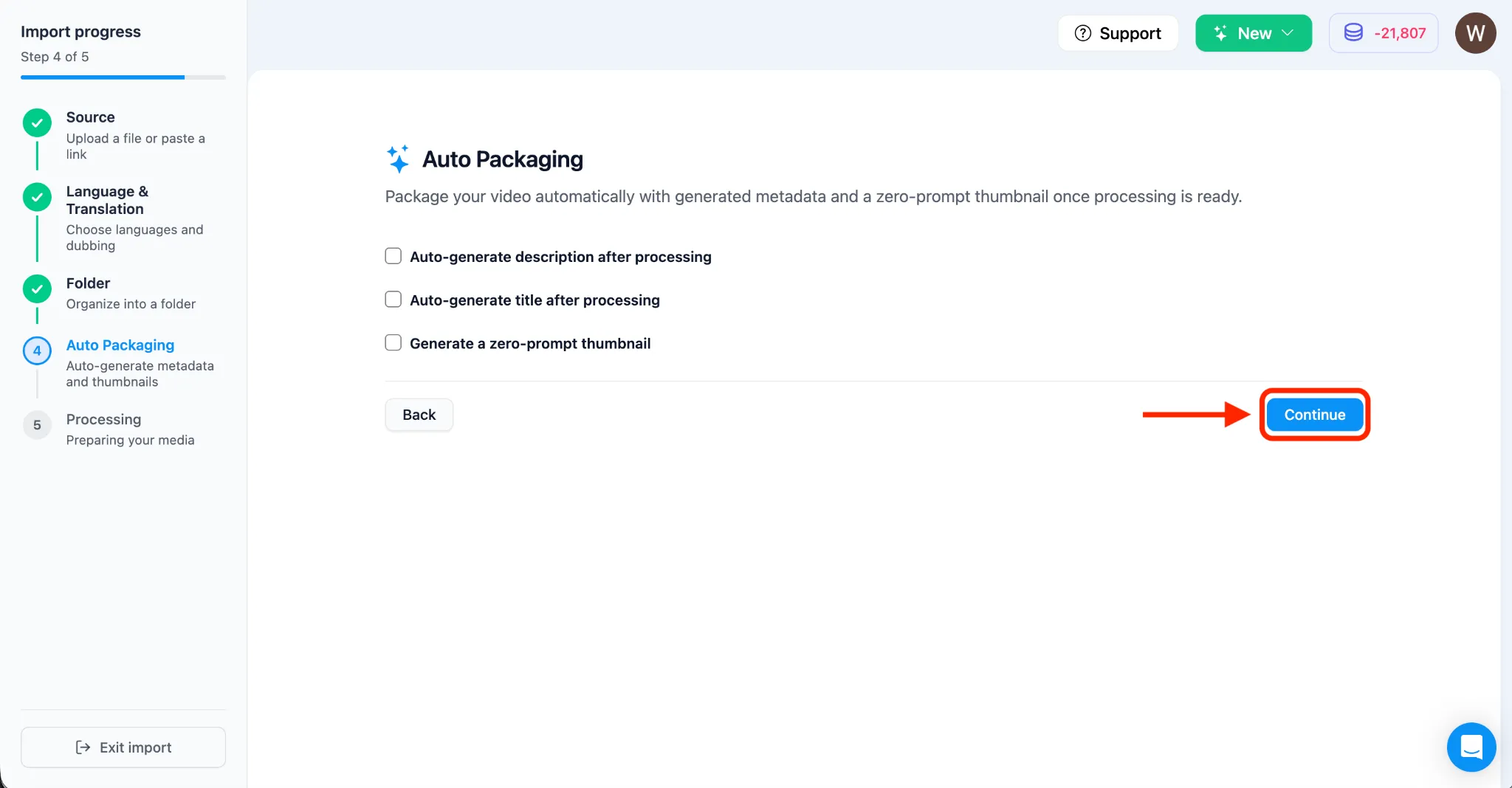
Seção intitulada “6. Autopacote do Seu Vídeo”- O fluxo de trabalho fará a transição para a página de autopacote, onde você pode gerar automaticamente metadados e uma miniatura. Para este tutorial, optamos por não aplicar o Autopacote. Clique em CONTINUAR.
7. Monitore o Progresso do Upload
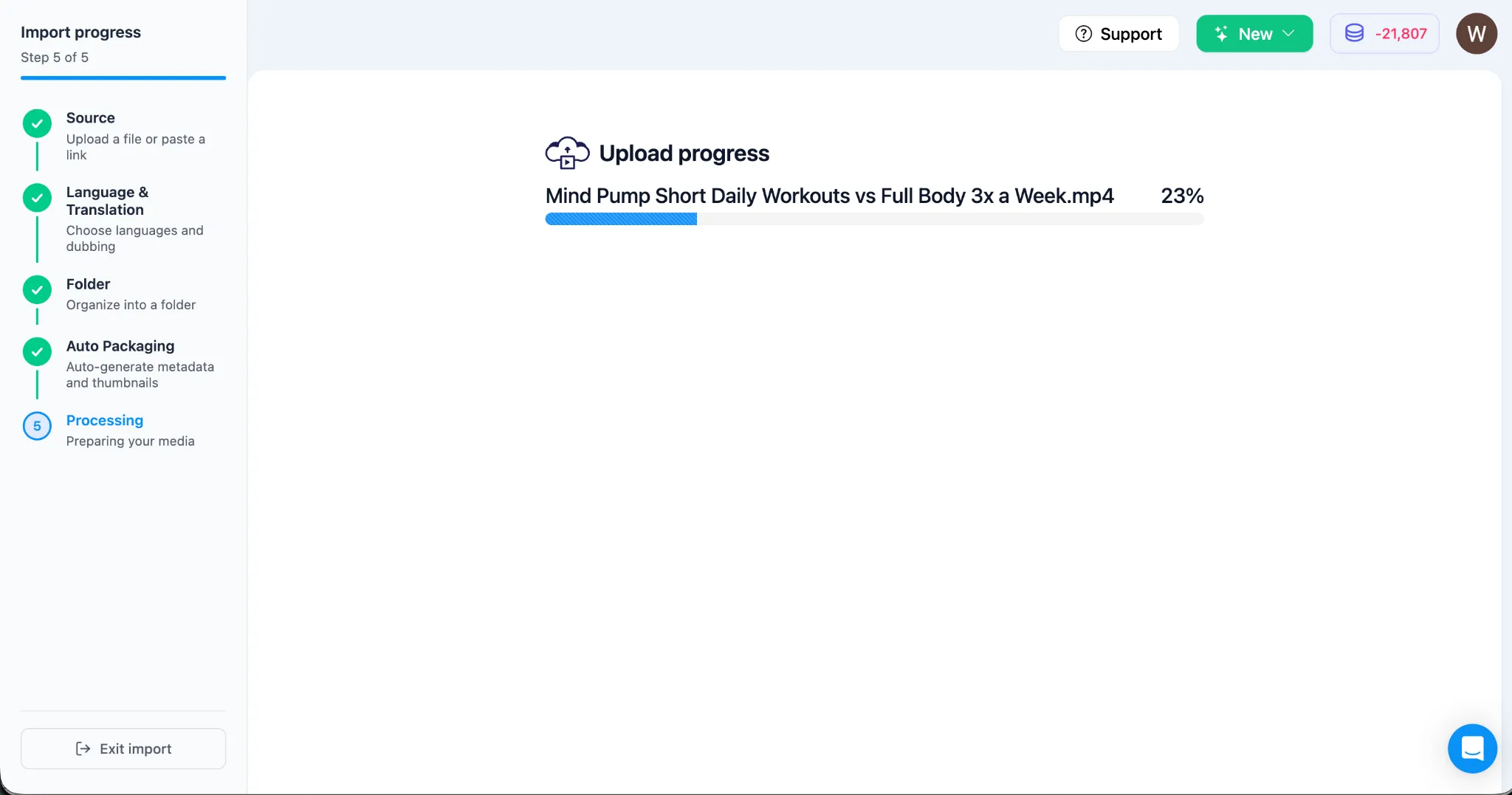
Seção intitulada “7. Monitore o Progresso do Upload”- Uma barra de progresso aparecerá enquanto seu arquivo de vídeo é enviado e finalizado.
8. Revise o Estado do Processamento
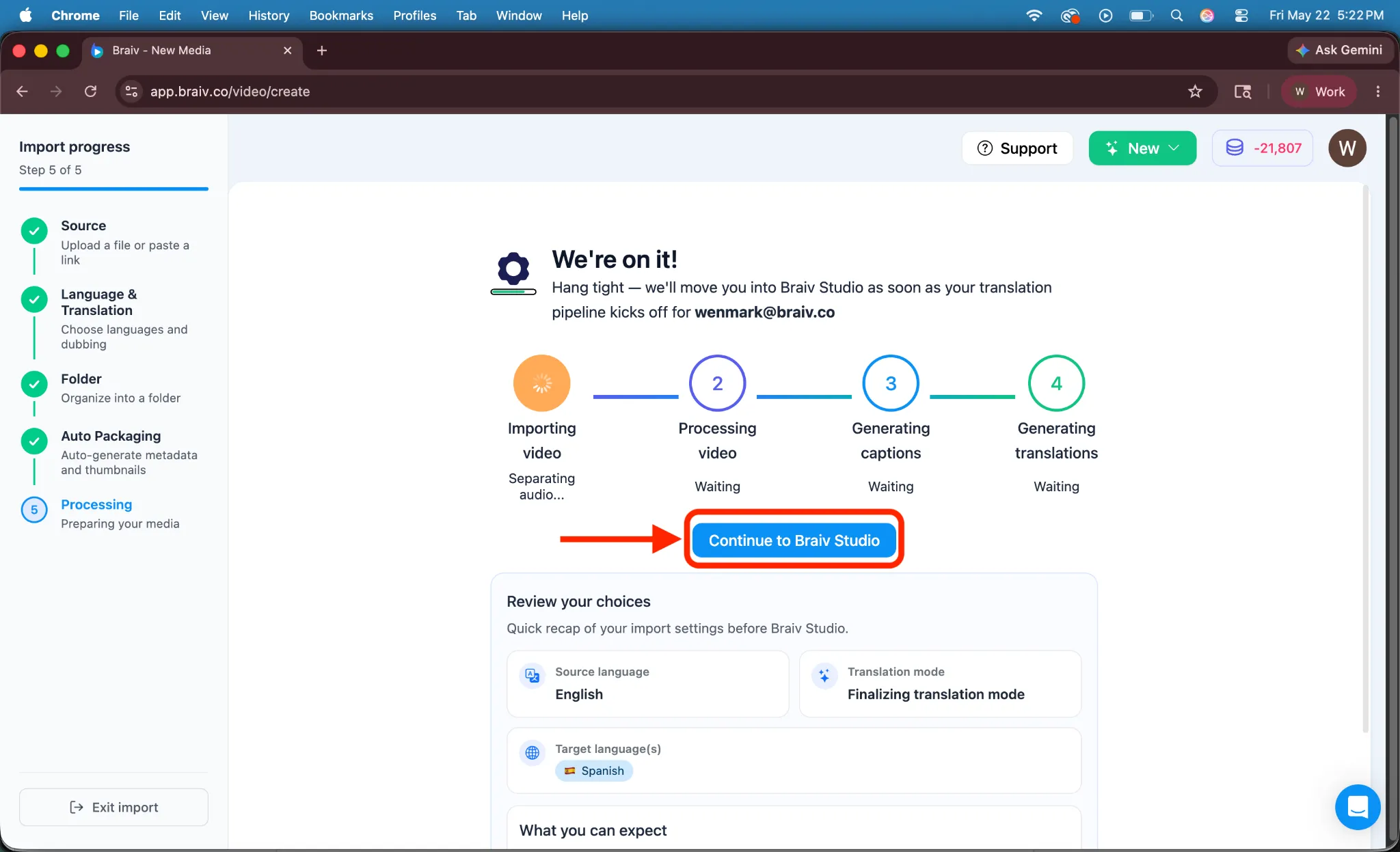
Seção intitulada “8. Revise o Estado do Processamento”- O motor Braiv agora começará a processar a tradução, transcrição e clonagem de voz do seu vídeo.
- Assinantes pagos verão uma opção para ir diretamente para o Braiv Studio enquanto o sistema processa em segundo plano.
9. Acesse e Verifique Suas Dublagens Clonadas
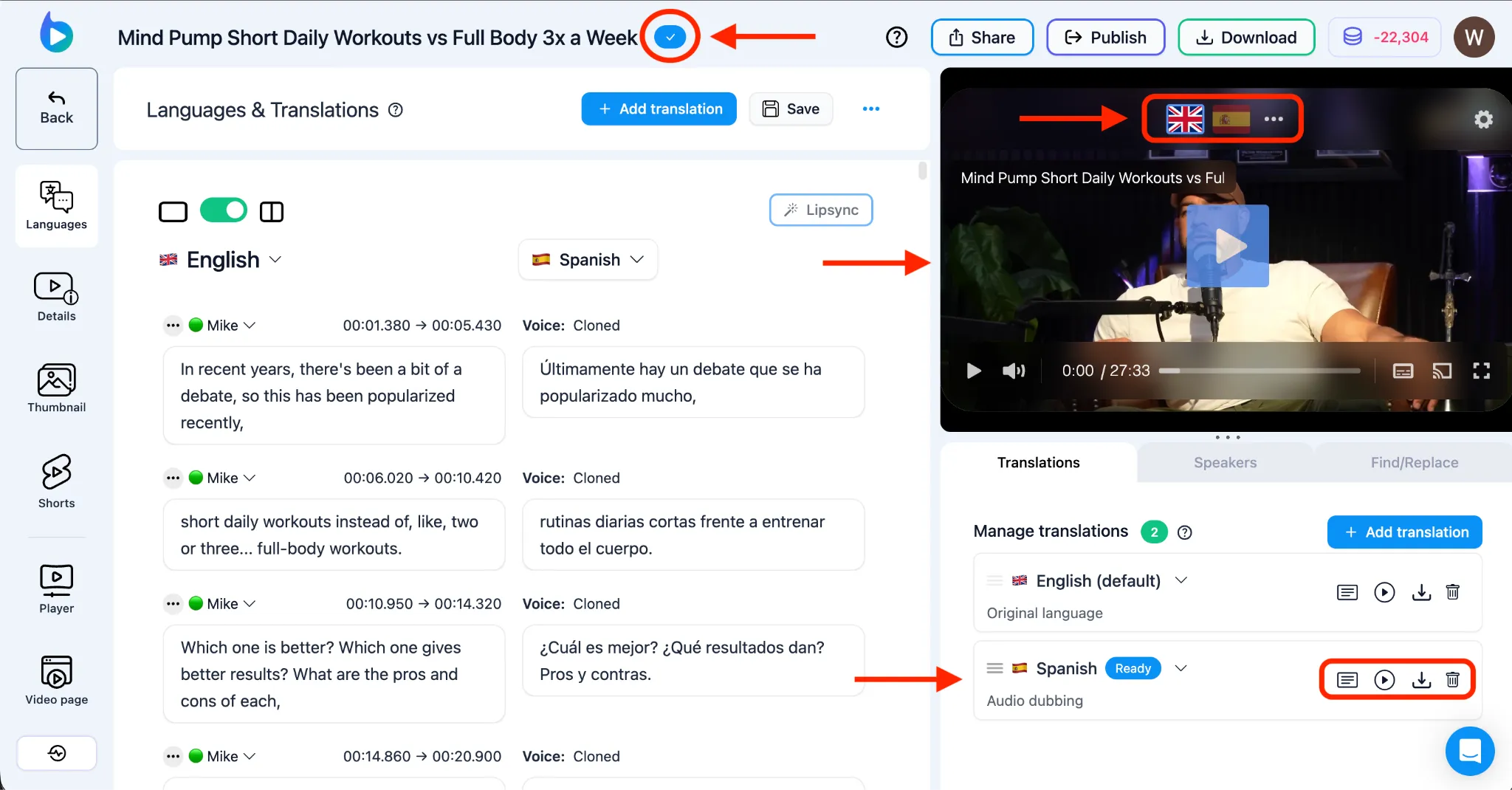
Seção intitulada “9. Acesse e Verifique Suas Dublagens Clonadas”- No painel de Idiomas e Traduções, um indicador “Processando” será exibido. Você pode clicar neste indicador para verificar o progresso passo a passo.
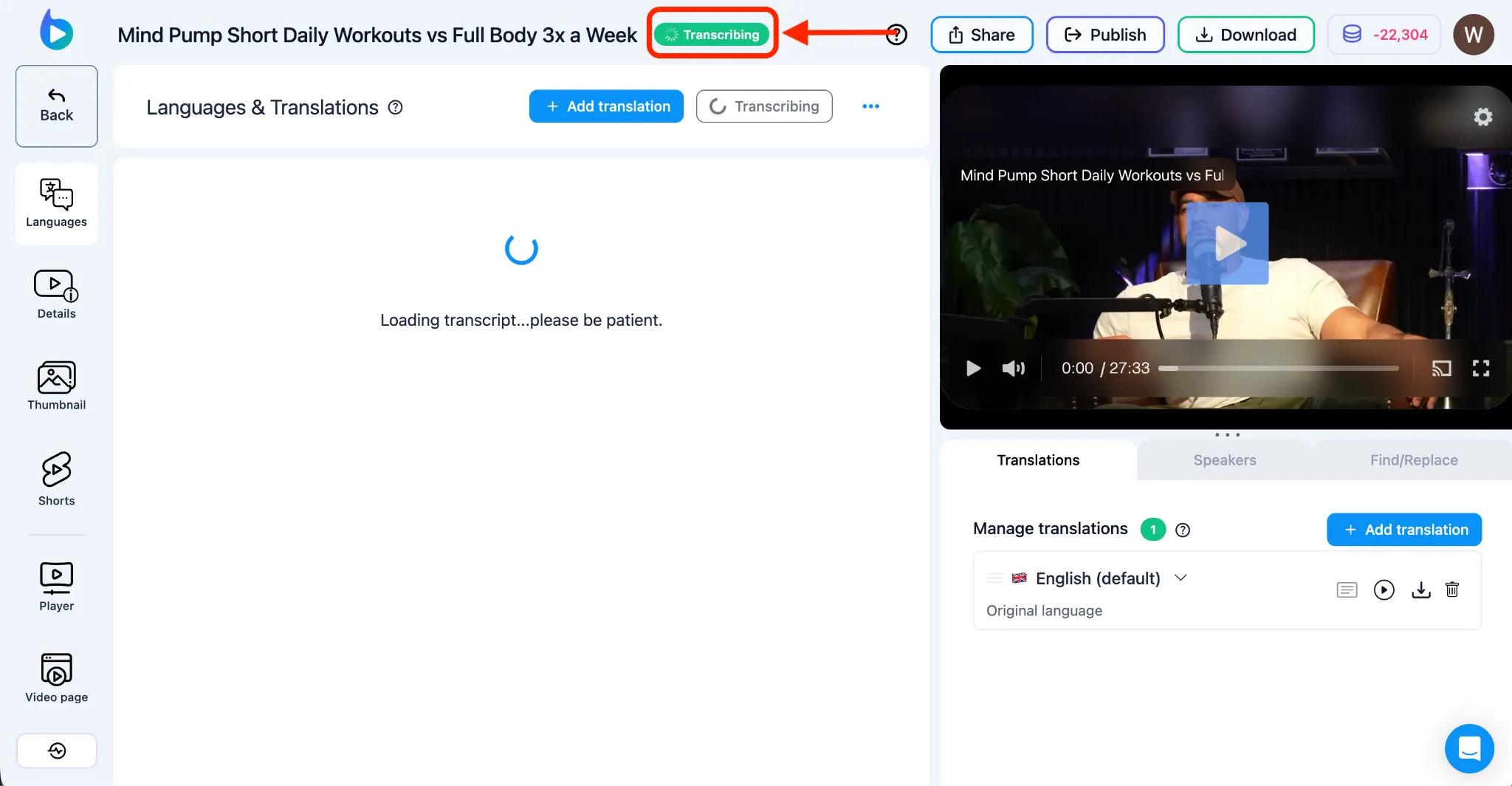
- Uma vez concluído, um indicador de status de marca de seleção azul aparecerá ao lado dos seus idiomas traduzidos.
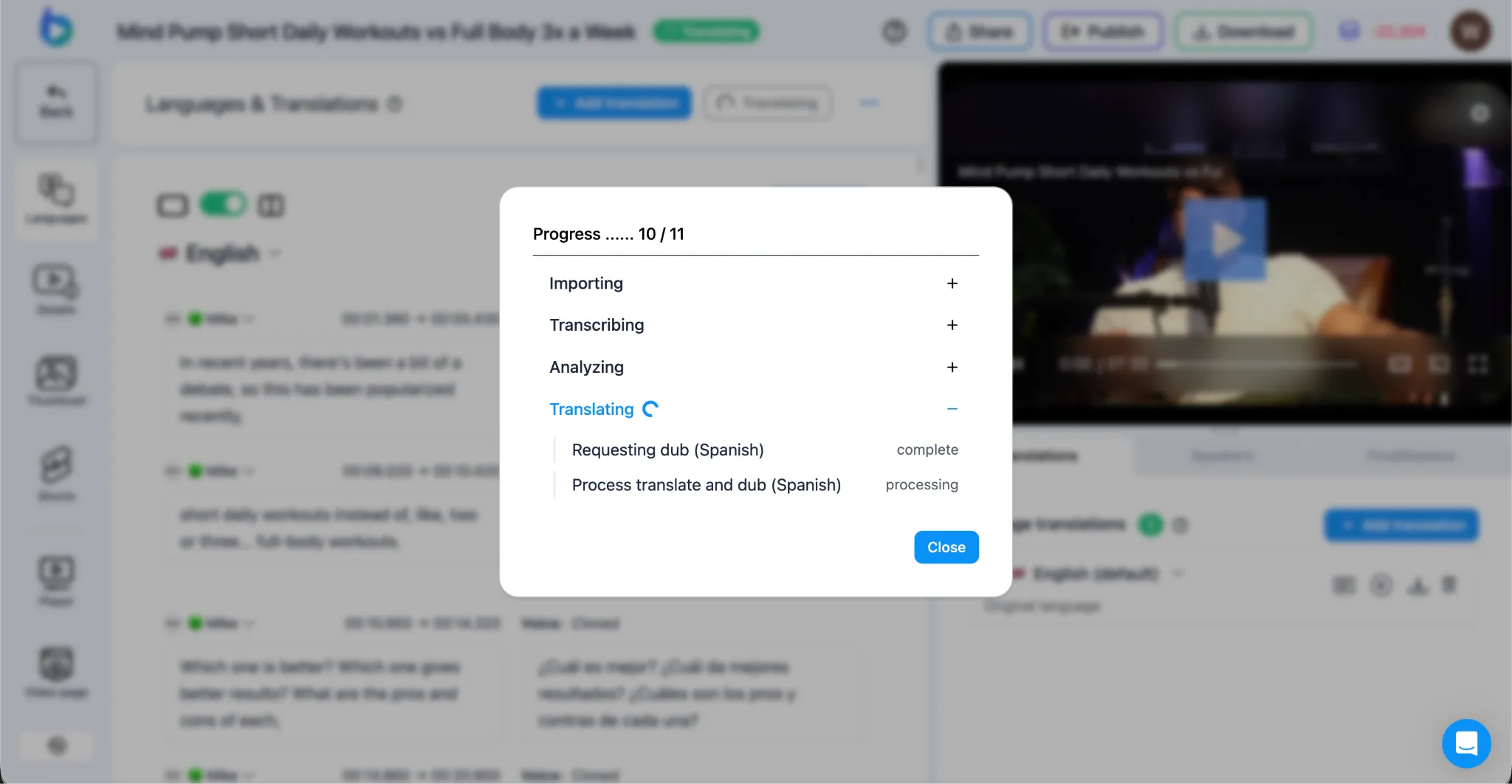
- Agora você pode reproduzir seu vídeo dublado clicando no botão Reproduzir no Braiv Player no lado direito. Você pode escolher o idioma selecionando a bandeira que o representa, ou acessar a seção inferior direita para baixar ativos de áudio traduzidos específicos ou o vídeo totalmente localizado!