
Uploading from Your Computer
Uploading videos directly from your computer is the quickest way to ingest local video files (such as MP4, MOV, or MKV) into the Braiv platform for hosting, optimization, and translation.
Here is the step-by-step workflow:
1. Start a New Video Upload
Section titled “1. Start a New Video Upload”- Log in to your Braiv account dashboard.
- In the top-right corner of the screen, click the Create button.
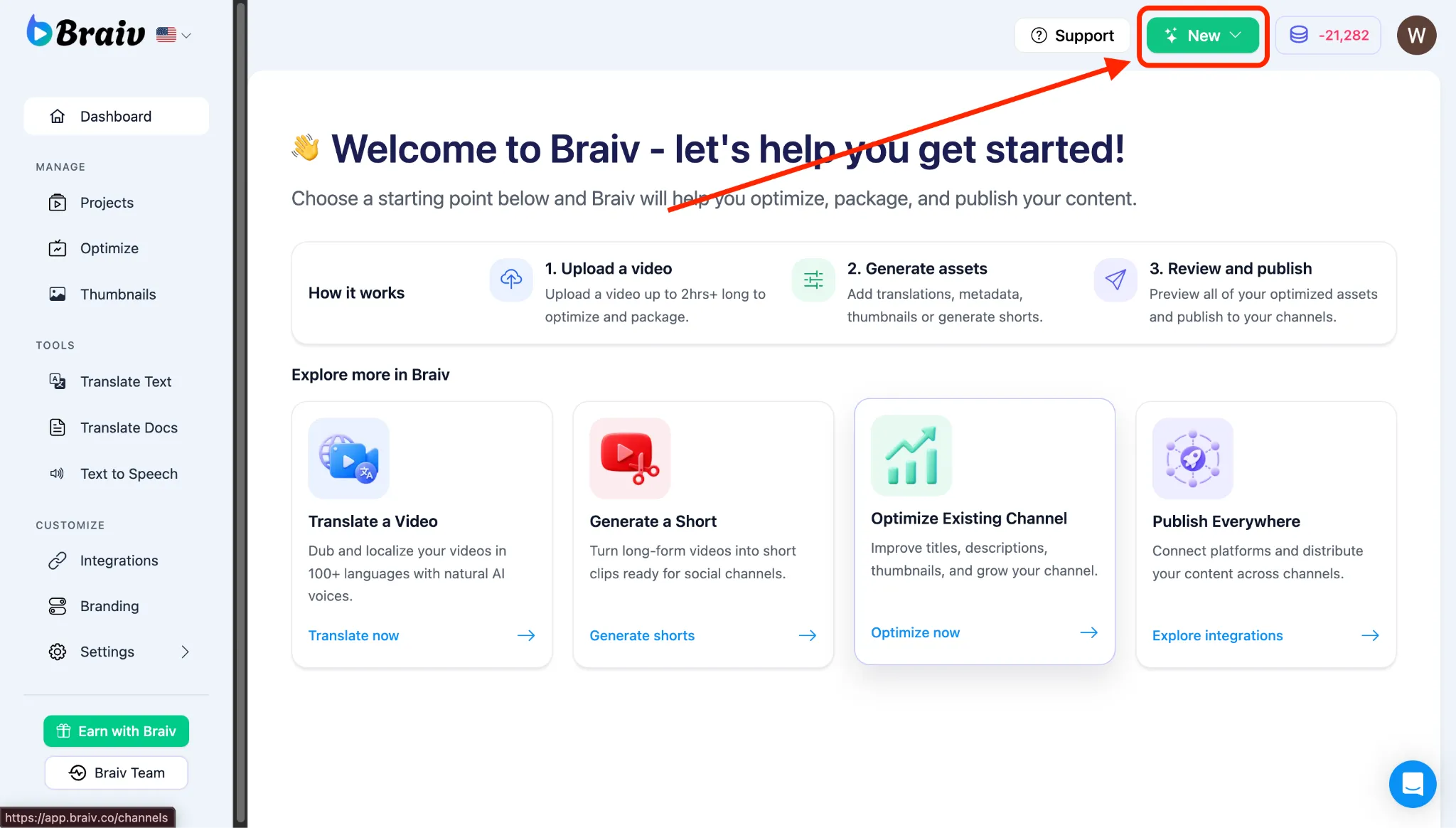
- A menu will appear, choose Translate a Video.
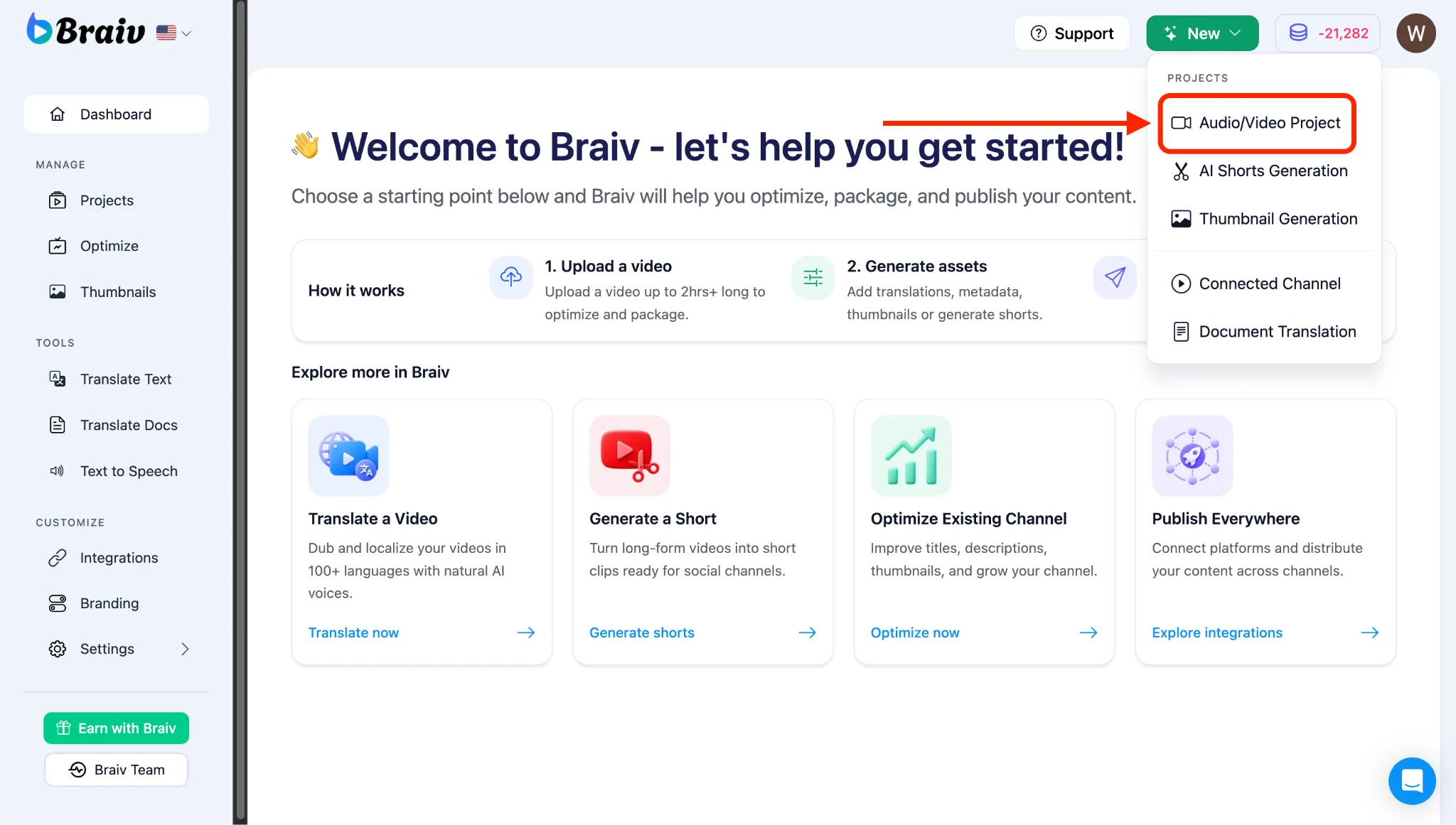
2. Select Your Video File
Section titled “2. Select Your Video File”- You will be taken to the Import page with four Upload options: Upload (computer), YouTube, Google Drive, and Dropbox.
- The system is set to Upload (computer) by default.
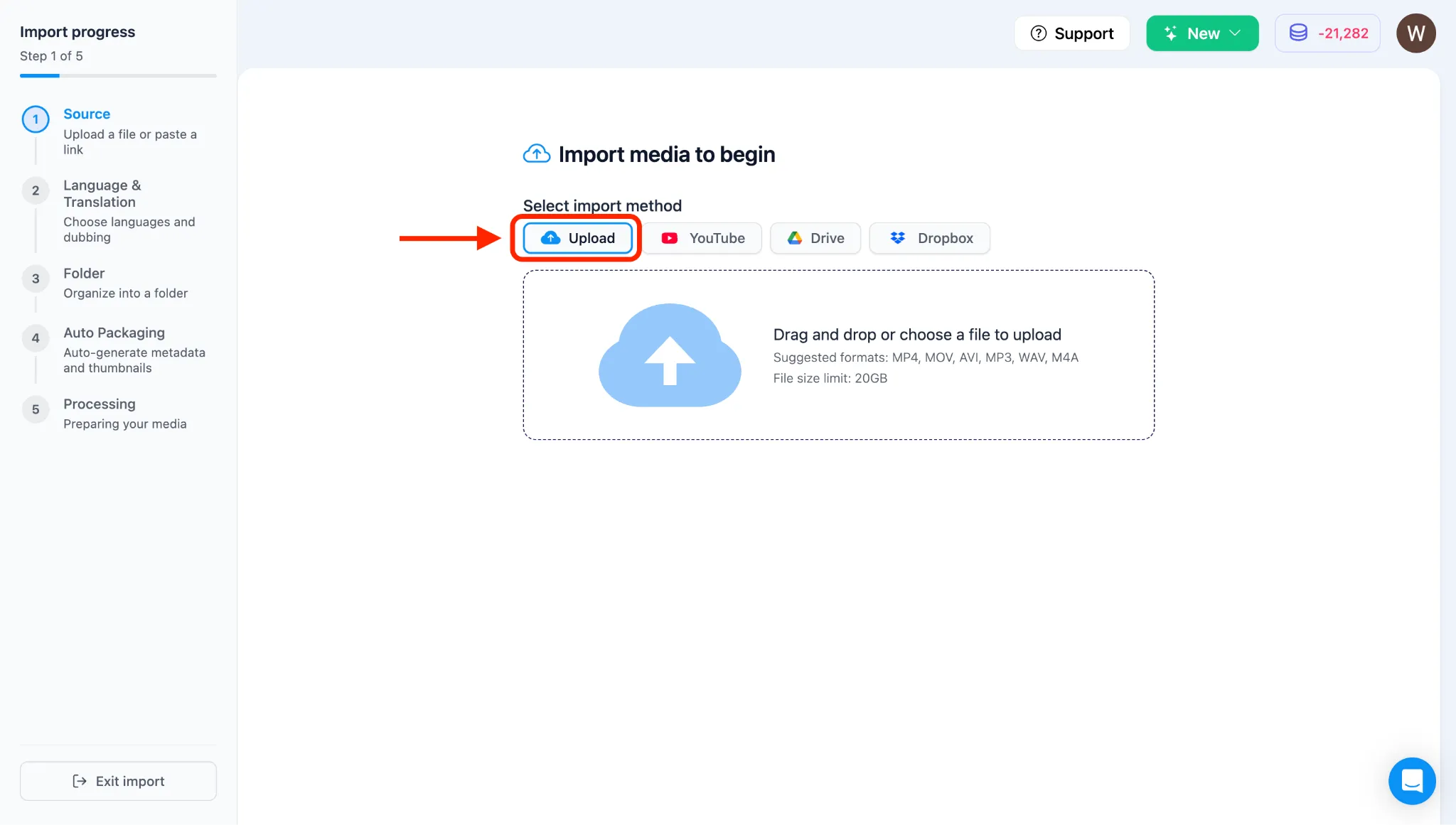
- Click inside the dashed upload box (where it says “Drag and drop video files here”) to open your computer’s File Manager.
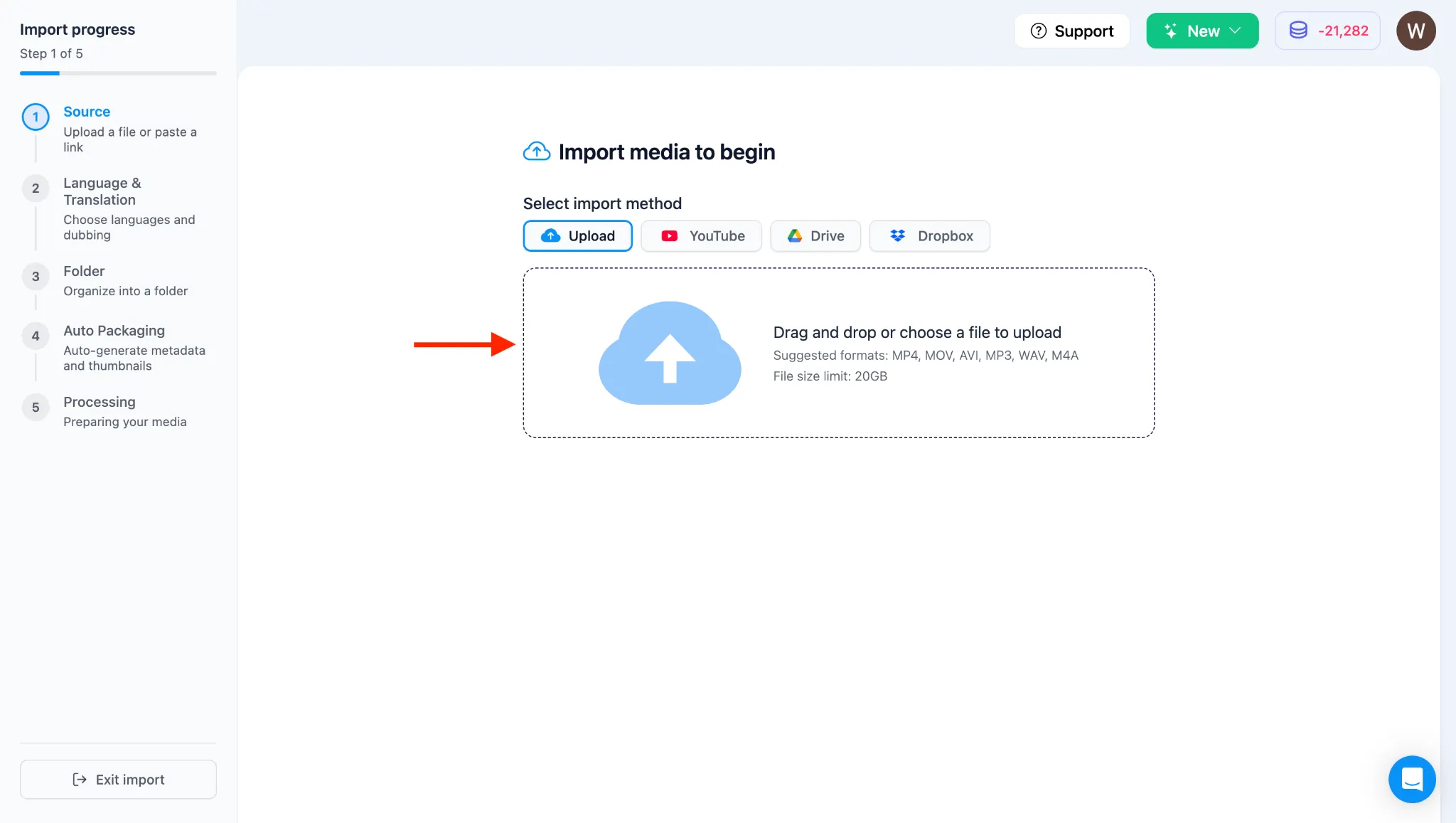
- Select the video file you want to upload from your local directory and click “Open” or “Choose”.
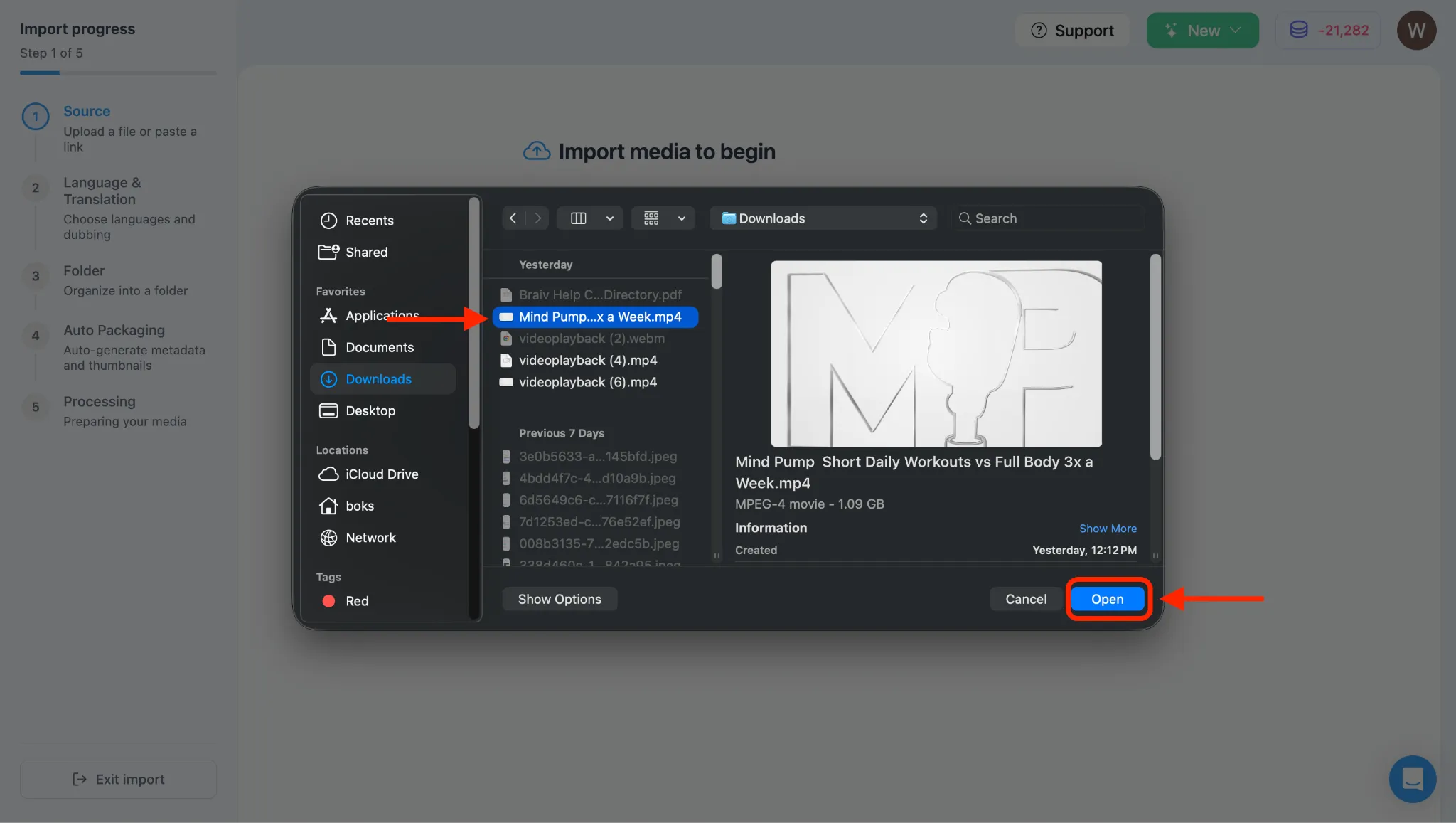
3. Verify Video Metadata and Import
Section titled “3. Verify Video Metadata and Import”- After selecting the file, you will see its filename displayed inside Braiv.
- Wait a few seconds for the video metadata to load completely.
- Once the video details load, click the IMPORT button. (If the button is temporarily unresponsive, wait a moment longer and try again).
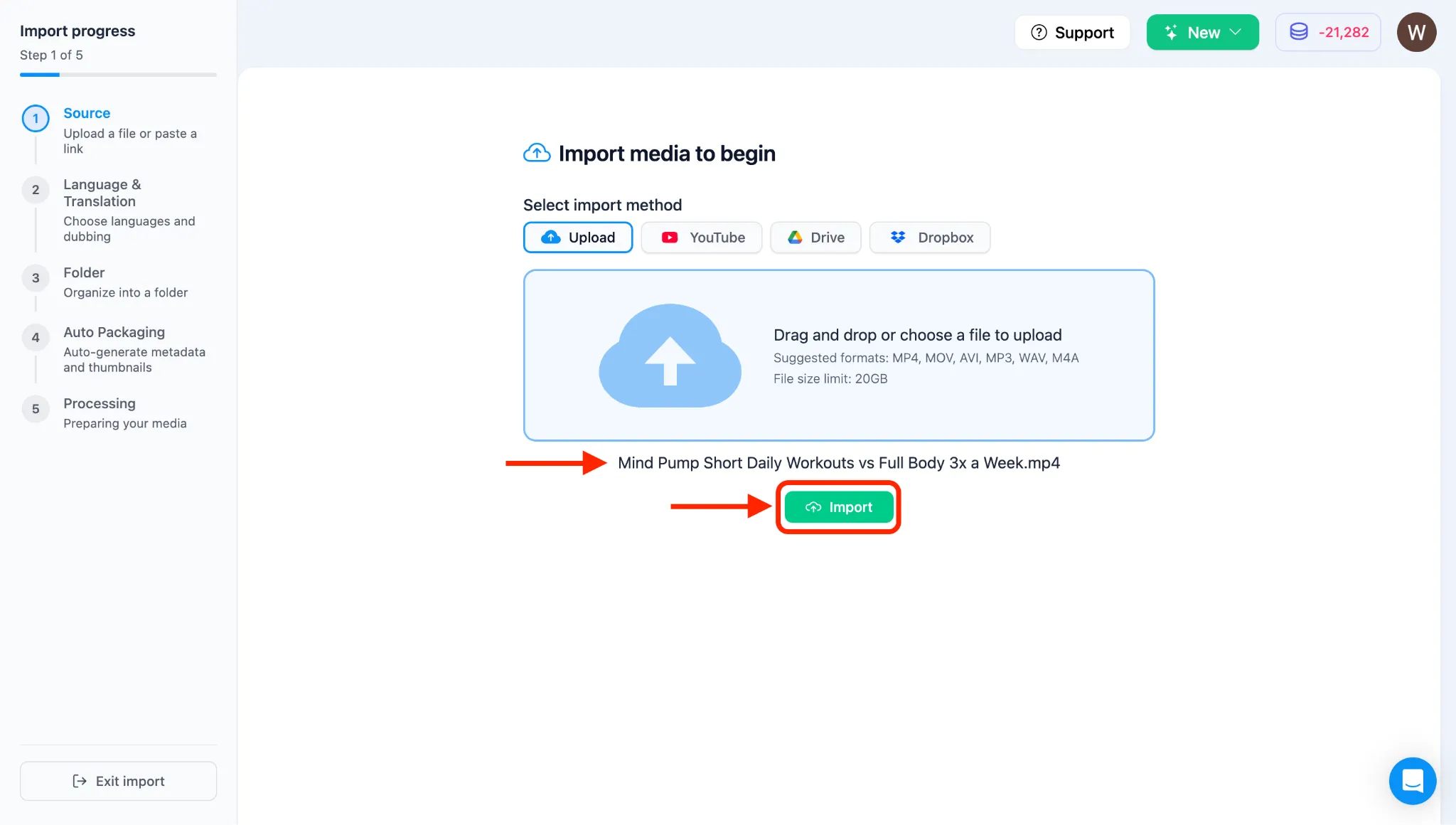
Note: After clicking IMPORT, the video will begin uploading, and you will be taken to the translation and dubbing configuration page. To customize those settings, please see our dedicated guides in Category 4: The Core Braiv Dubbing & Multilingual Process.