
Import from Dropbox download link
Importing videos directly from Dropbox allows you to quickly ingest video files stored in your cloud storage using a shareable download link, avoiding the need to manually download and re-upload large files.
Here is the step-by-step workflow:
1. Start a New Video Upload
Section titled “1. Start a New Video Upload”- Log in to your Braiv account dashboard.
- In the top-right corner of the screen, click the Create button.
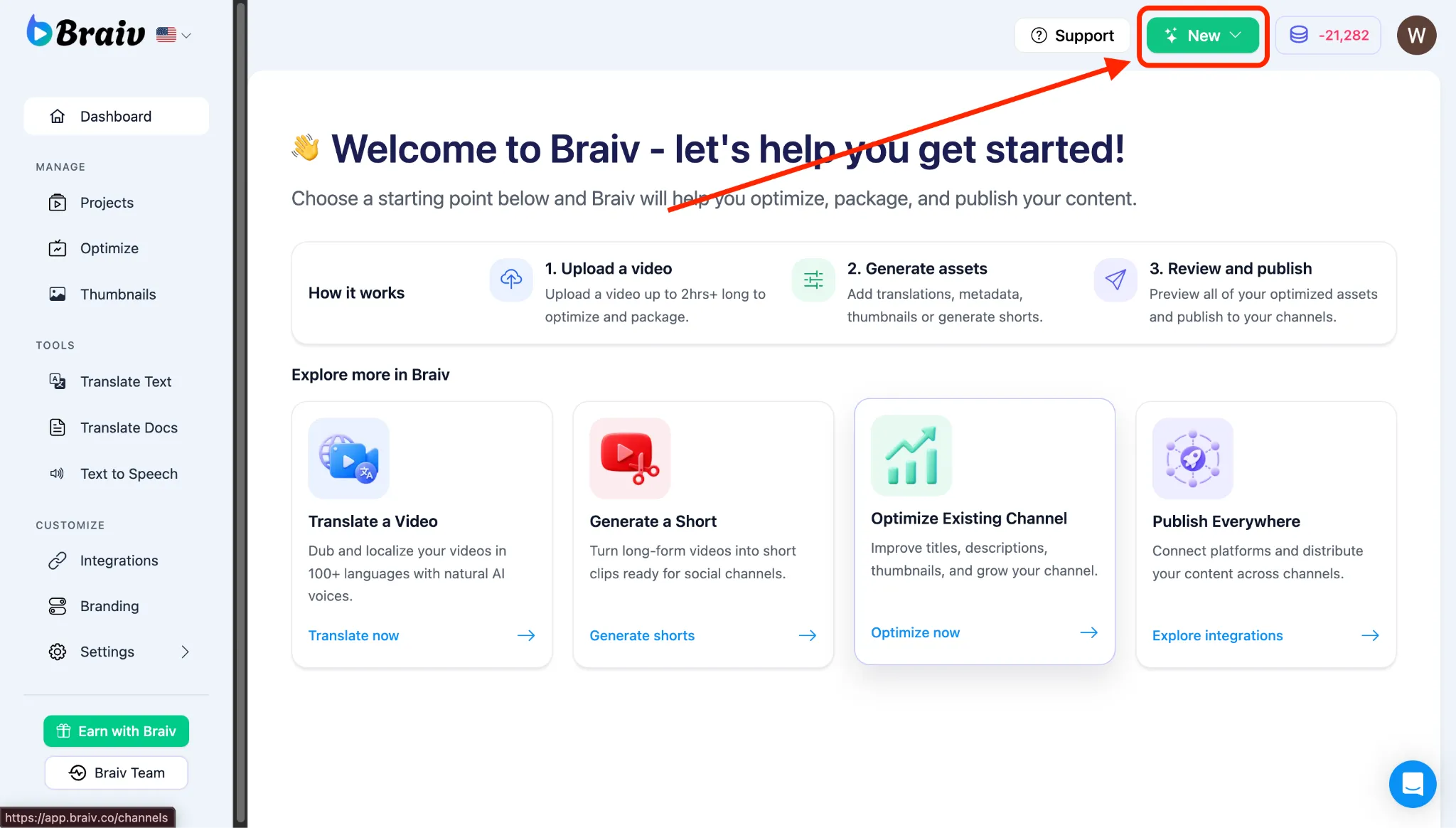
- A menu will appear, choose Translate a Video.
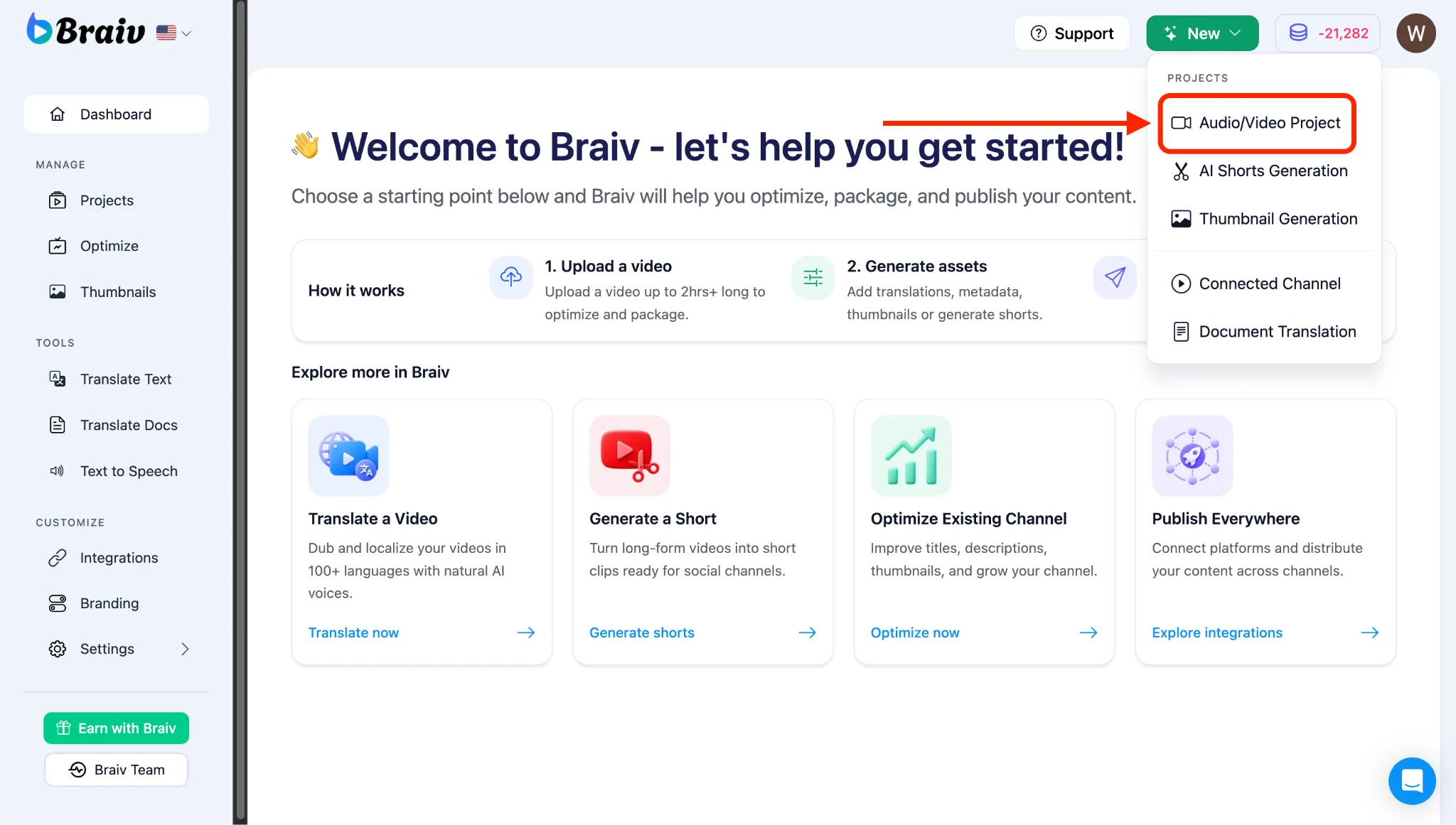
2. Select Dropbox Ingestion
Section titled “2. Select Dropbox Ingestion”- You will be taken to the Import page. From the top navigation options, select Dropbox.
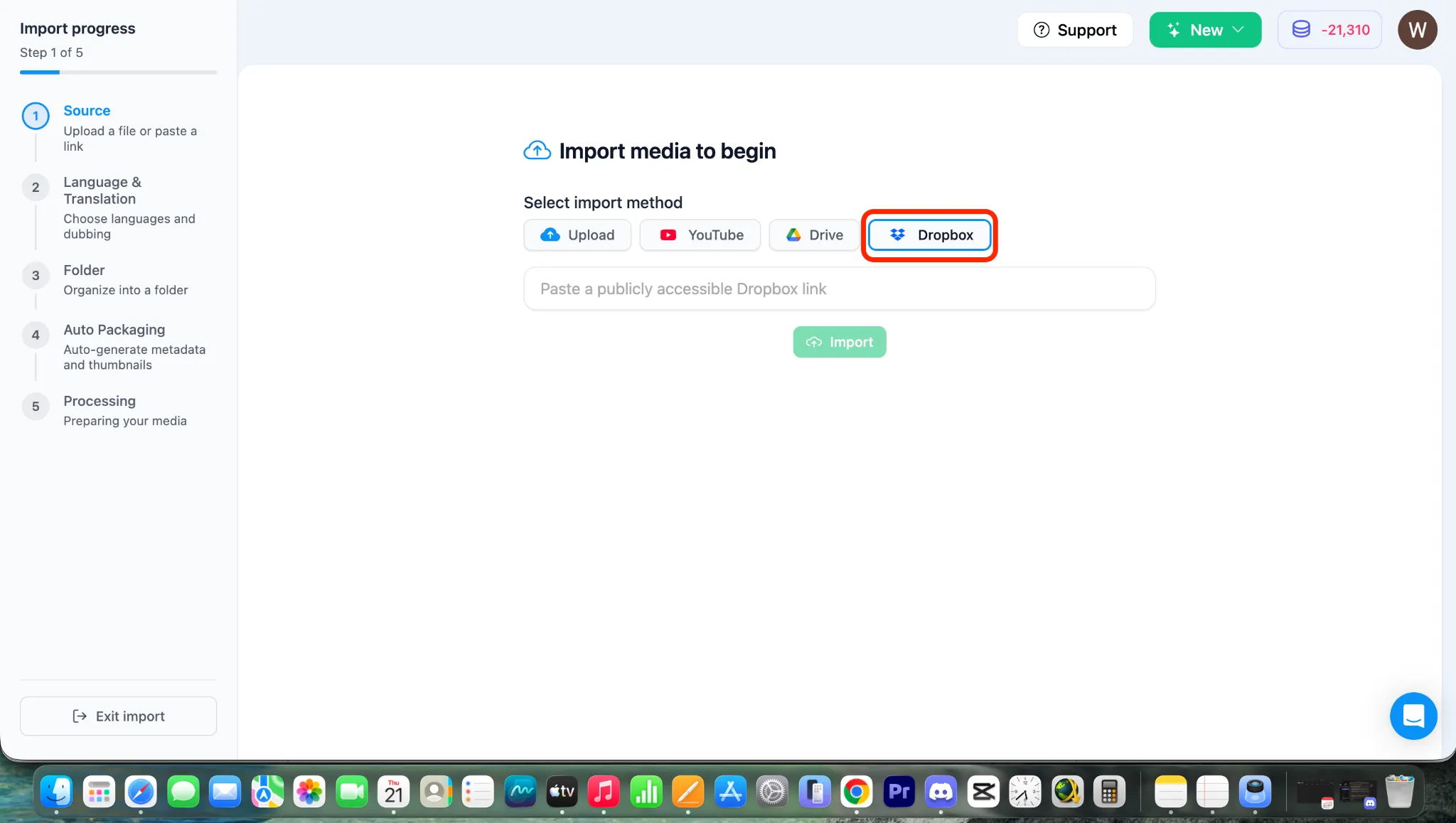
3. Retrieve Your Dropbox Download Link
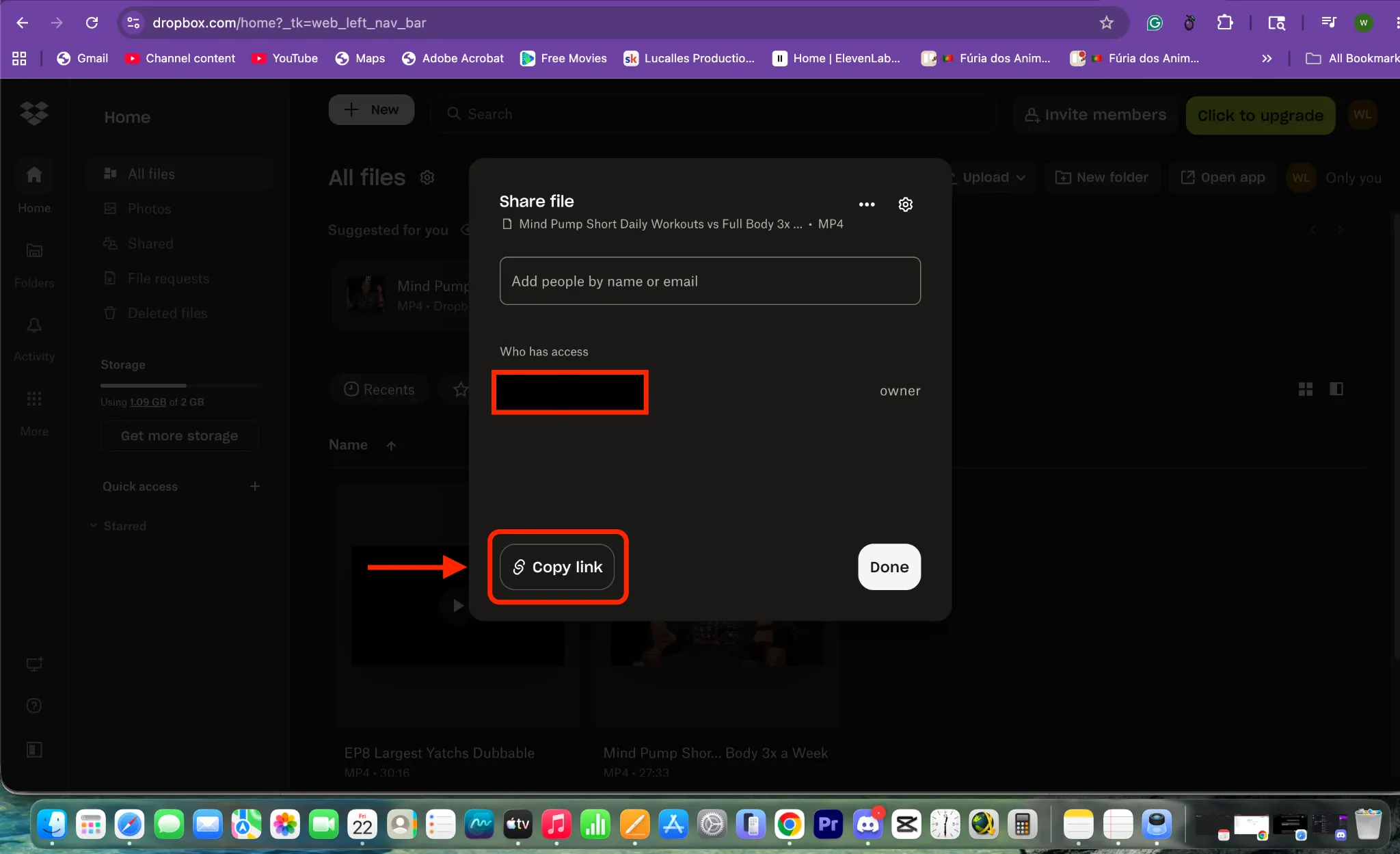
Section titled “3. Retrieve Your Dropbox Download Link”To successfully import your video, you must copy a direct download link from your Dropbox account.
- Go to your Dropbox account and locate the video file you wish to import.
- Click the Share or Copy Link icon next to the file.
- Ensure that link sharing settings allow downloading (anyone with the link can view/download the file).
4. Paste and Import Your Video Link
Section titled “4. Paste and Import Your Video Link”- Go back to your Braiv import page.
- Paste the copied Dropbox link into the URL input box.
- Click the IMPORT button.
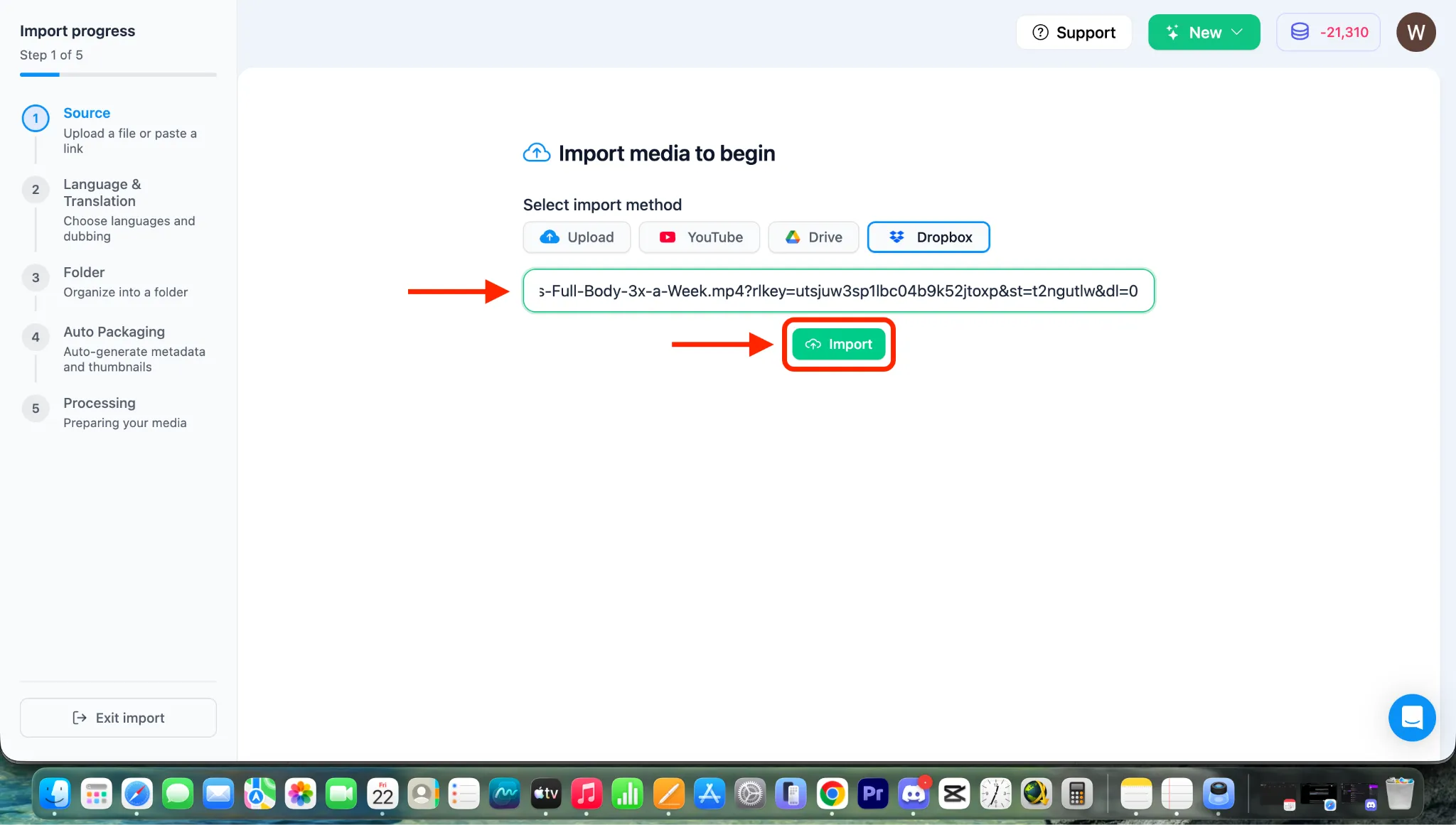
Note: After clicking IMPORT, the video will begin importing directly from your Dropbox cloud, and you will be taken to the translation and dubbing configuration page. To customize those settings, please see our dedicated guides in Category 4: The Core Braiv Dubbing & Multilingual Process.